Custom fields
Store extra details with each testimonial, such as company size or country, and show them on widgets, Wall of Love pages and share pages.
Custom fields are your own details stored with each testimonial, such as company size, industry, the product someone bought or where they live. You define them once for the project, collect their values through forms, the inbox and imports, and choose where visitors see them.
Field types
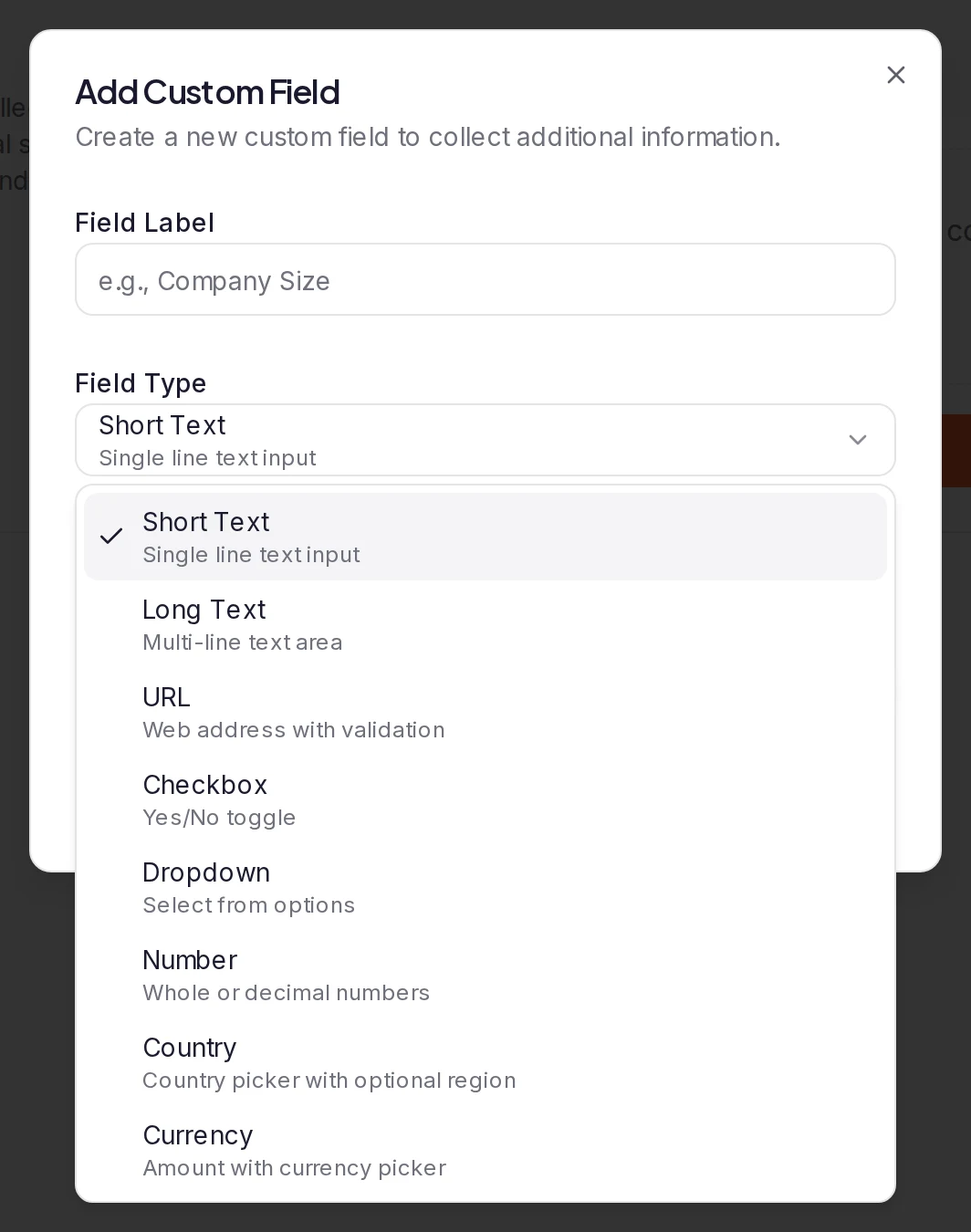
When you create a field, you pick one of eight types:
| Type | What it holds |
|---|---|
| Short Text | One line of text. |
| Long Text | Several lines of text. |
| URL | A web address starting with http:// or https://, shown as a link. |
| Checkbox | Yes or No. Hide When Unchecked keeps a No off your cards. |
| Dropdown | One of the Options you list. |
| Number | A whole number, or a decimal when you turn on Allow decimals. You can set a Minimum value, a Maximum value and Allow negative numbers. |
| Country | A country picker. Collect region / state can also ask for a region: a dropdown for the US, Canada, Australia, the UK and India, a text box elsewhere. |
| Currency | An amount with its currency. Set a Default currency, and Limit to specific currencies if you want. |
Every field also has Required (people must fill it in) and Show Label (show the field's name next to its value on cards). You can't change a field's type after you create it.
Where the values come from
- Forms. A field appears on a form only when you switch it on for that form's About You or About Company page. Each form can give it its own label, placeholder and Required setting.
- The inbox. The Add a text testimonial and Add a video testimonial dialogs, and the Edit window of any testimonial, have a Custom Fields section.
- Imports. When you import a CSV, Excel or JSON file, you map columns to your fields. See Custom fields in "Import file columns and formats".
To see a testimonial's values in the inbox, click Show more on its card.
Where the values appear
- Widgets: hidden until you turn them on. In the widget builder, open Custom Fields on the Design tab and switch on Show custom fields, then choose the Position and the Fields to Show.
- Wall of Love: shown by default, below the author. On the wall's Design tab, Custom Fields sets the Display Position (or Hidden) and which fields show.
- Share pages: every field with a value is shown while Show custom fields on share pages is on. It's on by default, under the Share Pages tab of your project settings. Turn it off if your fields hold internal details that shouldn't be public.
- Emails: in a form's Notifications tab, Merge Tags lists
{custom_fields}(all of them) and one{cf:…}tag per field for your email templates. The Custom Fields tab shows each field's tag too, with a button to copy it. See Set up the emails a project sends. - Translations: Short Text and Long Text values are translated along with the testimonial. See Translate testimonials.
- Project webhooks (Premium and Business) send each field's label and value with the testimonial.
- Proof Intelligence reads your fields, with their labels, when it analyzes a testimonial. See Proof Intelligence.
Numbers and amounts are always written the US English way, such as 1,250.5.
Countries as flags
A Country field can show the country's Name, its Flag or Flag + name. You choose separately for each widget and wall (the Display as menu under the field) and for share pages (Country field display, under the Share Pages tab of your project settings).
Plans and permissions
Custom fields are included in Pro, Premium and Business. Each project can have 2 on Pro, 5 on Premium and 5 on Business. The Custom Fields tab shows how many you've used.
If your plan changes to one without custom fields, your fields and their values are kept, but widgets, walls, share pages and forms stop showing them and the inbox stops asking for them.
Only the workspace owner and the project's Admins see the Custom Fields tab and can create, edit or delete fields. Anyone who can edit testimonials can fill in their values.
In this section
- Add custom fields: create a field, collect it and show it.
Was this page helpful?