Edit a testimonial
Fix a testimonial's text, update the author's details, date and images, correct a video transcript and change its tags.
You can correct a testimonial's words, update who wrote it and change the details shown with it. Everyone on the project except Viewers can edit testimonials.
Find the testimonial
In your project's sidebar, open Pending, Approved or Archived and find the testimonial. In a long list, filters and search help.
Open the edit window
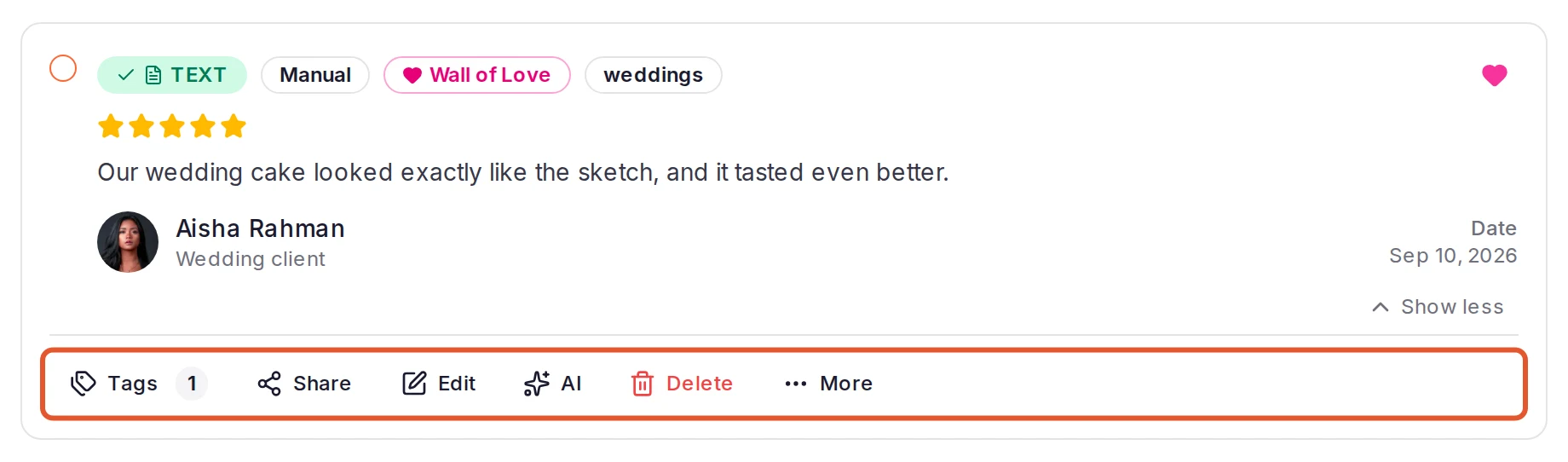
Click Show more on its card, then Edit. Depending on the testimonial's type, the window is called Edit Testimonial, Edit Video Testimonial or Edit Audio Testimonial.
Make your changes
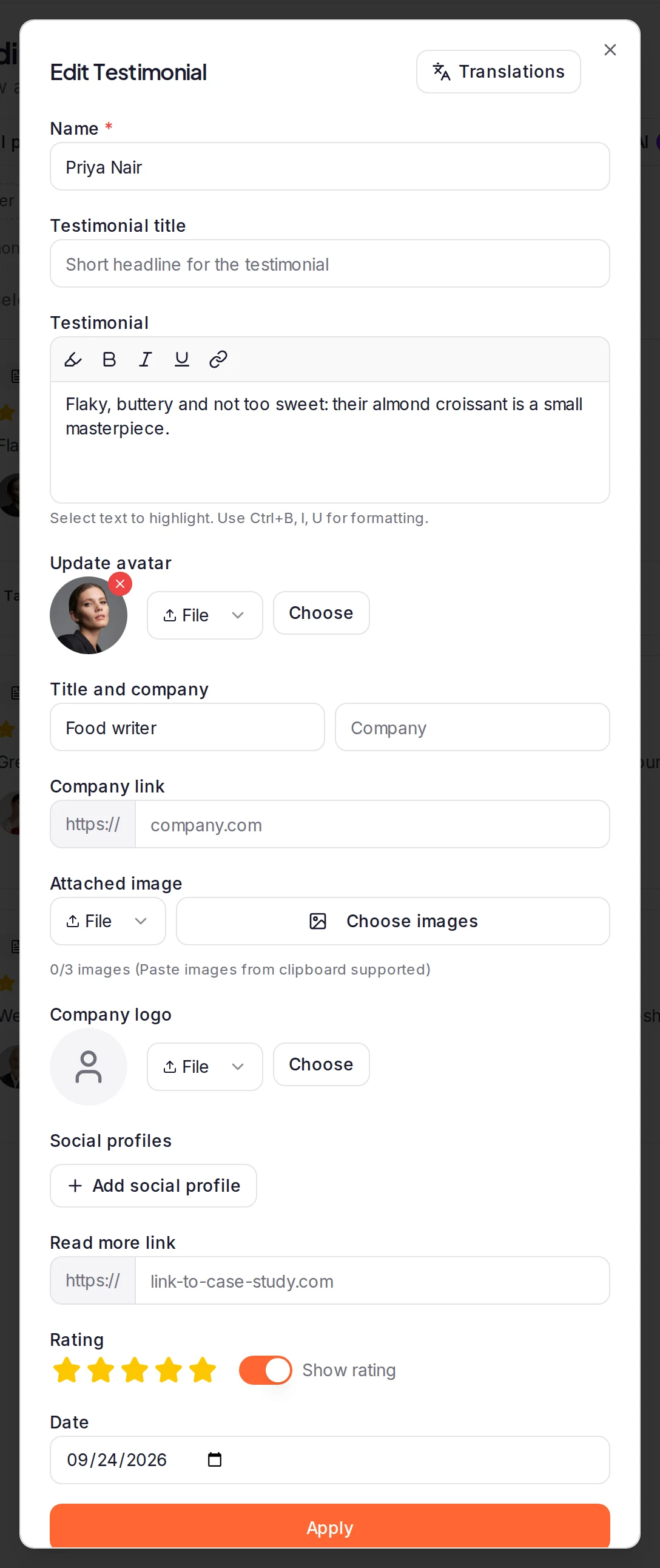
The window has these fields:
- Name, Testimonial title (a short headline) and Title and company.
- Testimonial, for a text testimonial: its words. The toolbar above them highlights, bolds, italicizes, underlines or links the text you select.
- Update avatar and Company logo: click Choose to upload an image, or switch to URL to add one from a link. The X on the picture removes it.
- Company link, Social profiles and Read more link, plus Attached image for a text testimonial.
- Date: the date shown with the testimonial.
- Custom Fields, when your project has any. Changing their values needs Pro, Premium and Business.
For a video recorded in a form or uploaded to ReTestimonial, Thumbnail sets its cover image: pick a frame, such as Start or Middle, or click Custom to upload your own.
Under Rating, click a star to change the rating, and switch Show rating off to keep the stars but hide them on your widgets, walls and share page. The author's email isn't in the edit window, and you can't swap the video or audio file itself.
Save
Click Apply. Name and any custom field marked with * must be filled in. If saving fails, see Can't approve, edit or delete a testimonial.
Correct a video transcript
In Edit Video Testimonial, under Transcript, click Edit transcript. Click a word to change it, then press Enter to keep the change or Esc to undo it. Highlighted words are ones the transcript may have misheard. Click Save all transcripts when you're done. Your corrections are used for the video's captions.
After you've edited a transcript, Regenerate transcript appears at the top of the Edit Transcript window. It brings back the original and discards your corrections. To delete the transcript, click Remove transcript, then Apply.
If the window says the transcript is being generated, check back in a few minutes. Videos added from a link to another site, such as YouTube, have no Transcript or Thumbnail section.
Change tags
Tags aren't in the edit window. Click Show more on the card, then Tags, and tick or untick tags. Each change saves straight away. To create tags, open Options above the list and choose Manage tags.
Imported reviews
You edit a review imported from a review platform the same way, from Pending, Approved or Archived. The All Imports view has no Edit.
Syncs from a connected review platform only add reviews that aren't in your project yet, so they don't undo your edits. Re-importing a file with Update existing by source URL turned on does replace a matching testimonial's details with the file's values.
What happens next
- Editing doesn't change a testimonial's status. A pending testimonial stays in Pending until you approve it.
- Once it's approved, your widgets and Wall of Love pages show the new version within a few minutes, with no new embed code. Its share page is updated too.
- Translations, at the top of the edit window, holds the testimonial's text in other languages. It's available on Business.
Next steps
Was this page helpful?
Keep spam out of your inbox
Set how strictly form submissions are checked for spam, block or allow email addresses, and restore or delete testimonials in Spam.
Custom fields
Store extra details with each testimonial, such as company size or country, and show them on widgets, Wall of Love pages and share pages.