Translate testimonials
Translate testimonials by hand or with AI, one at a time or in bulk, and show them in your visitors' language on widgets and Wall of Love pages.
Give your testimonials translated versions, then let your widgets and Wall of Love pages show each visitor the version in their language. Translations are part of Business. Everyone on the project except Viewers can add them.
Open a testimonial's translations
In Pending or Approved, click Show more on the testimonial's card, then Edit. At the top of the edit window, click Translations.
Add a language
Click Add language and pick one. The row at the top shows Original and each of the testimonial's languages; one you haven't saved yet says "(unsaved)".
Translate it
- With AI: click AI translate. The testimonial, its title, Author title, Company and any Short Text or Long Text custom fields are translated and saved straight away, marked AI translated. Each language uses an AI credit, which comes back if the translation fails. AI needs written text, so a video with no written testimonial can't be translated this way.
- By hand: fill in Translated testimonial, Testimonial title, Author title, Company and any custom field boxes, then click Save translation. A box you leave blank shows the original.
You can also correct an AI translation and click Save translation. It then counts as your own: AI translate warns that it will overwrite it, and bulk translation never changes it.
Turn translations on for a widget
In the widget builder, open the Settings tab and click Translations & texts. Under Show testimonials in, change Original language to:
- Visitor's language: the language of the page the widget is on (its
<html lang>), or else the visitor's browser language. - One fixed language: every visitor sees the language you pick.
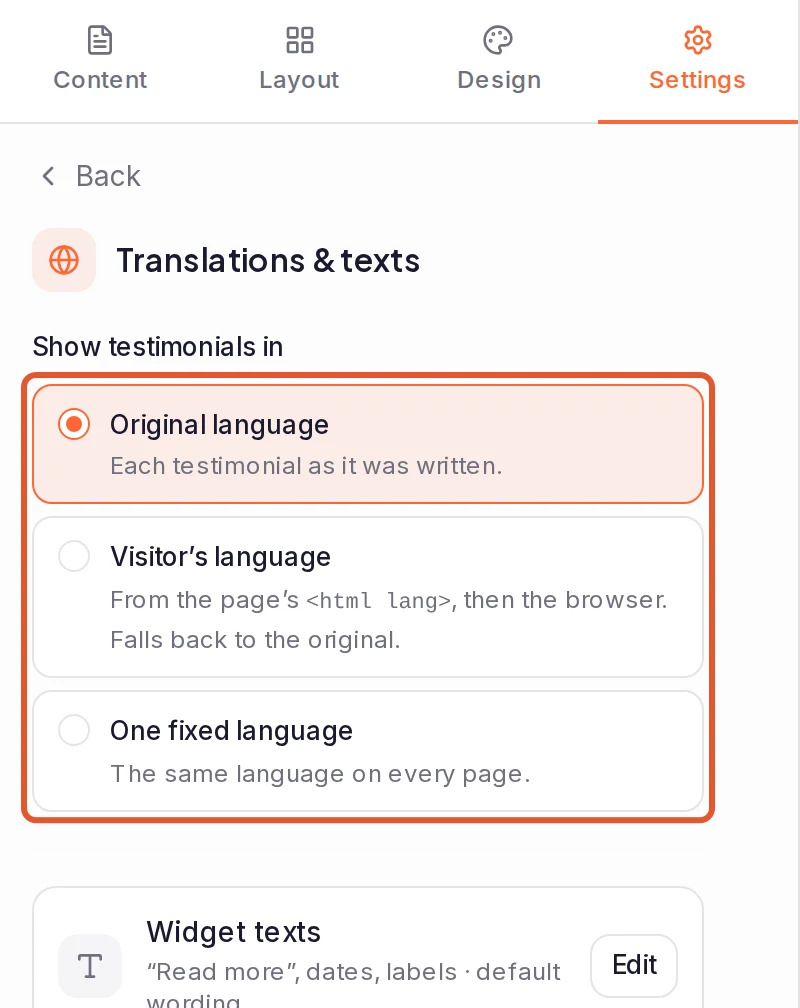
Translation coverage then shows how many of the widget's testimonials have a translation in each language. One without a translation shows its original text.
To force a language on one page, add data-language="de" (with your language's code) to the widget's embed <div>.
Turn translations on for a Wall of Love
In the wall builder, open the Hosted Page tab and switch on Translations, under Found & shared. Choose Auto-detect, which matches the visitor's browser language on the hosted page (in an embed, the host page's <html lang> comes first, then the browser language), or Fixed language and pick one. Switch on Language selector to let visitors of the hosted page pick a language themselves.
The tab says Hosted page only, but this setting applies to the wall's embed too.
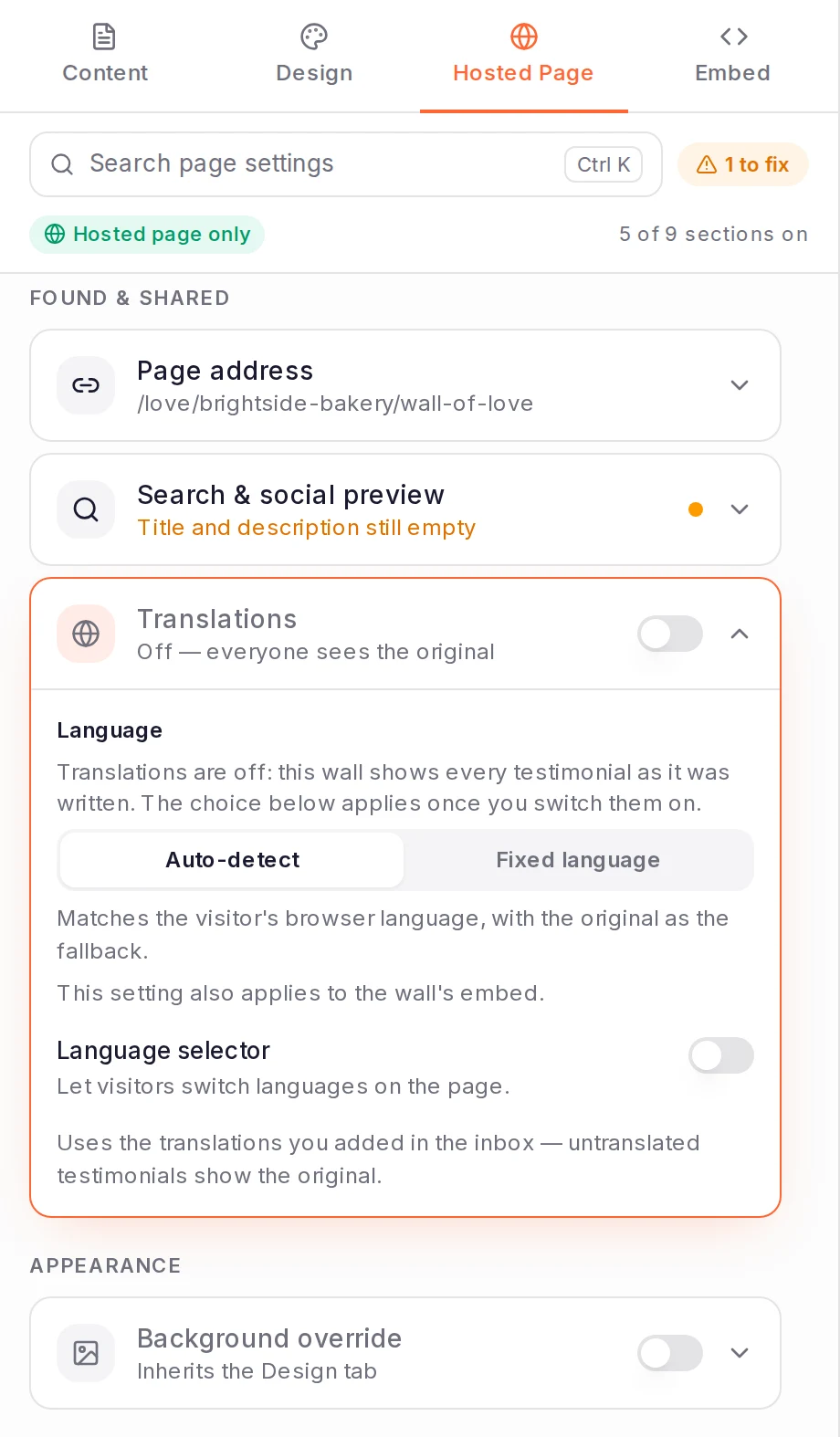
Which version visitors see
- A testimonial with no translation in the visitor's language shows the original, and so does any box you left blank.
- A regional language falls back to its main one: a visitor using Portuguese (Brazil) sees your Portuguese translation when there's no Portuguese (Brazil) one.
- On the hosted wall, add
?lang=deto the link to open it in one language, or?lang=originalto show the original. A wall's embed code takesdata-languagetoo, like a widget's. - Share pages always show the original text, and the words spoken in a video aren't translated.
To check a language in the widget builder, pick it in the language menu above the preview. The menu in the Preview window also shows how many of the widget's testimonials have that translation, such as 7/10 translated.
Translate many testimonials at once
- In Pending or Approved, select the testimonials. To find the ones without a translation, filter by Translations and choose Not translated first; Select all in the selection bar includes every match.
- Open the menu at the end of the selection bar and click Translate.
- In Translate testimonials, click Add language for each language you want.
- Leave Skip already-translated on to skip languages a testimonial already has. With it off, AI translations are done again and use credits again. Translations you wrote or corrected are never overwritten.
- Click Translate.
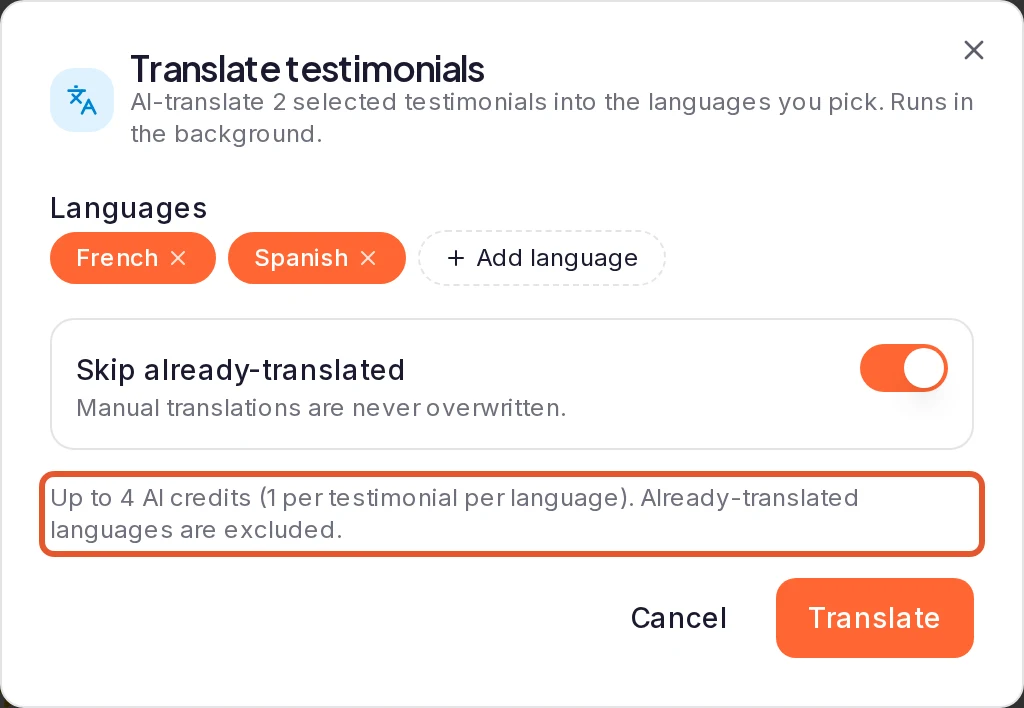
The dialog shows the most credits the run can use: one per testimonial per language. It runs in the background: the list shows "Translating…" with how many remain, and a message tells you when it's done. Spam and testimonials with no written text are skipped. For how credits work, see AI credits.
Translate the widget's own words
Widgets have built-in words, such as "Read more", dates and navigation labels. In the widget builder's Settings tab, open Translations & texts and click Edit beside Widget texts:
- Default rewords them for every language. Available on Pro, Premium and Business.
- Add language sets the wording for one language, on Business. AI translate texts fills in that language for an AI credit. A box you leave blank uses the default.
A language's wording shows only while Show testimonials in is set to Visitor's language or One fixed language.
Change or remove a translation
Open Translations again and click the language. Edit it and click Save translation, or click Delete to remove it.
If your plan no longer includes translations, your saved translations are kept and you can still view or delete them, but widgets and walls show the original text.
What happens next
Widgets and walls with translations turned on show new and changed translations without new embed code.
- In the inbox, the Translations filter finds testimonials by language, or with none.
- In auto-sync, Translated language keeps only testimonials translated into the languages you pick. See Fill a widget with auto-sync.
- Edit a testimonial
- Customize a widget
Was this page helpful?
Add custom fields
Create a custom field for your project, ask for it on your forms and show its values on your widgets, Wall of Love pages and share pages.
Proof Intelligence
How AI reads each testimonial for sentiment, themes, features and a showcase score, where you see the results, and the AI credits it uses.