Rewards for testimonials
How rewards thank customers for a testimonial, from coupon codes to gift cards, where gift card money comes from and what the Rewards page shows.
Rewards thank customers for their testimonial. You set a reward on a form, and everyone who submits that form and meets its conditions gets it: a coupon code, a link, content of your own, or a gift card that you pay for. Only people who submit one of your forms can earn a reward, so imported reviews and testimonials you add yourself never do.
What you can offer
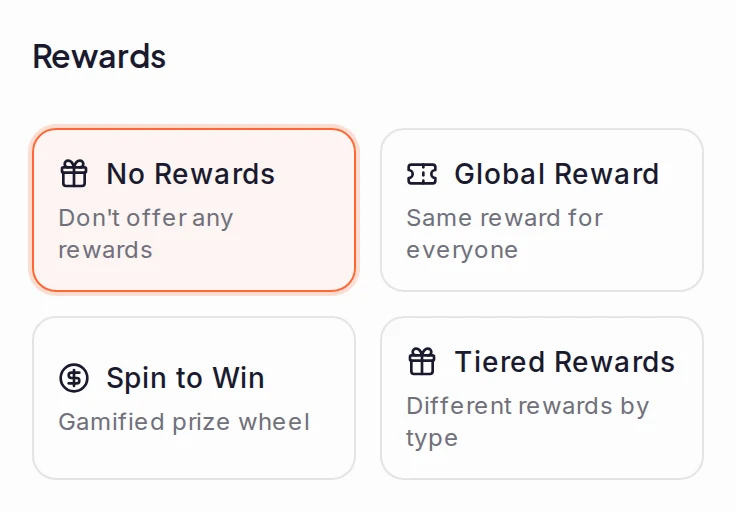
Each form has its own reward, on the Rewards tab of the form builder. First choose how it's given:
- Global Reward: the same reward for everyone.
- Spin to Win: a prize wheel the customer spins after submitting. It gives coupon codes and links only.
- Tiered Rewards: a different reward for a video or a text testimonial.
Then pick the Delivery Method:
- Coupon Code, External Link and Custom HTML appear on the form's thank-you page as soon as the customer submits. If the reward waits for your approval, the customer is emailed it when you approve the testimonial instead.
- The customer gets the reward as it was when they submitted, even if you change the form's reward before you approve.
- It needs the customer's email address. A customer who leaves the email empty is told the reward needs one, and gets no reward. To make sure everyone can receive it, expand Customer email on the form's About You page and tick Required.
- The reward inside the email is plain text. A Custom HTML reward arrives as its text, with each link's address written out, so images and styling don't carry over. To show the HTML as you designed it, turn off the reward's Require Approval condition.
- Gift Card sends a gift card worth the amount you set, paid from money you add in advance. Only gift cards appear on the project's Rewards page.
- A gift card that waits for your approval is set aside when the customer submits. Approving sends that gift card, at that amount, even if you change the form's reward or remove it before you approve.
How a gift card reaches your customer
- The customer submits your form with their email address. A gift card needs one; without it, the thank-you page says so and no gift card is sent.
- The form's conditions are checked. If the testimonial doesn't meet them, there's no reward (see Protection against abuse).
- The amount is set aside from the project's balance. When the form's Require Approval condition is on (it is on a new form), the gift card then waits until you approve the testimonial (see Approve, reject and archive testimonials). If you reject, archive or delete it instead, the amount goes back to the project's balance. A testimonial that's approved automatically when it's submitted doesn't wait.
- ReTestimonial issues the gift card and emails it. The email comes from your project's name "via ReTestimonial" at
rewards@mail.retestimonial.com, with your project's logo if it has one. Its subject names the amount and your project ("Your … reward from …"), the email shows the amount in a panel of its own, and its Redeem my reward button opens the gift card. The customer chooses from the gift cards you picked under Gift Card Options, or picks their own if you left it empty. Replies go to the workspace owner's email address.
Where the money comes from
Gift cards are paid for in advance. The workspace owner adds money to the workspace's rewards wallet, then moves some of it into each project's balance. Each gift card is paid from its project's balance, never straight from the wallet. See Add funds for gift card rewards.
A project also needs Enable Rewards turned on in its settings before its forms can send gift cards. See Set up rewards for a project.
The Rewards page
Open Rewards under Collect in your project's sidebar. You see it if you own the workspace or are an Admin on the project.
- Project Balance is what's left to spend. Pending counts the gift cards waiting to be sent, including those waiting for your approval, and how much is set aside for them. Total Delivered and This Month count the gift cards sent.
- Quick Actions has Allocate to Project, Configure Form Rewards (it opens your forms) and, for the workspace owner, Add Funds to Wallet.
- Reward Analytics shows spending and delivered rewards over the period you pick, and Rewards by Form splits them by form.
- Recent Rewards lists the latest gift cards, with their Recipient, Amount, Status, Date and Order ID. A gift card that couldn't be sent, or was canceled, says so under its status. When its amount comes back to the project, the transaction history lists it as an Adjustment.
On a plan without gift cards the page says Gift card rewards aren't on this workspace's plan. Add Funds to Wallet and Allocate to Project are then off, except that Allocate to Project still opens while the project has a budget: the dialog then offers only Return to Wallet. Return all there sends back the whole budget, cents included.
Each gift card has one of these statuses:
| Status | What it means |
|---|---|
| Pending | Waiting to be sent, or waiting for you to approve the testimonial. Its amount is already set aside. If you approved the testimonial and the gift card is still Pending, ReTestimonial retries it on its own once the approval is about 10 minutes old. |
| Processing | Being issued right now. |
| Sending email | The gift card was issued, and the email with its link is on its way. |
| Delivered | The gift card was issued and the email with its link went out. |
| Issued | The gift card was issued long ago, and the record of its email is no longer kept. |
| Email not delivered | The gift card was issued, but its email didn't reach the customer. Send email again sends the same link again, to that address or another: see The gift card's email didn't reach the customer. |
| Failed | It couldn't be sent. |
| Refunded | It was canceled. |
When a gift card isn't sent
If a customer didn't get their gift card, find them under Recent Rewards. The status shows how far the gift card got, and a customer who isn't listed had no gift card set aside, for example because the project's balance was too low. A gift card that fails, or is canceled while it waits for your approval, puts its amount back into the project's balance.
For each cause and its fix, see Gift card not received.
Protection against abuse
On a form's Rewards tab, Conditions decides who earns a reward:
- Max Rewards Per Email and First N Submissions limit how many rewards go out.
- Minimum Rating, Video Only and Exclude Negative Feedback reward only the testimonials you want.
- Require Approval sends the reward only after you approve the testimonial. For gift cards, it lets you check every testimonial before money goes out.
- Budget Limit ($), under Budget & Limits for gift cards, stops the form's gift cards when that amount is reached.
ReTestimonial also limits how many gift cards, and how much money, one project can send in a day, and how often the same email address can get a gift card from one form. Submissions sent to Spam never earn a reward.
Which plans include rewards
- Form rewards are on Pro, Premium and Business. On other plans, the reward types on the form's Rewards tab are locked.
- Gift cards are on Premium and Business. On other plans, Gift Card is locked in Delivery Method. Two fees are added on top of each deposit into the rewards wallet: a service fee (7% on Premium, 0% on Business) and a processing fee (3% on Premium, 3% on Business). You see them before you pay.
See Plans and pricing.
In this section
Was this page helpful?
Manage the do-not-email list
See which addresses your project never invites and why, allow an unsubscribed customer again when they ask, and learn how unsubscribing works.
Set up rewards for a project and its forms
Turn on gift card rewards for a project, choose each form's gift card and its conditions, and see what customers get after they submit.