Approve, reject and archive testimonials
Review new testimonials in your inbox, approve the ones you want to show, and archive, restore or delete the rest.
Every project has an inbox where you decide which testimonials go live. Your project's sidebar lists its four views: Pending, Approved, Archived and Spam. Each view shows only the testimonials in that state. Filters and search narrow the list inside a view, but they never move you to another one.
Open Pending
Click Pending in your project's sidebar. It lists the testimonials waiting for your review. When there's nothing left to review, it says All caught up! A new project says No testimonials yet before its first one arrives, with ways to add it; see Collect your first testimonial.
Approve the ones you want
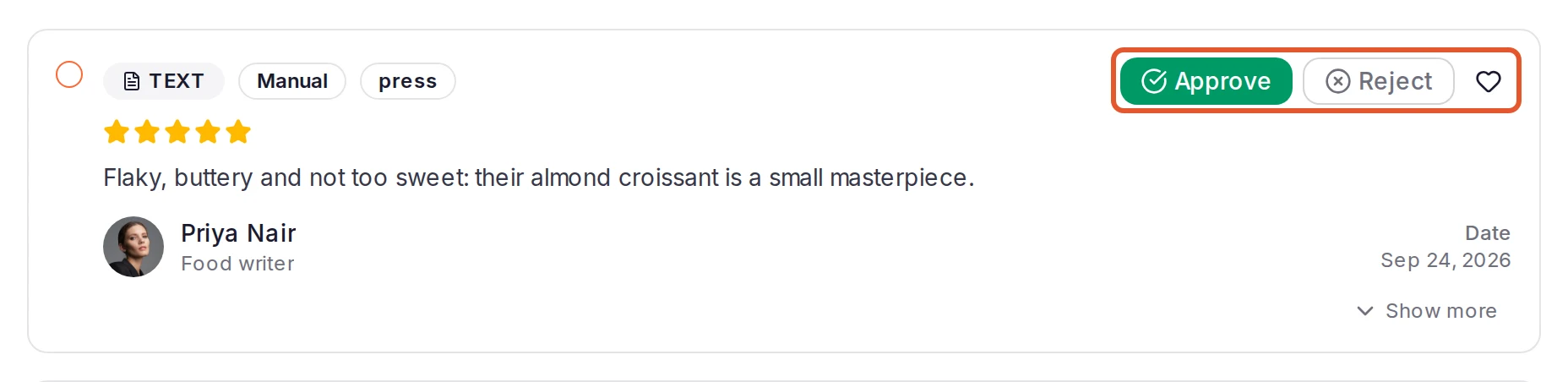
Click Approve on a testimonial you want to use. It moves to Approved, where your widgets and Wall of Love pages can pick it up.
Reject the rest
Click Reject on a testimonial you don't want to show. It moves to Archived, so you can still bring it back later.
What each action does
| Action | Where to find it | What happens |
|---|---|---|
| Approve | On each card in Pending | The testimonial moves to Approved. |
| Reject | On each card in Pending | The testimonial moves to Archived and is taken off every Wall of Love page. Its tags are kept. |
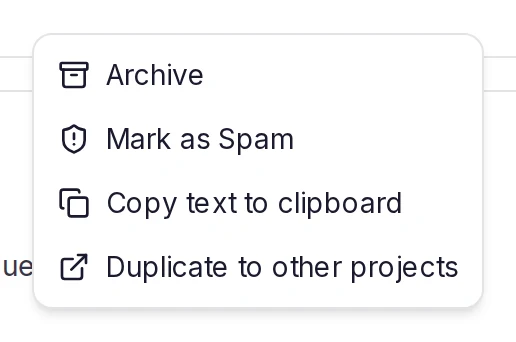
| Archive | In Approved, click Show more on the card, then More | Works like Reject: the testimonial moves to Archived and leaves every Wall of Love page. Its tags are kept. |
| Delete | Click Show more on the card | After you confirm, the testimonial is deleted permanently. This can't be undone. |
For what goes with a deleted testimonial, and what can stay elsewhere in the project, see A customer asked me to remove their testimonial. A review you imported from a review platform can't be imported again once it's deleted: see Review and export imported content.
What approval changes
- Widgets and Wall of Love pages show only approved testimonials. That's true whether you pick testimonials by hand or let a widget choose them automatically. Archiving a testimonial takes it out of both.
- Sharing needs approval. The Share menu on a card (Get the link, Create an image, Create a video) is there only once the testimonial is approved.
- The author may get an email. If the testimonial came in through one of your forms with an email address, ReTestimonial can let its author know it was approved. Whether it does depends on the project's Approval Notification email: see Set up the emails a project sends.
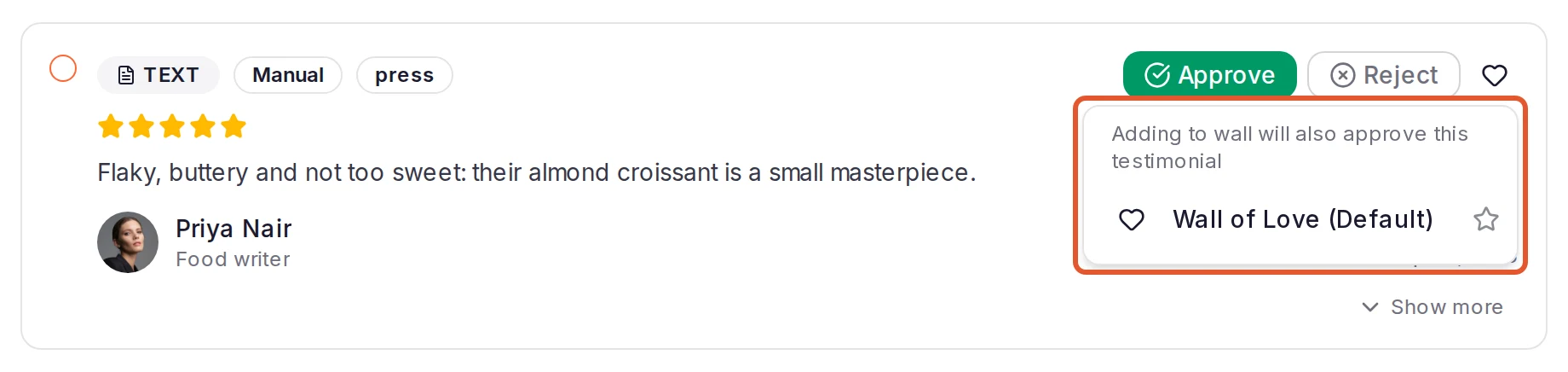
- Adding a pending testimonial to a Wall of Love page approves it. Use the heart button on its card to pick a page. See Choose and order the testimonials on a Wall of Love.
- A gift card reward can wait for approval. On a form's Rewards tab, Require Approval is on by default, so a gift card promised for a testimonial is sent only once you approve it. Approving in bulk, or by adding the testimonial to a Wall of Love page, sends the gift card that was waiting, just like approving one at a time. If a gift card doesn't go out when you approve, ReTestimonial tries again on its own after a few minutes. See Gift card not received.
When a gift card is waiting
If a testimonial's gift card is still waiting for approval, rejecting, archiving or deleting the testimonial cancels it. The money set aside for it goes back to your project's reward budget. This applies to bulk actions too. A gift card that was already sent isn't affected.
Act on several testimonials at once
In Pending and Approved, tick the checkbox on each card you want, or click Select visible. A bar appears with Approve, Reject (in Pending only), Wall of Love and Highlight. Archive and Delete are in the menu at the end of the bar. When more testimonials match than have loaded, click Select all in the bar to include every one of them.
In Spam, the bar offers Not Spam and Delete. Archived has no bulk actions, so restore testimonials there one at a time.
Restore archived and spam testimonials
- Archived: open Archived, click Show more on the testimonial and click Restore to Inbox. It goes back to Pending or Approved, wherever it was before. It keeps its tags; its Wall of Love placements don't come back.
- Spam: open Spam, click Show more on the testimonial and click Not Spam to move it out of Spam. A form submission your spam check sent there arrives like any other when you restore it, with its notification, emails and webhooks; see Keep spam out of your inbox. To restore several at once, select them and click Not Spam in the bar. Delete All Spam permanently deletes everything in the view. On a plan with a limit on written and audio testimonials, restoring can be refused when it would go past that limit; see Keep spam out of your inbox.
Keyboard shortcuts
In Pending you can review testimonials from the keyboard. The shortcuts work while nothing is selected and you're not typing in a field. Press J to start at the top of the list.
| Key | What it does |
|---|---|
J or ↓ | Focus the next testimonial |
K or ↑ | Focus the previous testimonial |
A | Approve the focused testimonial and move to the next one |
R | Reject the focused testimonial and move to the next one |
W | Open the focused testimonial's Wall of Love picker (the heart button), to add it to a page, which also approves it |
Esc | Clear the focus |
Only the workspace owner and project Admins can delete testimonials or add them to a Wall of Love page. Viewers can see the inbox but can't change anything in it. If a button is missing or an action fails, see Can't approve, edit or delete a testimonial.
Next steps
Was this page helpful?
Add a testimonial by hand
Type in a testimonial a customer sent you, with a rating, a photo and images, and find it in Pending once it's saved.
Filter and search your inbox
Find testimonials with keyword or AI search, narrow the list with filters, change the sort, and export every testimonial to a CSV file.