Set up rewards for a project and its forms
Turn on gift card rewards for a project, choose each form's gift card and its conditions, and see what customers get after they submit.
Thank customers who submit a testimonial through one of your forms with a gift card. You turn rewards on for the project, then choose the gift card on each form. Gift card rewards are available on Premium and Business, and you need to own the workspace or be an Admin on the project.
Gift cards are paid from the project's budget, so put money in it first: see Add funds for gift card rewards.
Open the project's rewards settings
Open the project, click the gear icon next to its name at the bottom of the sidebar, and choose the Rewards tab. If your plan doesn't include gift cards, the tab shows Gift Card Rewards with a link to upgrade instead.
Turn on rewards
Under Rewards Status, switch on Enable Rewards. Forms can give gift cards only while it's on, and moving money into the project doesn't turn it on for you.
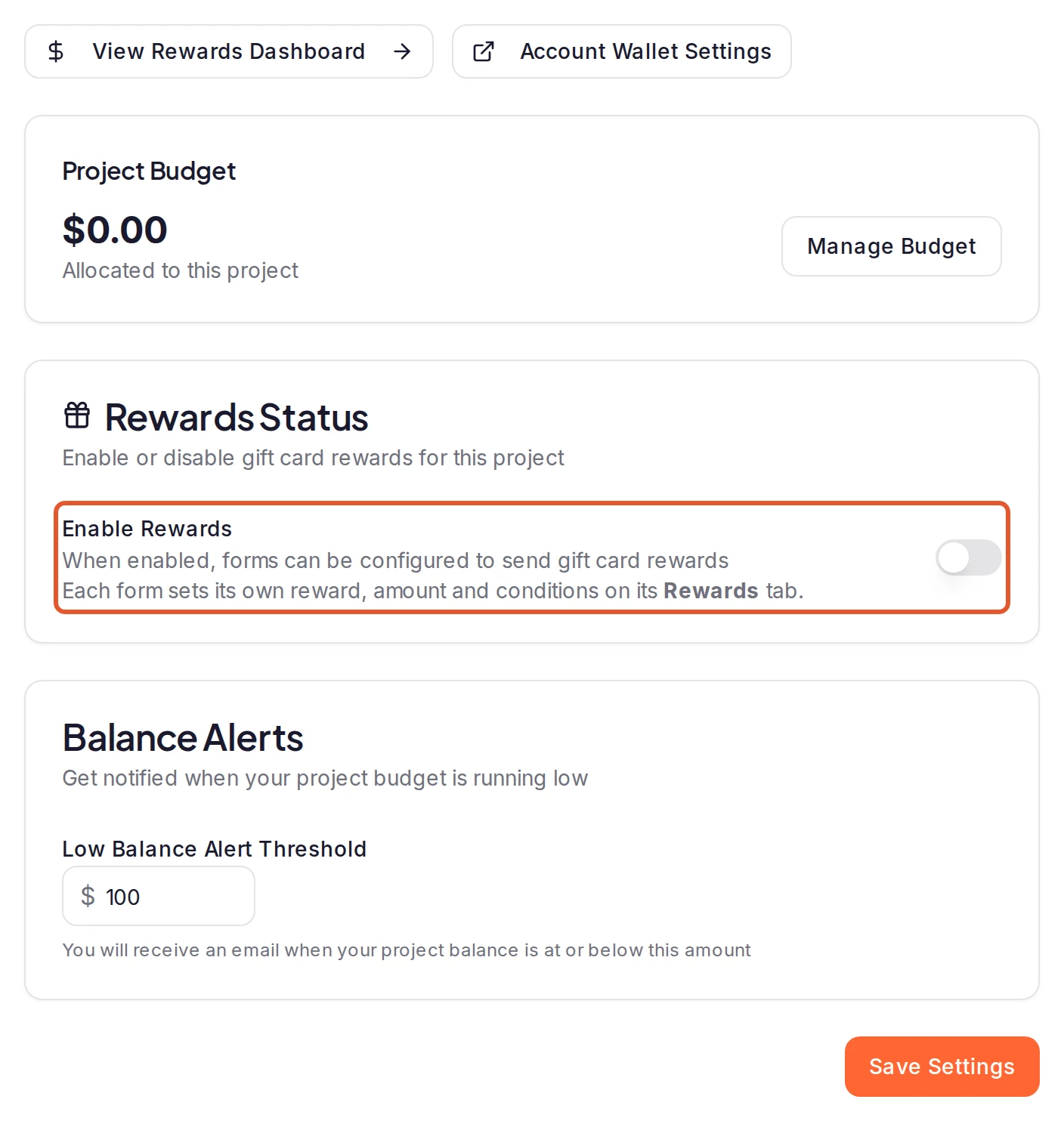
Project Budget at the top of the page shows the amount Allocated to this project, which is zero until you move money in. Every gift card is paid from it. Click Manage Budget to add more.
Set a balance alert and save
Under Balance Alerts, enter a Low Balance Alert Threshold in whole dollars. After each gift card is sent, if the project's budget is at or below this amount, ReTestimonial emails the workspace owner, and the project's owner and Admins get a notification in the dashboard. You're also alerted when the budget runs out or will cover only a few more gift cards of that size. A project sends at most one alert a day.
Click Save Settings. Nothing on this page is saved until you do.
Choose a gift card on a form
Open the form from Forms under Collect in your project's sidebar and click the builder's Rewards tab. Choose Global Reward to give everyone the same gift card, or Tiered Rewards to give video and text testimonials different ones. Spin to Win can't give gift cards.
Two tabs appear below. On Settings, set Delivery Method to Gift Card, then fill in the reward. With Tiered Rewards, the Video Testimonial Reward and Text Testimonial Reward cards each take their own; a type whose card you leave empty earns nothing.
- Reward Title and Description: what the customer sees after submitting.
- Gift Card Amount ($): the gift card's value. Without an amount, no gift card is sent.
- Gift Card Options: pick the gift cards the customer can choose from, or leave it empty to let them choose.
The builder saves your changes automatically.
Decide who gets one and when
Open the Conditions tab:
- Require Approval: hold the gift card until you approve the testimonial. It's on for a new form. Turn it off only if you're happy to pay before you've seen the testimonial.
- Max Rewards Per Email: how many rewards one email address can get from this form.
- Video Only, Minimum Rating and First N Submissions: reward only video testimonials, only ratings at or above a level, or only the first so many submissions (0 means no limit).
- Exclude Negative Feedback, on by default: no reward when the rating is at or below the form's Negative Feedback Threshold. See Collect negative feedback privately.
- Budget Limit ($), under Budget & Limits: stop giving this form's gift cards once they add up to this amount (0 means no limit).
Ask for an email address
Gift cards are sent by email. On the form's About You page, keep Customer email switched on, click the arrow beside it and tick Required. A customer who submits without an email address gets no gift card.
What customers see
The form doesn't mention the reward until the customer submits, so say so in your welcome text if you want them to know. After they submit:
- Without approval, a reward screen shows your Reward Title and Description. For a Global Reward with no description, it says "Check your email for your gift card redemption link." An email from your project follows, with a link to redeem the gift card. If the gift card can't be given, for example because Enable Rewards is off, the budget is too low or the form's Budget Limit ($) is reached, they see "We could not process your reward right now." instead.
- With approval, the thank-you page shows your reward's title (or "Reward pending") and "Your reward will be available after your testimonial is reviewed." The email comes after you approve.
- Without an email address, they see "Gift card rewards require an email address."
- Customers who don't meet your conditions see your usual Thank You page.
Good to know
- Approving sends the gift card. With Require Approval on, the amount is set aside from the project's budget when the testimonial arrives, and the gift card goes out when you approve the testimonial, one at a time or several at once. If you reject, archive or delete it instead, the amount goes back to the project's budget.
- A form that approves on its own doesn't wait. If Require Approval is off under Behavior on the builder's Settings tab, or a rating reaches its Auto-Approve Threshold, the testimonial arrives approved and its gift card goes out straight away.
- Other kinds of reward. A form can give a Coupon Code, an External Link or Custom HTML instead of a gift card, on Pro, Premium and Business. These don't use the project's budget or Enable Rewards. Custom HTML shows as you designed it only on the thank-you page; when the reward waits for approval, the customer is emailed its text instead.
What happens next
Testimonials that meet your conditions now earn a gift card. To follow them, open Rewards under Collect in your project's sidebar: Recent Rewards lists the gift cards sent.
Was this page helpful?
Rewards for testimonials
How rewards thank customers for a testimonial, from coupon codes to gift cards, where gift card money comes from and what the Rewards page shows.
Add funds for gift card rewards
Add money to your workspace's rewards wallet, move it into each project's budget, and read the wallet's recent transactions.