Add funds for gift card rewards
Add money to your workspace's rewards wallet, move it into each project's budget, and read the wallet's recent transactions.
Gift card rewards are paid from money you add in advance. You add funds to your workspace's rewards wallet, then move some of it into each project's budget, which pays for that project's gift cards. Gift card rewards are available on Premium and Business. Only the workspace owner can add funds; the owner or a project Admin can move them into that project.
Open your rewards wallet
Click your profile picture in the top-right corner and choose Rewards Wallet. You can also open Account Settings and click Rewards under Workspace.
The Rewards wallet page shows three totals: Wallet balance (money not yet given to a project), Total allocated (what's in your projects' budgets) and Total funds (both together). If your plan doesn't include gift cards, you see Gift card rewards and an upgrade button instead.
Choose an amount
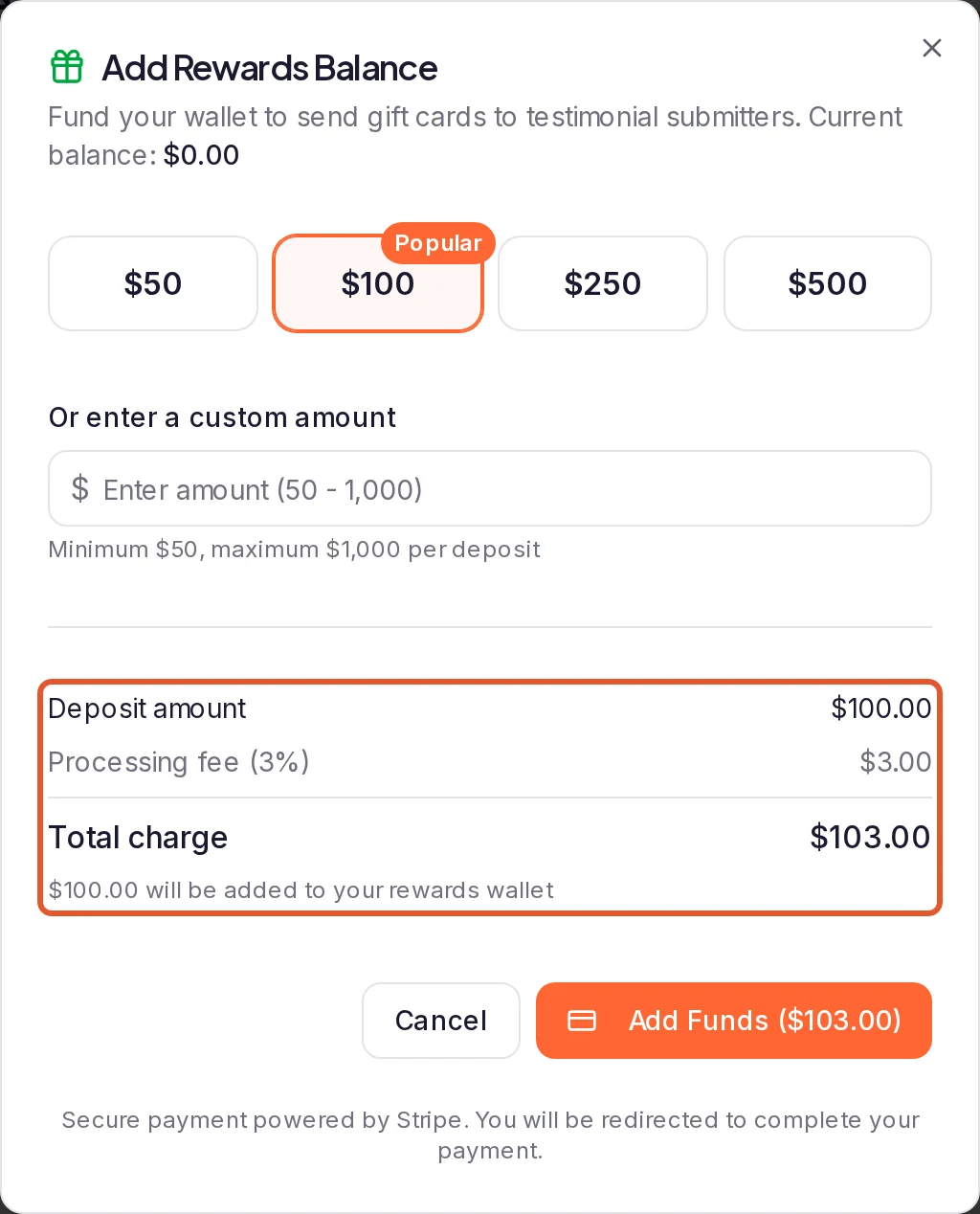
Click Add funds. In Add Rewards Balance, pick one of the preset amounts, or type a whole-dollar amount under Or enter a custom amount. One deposit is between $50 and $1,000.
The dialog then lists the Deposit amount, the Service fee (7% on Premium, 0% on Business), the Processing fee (3% on Premium, 3% on Business) and the Total charge. A fee of zero isn't listed. The whole deposit amount goes into your wallet; fees are added on top of it.
Pay
Click Add Funds; the button shows the total. You're taken to a secure checkout page to complete the payment.
Afterwards you land on the Credits tab of Billing, which shows Payment received. Your balance updates as soon as the payment is confirmed, so refresh the page if it hasn't appeared yet. If you leave checkout without paying, you see Deposit cancelled and your wallet isn't changed.
Move funds into a project
Back on Rewards wallet, click a project under Project allocations. Each row shows how much is allocated to it and whether its rewards are Enabled or Disabled. You can also open Rewards under Collect in the project's sidebar.
Click Allocate to Project. In Manage Project Budget, keep Allocate to Project selected, enter a whole-dollar amount in Amount ($) and click Allocate. The dialog shows your Wallet and Project balances and what they'll be afterwards.
Read your wallet's activity
Once there's some activity, Recent transactions on the Rewards wallet page lists the latest entries. Money in is shown in green, money out in orange.
- Purchase: a deposit reached your wallet.
- Allocation: you moved money from the wallet into a project.
- Deallocation: money went from a project back to the wallet, because you returned it or because the project was deleted.
- Reward Payout: a gift card's amount was set aside from a project's budget. The line names the recipient's email.
- Adjustment: a gift card that was set aside was canceled, for example because it couldn't be sent or its testimonial was rejected, and its amount went back to that project's budget.
For a longer history next to your AI and invitation credits, open Billing and go to the Credits tab. There, the Balance of a gift card's rows is that project's budget, marked project budget; every other rewards row shows the wallet's balance.
Good to know
- Gift cards come from the project's budget, not the wallet. If a project's budget can't cover a gift card when it's due, that gift card isn't sent. Keep enough allocated to each project that sends rewards. See The project's balance was too low.
- Take money back out of a project. In Manage Project Budget, choose Return to Wallet, enter the amount and click Return to Wallet. Return all sends back the whole budget, including any cents the amount field can't take.
- Other ways to add funds. On Billing, Add rewards funds on the Overview tab and Add next to Rewards Balance on the Credits tab open the same dialog.
- Running low. While a project's rewards are on, if its budget falls below its alert threshold, the project's Rewards page shows a Low Balance Warning, with an Add Funds button for the workspace owner.
- No withdrawals. You can't withdraw money from the wallet from your dashboard. Funded reward balances aren't covered by the first-payment guarantee in our refund policy. If you were charged twice or by mistake, or a paid deposit hasn't reached your wallet, contact us.
What happens next
With money in a project's budget, turn on rewards for that project and choose how much each testimonial earns.
Was this page helpful?
Set up rewards for a project and its forms
Turn on gift card rewards for a project, choose each form's gift card and its conditions, and see what customers get after they submit.
Import testimonials from CSV, Excel or JSON
Bring the testimonials you already have into a project by uploading a CSV, Excel or JSON file, or by pasting rows from a spreadsheet.