Add questions, ratings and required answers
Add questions and a star rating to a form, let customers attach images, choose which answers are required, and see where each answer ends up.
Add questions and a star rating to a collection form, let customers attach images, and choose which answers they must give before they move on. To create the form first, see Build a collection form.
Add a page
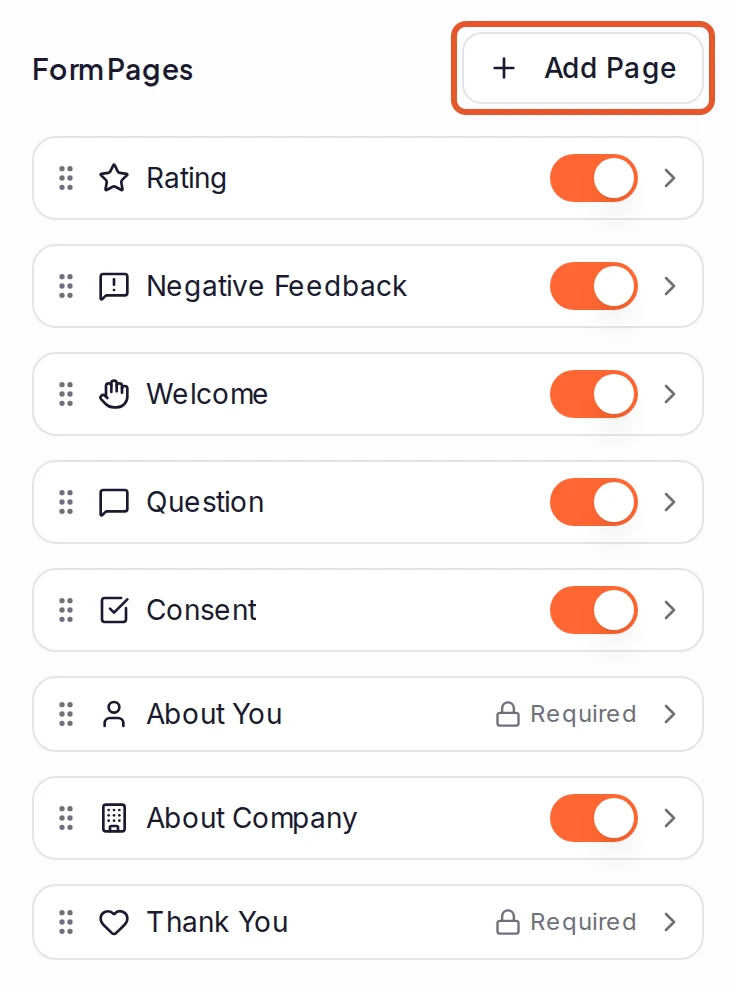
On your form's Pages tab, click Add Page and pick a type, such as Question, Rating, Consent or About Company. The page goes just before Thank You; to place it elsewhere, hover between two pages and click the +. Drag a page by its handle to reorder it.
You can add as many Question pages as you like. Every other type appears once per form, so Add Page greys out the ones the form already has.
Choose the question type
Click a Question page to open it, give it a Title and pick a Question Type:
- Text Only: a written answer. Type a Min Length from 0 to 2,000 characters and a Max Length from 10 to 10,000. An answer shorter than the minimum is refused with a message such as "Please write at least 10 characters", and the box stops taking text at the maximum you typed. A Question page you add starts with a minimum of 10; type 0 to accept any length. Allow Image Attachments lets customers add pictures: see Image attachments.
- Video and Text: the customer chooses between recording a video and writing. Collect Image Attachments lets those who write add pictures.
- Video Only: see Collect video testimonials.
- Multiple Choice: click Add Choice for each option. Allow Multiple Selections lets customers pick more than one. Each Multiple Choice question keeps its own answer, which you read under Form answers in your inbox.
For text and video questions, Show Guiding Questions adds prompts that help customers answer; click Add Question for each one.
Ask for a star rating
Either add a Rating page, which gives the stars a page of their own, or turn on Star Rating on a Question page, which puts the stars above the answer with your Rating Prompt.
A form never asks twice. While it has a Rating page that's switched on, Star Rating is off and reads "Collected on this form's Rating page". If that Rating page has Conditional display rules, the Question page's stars appear only for customers who don't see it.
To ask customers who give a low rating what went wrong, see Collect negative feedback privately.
Choose what's required
- Question and Rating pages: the Required switch is on by default. It applies to written, video and multiple-choice answers, and each required Multiple Choice question needs an answer of its own. On a Question page with a star rating, customers must answer and pick a star.
- Consent pages: Required, also on by default, means the box must be ticked.
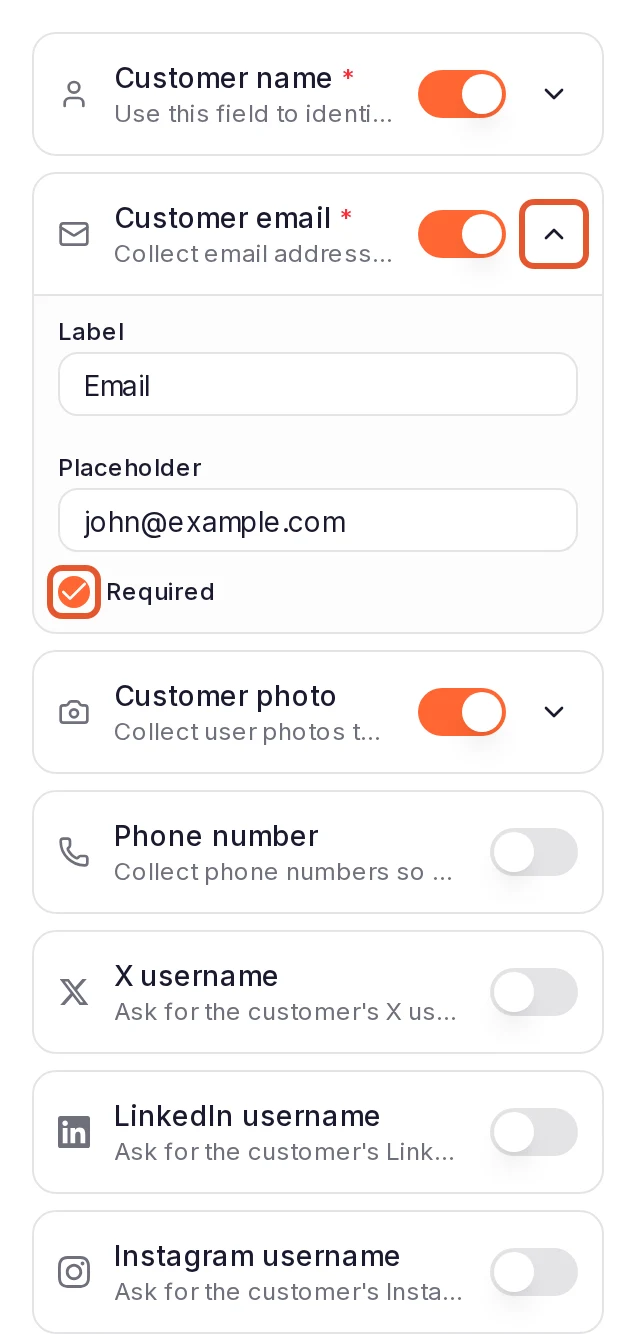
- About You and About Company pages: switch a field on, click the arrow beside it and tick Required. Fields under Custom Fields work the same way. The customer's name starts out required, and so does their email in a form made from the Conversational template. A field's switch shows what the form does: the customer's name and email, job title and company start on, and every other field (photo, phone number, social usernames, website, company logo) starts off until you switch it on. A form made from the Conversational template is the exception: its photo and website start on. To see what happens to each answer, go to Where each answer ends up.
The Required lock beside About You and Thank You in the page list only means those pages are always on the form; it doesn't make their fields required.
A Multiple Choice question with no choices shows nothing to pick, so it isn't enforced.
Try it in the preview
Click through the preview and leave a required answer empty to see what customers see. Video answers count as answered in the preview. Where customers will attach images, the preview shows "Image uploads are available on the live form".
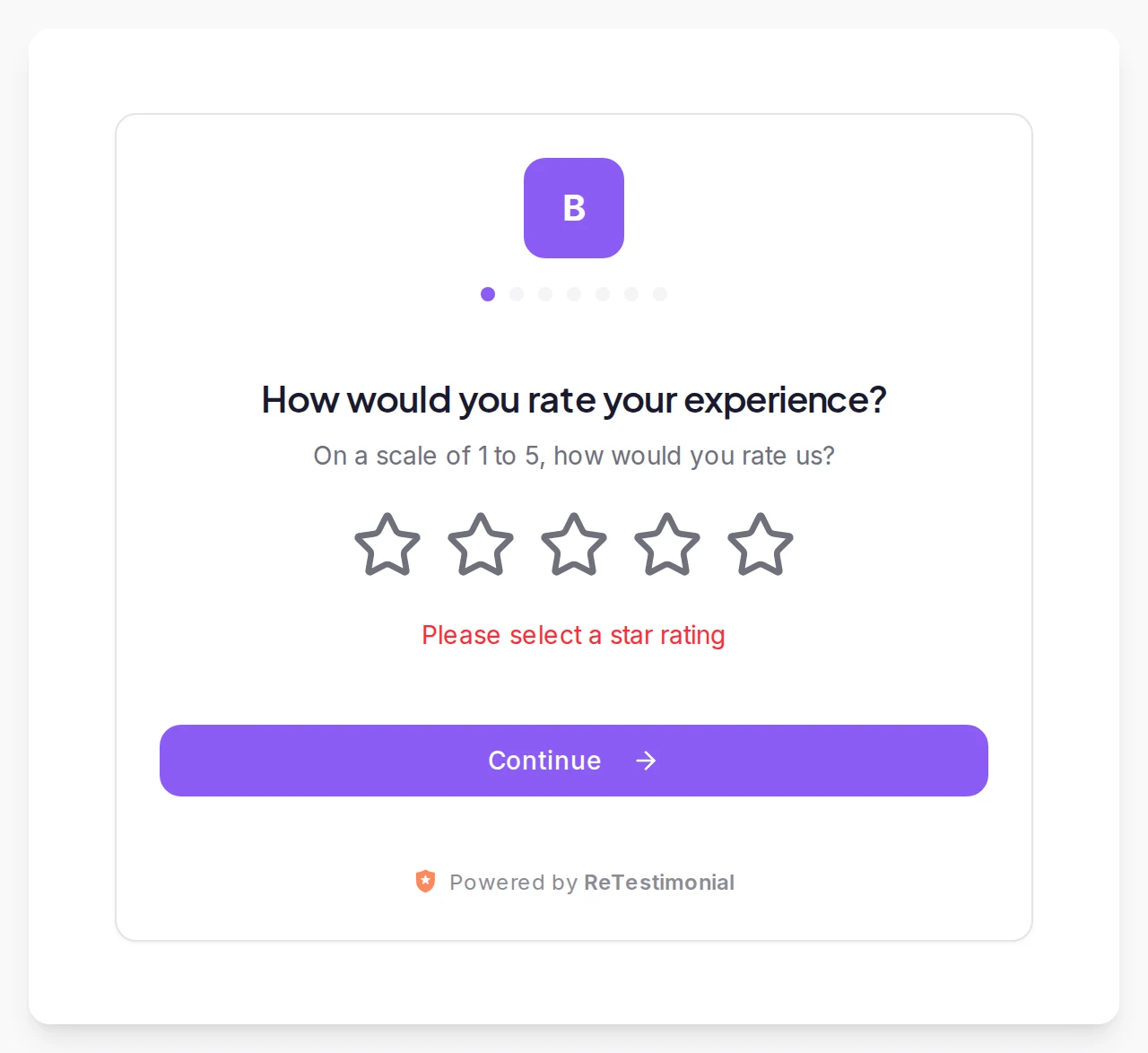
Image attachments
With Allow Image Attachments on (Collect Image Attachments on a Video and Text question), customers get a Choose images button under the box they write in.
- How many: a customer can attach up to three images to their testimonial. A count under the button, such as "2/3 images", shows how many they've added.
- File types: JPEG, PNG and WebP.
- Large pictures: the customer's browser makes each picture smaller before it's sent, to at most 1,600 pixels on its longest side.
- Never required: the page's Required switch covers the written answer, not the pictures.
- The line above the button reads "Upload images" until you type your own in Image Upload Label.
Where each answer ends up
Some answers become part of the testimonial. The rest are kept beside it, where only your team reads them.
On the testimonial
- The star rating, the written answer or the video, and any attached images. When a form asks more than one written question, the testimonial's text is the first written answer the customer gave, in the order of your pages. What a customer types on a Video and Text question comes before any Text Only answer.
- The customer's name, job title and company, and their X, LinkedIn and Instagram usernames as the testimonial's social profiles.
- Customer photo, as the testimonial's avatar, and Company logo. The customer picks a JPEG, PNG or WebP image, and their browser makes it smaller before it's sent, to at most 512 pixels on its longest side.
- Website, as the testimonial's Company link. An address typed without
https://gets it added. Text that isn't a web address is left out, and the testimonial is still saved.
To change the author's details, pictures or link later, see Edit a testimonial.
Under Form answers in the inbox
Phone number, Multiple Choice answers, the answers to your other written questions, what a customer writes on a Private Feedback or Negative Feedback page, and the Consent tick aren't part of the testimonial. In your inbox, click Show more on the testimonial's card and look under Form answers; the testimonial's Edit window has the same block. Each multiple-choice answer and each extra written answer is listed under its question, in the words the customer saw. A question that its Conditional display rules hid from the customer when they sent the form isn't listed, even if they answered it before changing an earlier answer.
Form answers is marked Only your team sees this: it's never part of a widget, a Wall of Love or a share page. These answers are deleted with their form, while the testimonials stay: see What happens to my testimonials when I delete a form?. For who on your team sees it, see Collect negative feedback privately. For the pages that ask for these answers, see Build a collection form.
What happens next
When a customer tries to move on without a required answer, the form stays on the page and shows a message under it, such as "Please share your answer" or "Please select a star rating". About You and About Company pages name every missing field at once, such as "Your Name is required". The message clears when the customer changes that answer.
- A page with a required answer has no Skip button, even when Show Skip Button is on.
- Optional answers are still checked: text shorter than Min Length, or an email that doesn't look like one, stops the customer too.
- The rules run again on submit. If something required is still missing, the form goes back to that page.
Related articles
Was this page helpful?
Build a collection form
Create a form from a template, set up its pages and required answers, test it in the preview and share its link with customers.
Collect negative feedback privately
Ask customers who give a low rating what went wrong, get an email when they do, and read their answer in your inbox, where only your team sees it.