Testimonial share pages
Every approved testimonial has its own public page. Copy its link from your inbox, and set the pages' look in your project settings.
A share page is a public web page for a single testimonial. Send its link in an email, post it on social media or print it as a QR code, and the reader sees that one testimonial on its own, in your project's colours. There are three kinds, one for each testimonial type: text, video and audio.
Share pages are on for every new project. There's nothing to create: once a testimonial is approved, its page exists.
What visitors see
- Text: the company logo or the author's photo (or their initials) at the top, the star rating, the title, the quote, any attached images, then the author's name, title and company and the date.
- Video: the author, the video player, the title, any attached images and the date. A video imported from a social network shows its thumbnail and links out to the original post instead of playing on the page.
- Audio: the same as a text page, with an audio player above the quote.
A text testimonial imported from a social post also shows a badge for the platform and a View original link. Below the testimonial, a View our Wall of Love button links to your default Wall of Love, as long as that wall is published (see Manage your walls).
When you post the link on social media, the preview card shows the testimonial's title (or "Testimonial from" and the author's name), a short description and a preview image.
A testimonial's page is public only while the testimonial is approved, not archived and not marked as spam. If you reject, archive or delete it, or switch share pages off, the link shows a Testimonial Not Found page.
Copy a testimonial's link
Open the testimonial
In your project's inbox, open Approved and find the testimonial. Click Show more at the bottom of its card.
Get the link
Click Share, then Get the link. The Share Testimonial dialog opens with three tabs:
- Link: click the copy button next to the address, or the open button to see the page.
- Social: Copy Link, or post it with Tweet, LinkedIn or Facebook.
- QR Code: click Download QR Code to save it as an image.
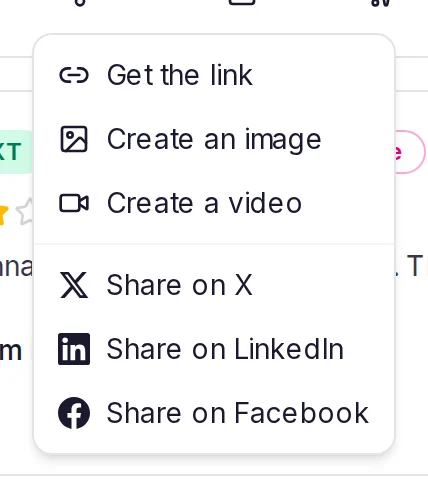
The Share menu also has Share on X, Share on LinkedIn and Share on Facebook, which open the post straight away. It only appears on approved testimonials, and anyone who can open the inbox can use it. For a video, Embed video in the same menu gives you code that plays the video on your own site; that's a different thing from its share page.
If share pages are off, the menu says so and its link and social items are greyed out.
Set up your share pages
The settings apply to every share page in the project. Only the workspace owner and project Admins can change them.
Click the gear icon next to your project's name at the bottom of the sidebar to open Project Settings, then open the Share Pages tab.
- Share pages: the master switch. Off, every share link for the project shows Testimonial Not Found.
- Search engine indexing: on, search engines may list your share pages. Off, every page asks them not to.
- Show custom fields on share pages: shows your custom fields on the page. It's on by default, so if a field holds internal notes (a deal size, an account ID), turn this off: share pages are public. Custom fields are on Pro, Premium and Business.
- Country field display: appears when the switch above is on and you have a country field. Choose Name, Flag or Flag + name.
Under Appearance, pick a Theme. Project Default uses your project's Accent Color (Project Settings, Embed tab); the others are Aurora, Midnight, Sunset, Forest, Ocean and Minimal.
On Pro, Premium and Business, open Customize to change parts of the theme: the Background (Solid or Gradient), Card background, Text color, Accent color, Border color, Border radius and Show card border. Each changed setting shows Overridden · Reset; click it to go back to the theme's value.
The Live preview beside the settings shows your unsaved changes. Switch between Text, Video and Audio, Desktop and Mobile, and try the examples under Scenario, such as a long quote or one without a rating. If the card's text is hard to read against its background, a contrast warning appears above the preview.
When you're done, click Save changes in the bar at the bottom of the page, or Discard to undo.
Plans
Share pages, themes and the QR code are on every plan. Custom colours are on Pro, Premium and Business, custom fields on Pro, Premium and Business.
Share pages end with a small "Collect testimonials with ReTestimonial" line, unless your plan removes branding (Pro, Premium and Business). On those plans the line is hidden unless you turn on Show badges on share pages and video embeds in Project Settings, Powered By.
If your plan changes to one without custom colours, your share pages go back to the theme's own colours. The Customize box shows how many overrides are still saved, and Clear overrides removes them.
Related articles
Was this page helpful?
Manage your walls
Find a wall on the Wall of Love page, set the default wall, rename, duplicate, unpublish or delete a wall, and read its card's picture and numbers.
Share or embed a video testimonial
Put one video testimonial on any web page with its own player. Copy its link or embed code, set captions and the name overlay, or download it.