Keep spam out of your inbox
Set how strictly form submissions are checked for spam, block or allow email addresses, and restore or delete testimonials in Spam.
ReTestimonial checks every testimonial submitted through your forms for signs of spam, and sends the ones that look like spam to Spam instead of your inbox. Each project has its own spam settings, on the Spam page of its inbox. The workspace owner and the project's Admins can change them.
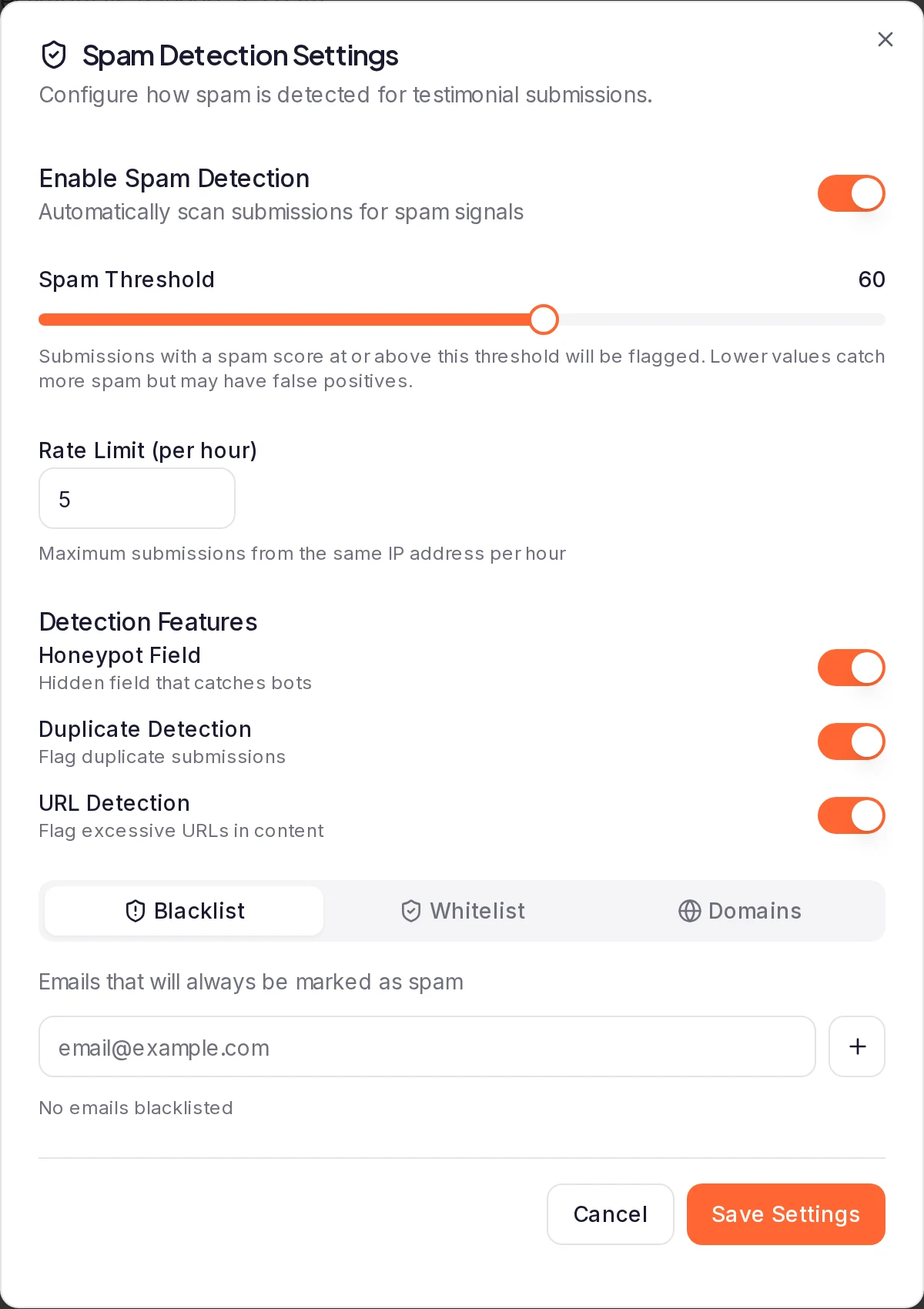
Open the spam settings
In your project's sidebar, click Spam, then Spam Settings at the top of the page.
Choose how strict to be
Enable Spam Detection is on unless you turn it off. While it's on:
- Spam Threshold is the spam score at which a submission goes to Spam. A lower threshold catches more spam, but may catch real customers too.
- Rate Limit (per hour) is how many submissions one IP address can send in an hour. Going over it is enough to send a submission to Spam on its own, unless you raise the threshold above its default.
- Under Detection Features, Duplicate Detection watches for text and a name that are already in the project, and URL Detection for more than two links in one testimonial. Turn either off if it gets in your way.
Block or allow email addresses
Use the tabs at the bottom of the dialog:
- Blacklist: email addresses whose submissions go to Spam.
- Whitelist: email addresses that skip the spam checks, such as a customer who was sent to Spam by mistake. The whitelist wins: an address on it gets through even if it, or its domain, is also on a block list. It doesn't lift a form's own rate limit or the hidden-field check (both below).
- Domains: sends every address at a domain to Spam, such as
spam-domain.com.
Type an address or domain and press Enter, or click the plus button. Click the X on an entry to remove it.
Save
Click Save Settings. The new settings apply from the next submission.
How a submission is checked
Each form submission gets a spam score out of 100, which adds up the signals it shows:
- an email address or domain on your block lists;
- too many submissions from the same IP address within the hour;
- the same text from the same name already in the project, while Duplicate Detection is on;
- text that looks like gibberish, uses common spam phrases, is very short, repeats characters or is mostly capitals;
- more than two links, while URL Detection is on.
Then:
- At or above your threshold, the submission goes straight to Spam. The person sees the usual thank-you. Nothing reaches your inbox, nobody is notified, no email or webhook goes out and no reward is given, and the form's Analytics don't count it as a completion. If it's genuine, click Not Spam on it; to keep that customer out of Spam next time, add their address to Whitelist.
- Below the threshold, it arrives in Pending like any other. If its score is still high enough to look doubtful, its card shows a Suspicious badge with the score. Point at the badge to see the signals, then approve or reject it as usual.
Forms also have a hidden field meant to catch bots. A submission that fills it is quietly thrown away and the sender isn't told, while Honeypot Field is on both here and in the form's settings under Spam Protection. Turn either off and the hidden field is ignored. With Enable Spam Detection off, neither the hidden field nor anything else is checked.
Only form submissions are scored. Testimonials you add yourself or import aren't. An import from a file skips rows whose email address or domain is on your block lists, while Enable Spam Detection is on. The import lists each as an error: see Rows were skipped.
If a real customer's testimonial lands in Spam, click Not Spam on it and add their email address to Whitelist. If many people submit from one network, such as at an event, raise Rate Limit (per hour).
Each form also has its own limit per IP address, checked before any of this: Rate Limiting and Max Submissions per Hour under Spam Protection on the form builder's Settings tab. A customer who goes over it sees "Rate limit exceeded", whitelisted or not. For an event, raise it there too, or switch it off for the day.
Review testimonials in Spam
Spam in your sidebar lists form submissions your spam check flagged (see How a submission is checked) and testimonials you marked as spam (see Mark a testimonial as spam). When it's empty it says No spam detected. A card with a spam score shows a Spam badge with it; point at it to see the signals.
- Restore one: click Show more, then Not Spam. The testimonial goes back to Pending, Approved or Archived, wherever it was, and its spam score is cleared. When you restore a submission your form sent straight to Spam, it arrives as it would have in the first place: it's approved if the form's approval settings would have approved it (otherwise it waits in Pending), you're notified, the form's emails and your webhooks go out, and it counts in the form's Analytics. It gets no reward.
- If Not Spam says no: testimonials in Spam don't count toward your plan's limits, but restored ones do. On Free, that's 10 written, audio and linked media testimonials and 2 video testimonials; on Pro, 10 video testimonials per project. If restoring would go past the limit, nothing is restored and a message tells you so. Archive testimonials you don't show, or upgrade, then try again. A multi-clip video answer counts as a video here. While your workspace is read-only because of a failed payment, Not Spam is refused too; update your payment method first.
- Form analytics: a submission your form sent to Spam doesn't count as a completion in the form's Analytics, even after you delete it. If you restore it, it counts.
- Delete one: click Show more, then Delete, and confirm.
- Act on several: tick their checkboxes and click Not Spam or Delete in the bar. Delete asks first, and it can't be undone.
- Delete everything: click Delete All Spam, then Delete All. Every testimonial in Spam is permanently deleted.
To approve, tag or edit a testimonial in Spam, click Not Spam first, then do it where the testimonial lands.
Anyone on the project can open Spam. The owner, Admins and Members can use Not Spam; only the owner and Admins can delete.
Mark a testimonial as spam
An approved testimonial's More menu, under Show more, has Mark as Spam. The testimonial moves to Spam and comes off your widgets, Wall of Love pages, share page and video player. To bring it back, click Not Spam on it in Spam. The bulk bar in the inbox has no spam action, so mark testimonials one at a time.
Automatic cleanup
Once a day, ReTestimonial permanently deletes spam testimonials, with their media, once they have been in Spam for more than 30 days. The period counts from when a testimonial went into Spam, not from when it first arrived, so one you marked by mistake has the whole period to be restored. The Spam page shows the number of days. Restore anything you want to keep with Not Spam.
What happens next
Was this page helpful?