Filter and search your inbox
Find testimonials with keyword or AI search, narrow the list with filters, change the sort, and export every testimonial to a CSV file.
The Pending and Approved pages of your inbox have a toolbar for finding testimonials: search, filters and a sort menu. Anyone who can open the inbox can use it, Viewers included. (Archived and Spam have no filters; All Imports has its own.)
Search
Type in the search box. Keyword search looks through each testimonial's text and its author's name, email and social handle as you type.
To describe what you want instead, click AI in the search box, type something like "5-star video testimonials from the last 30 days" and press Enter. AI search turns your sentence into filters, shown as violet chips below the toolbar, that you can change or remove. Clearing the search box removes the ones you haven't changed. AI search is part of Proof Intelligence, on Premium and Business.

Add filters
Click + Filter below the toolbar and pick a field:
- Type, Rating, Source, Date received and Form feedback. A source such as Form Submission or a review platform can be narrowed to particular forms, businesses or products. Form feedback lists form submissions with a low rating: see Collect negative feedback privately.
- Wall of Love, Tags and Translations.
- Sentiment, Theme, Feature, Use case, Recommended asset and Analysis state, from Proof Intelligence (Premium and Business).
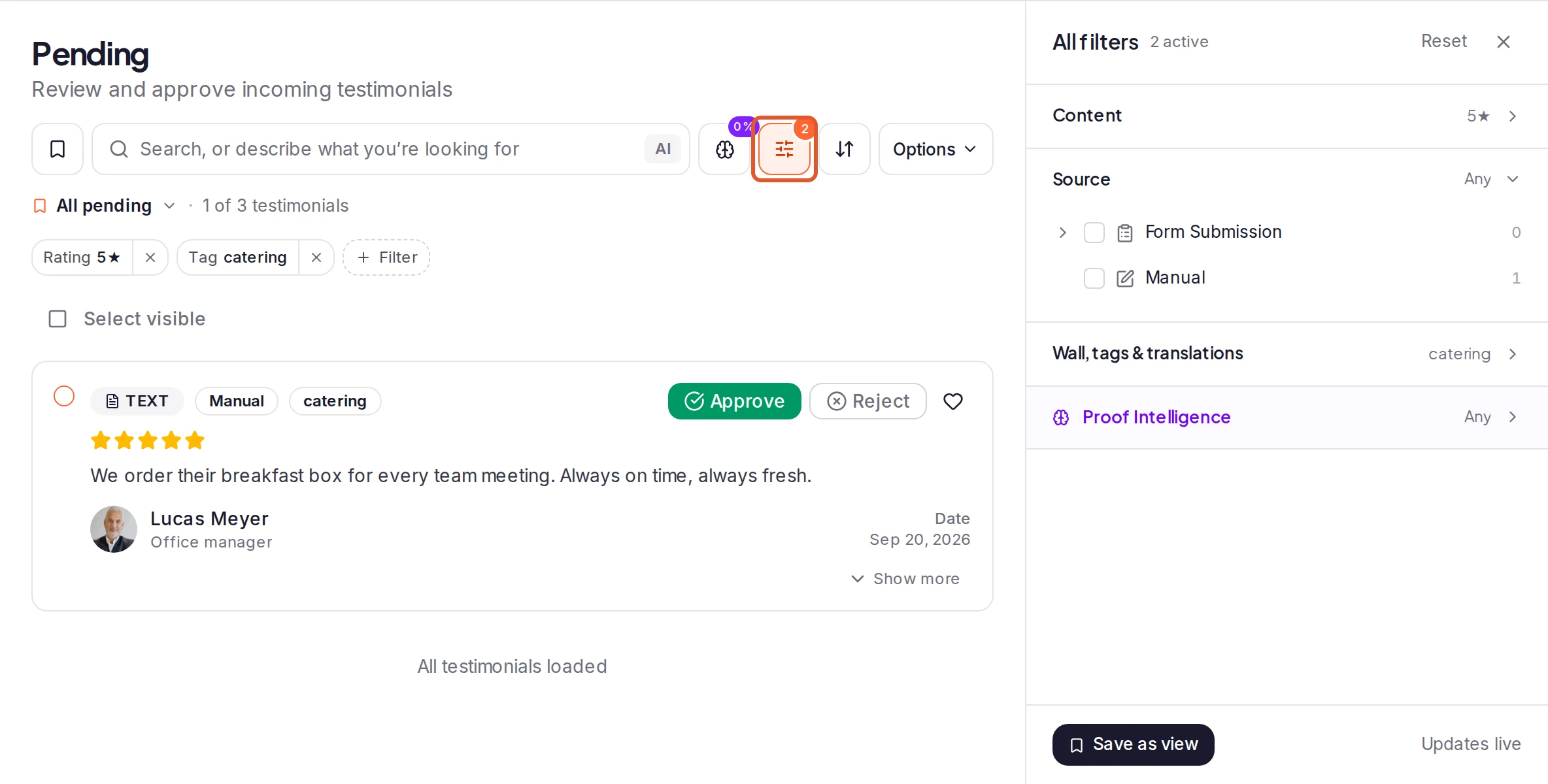
Each filter becomes a chip: click it to change it, or its X to remove it. Several values in one filter match any of them. The line below the chips counts the matches, such as "5 of 25 testimonials".
To see every filter at once, click Filters. The All filters panel opens beside the list and applies each change as you make it. Reset clears them all.
Sort the list
Click the sort button beside Filters and choose Newest first or AI score. AI score puts the testimonials Proof Intelligence rated highest first, then the ones it hasn't analyzed. It's offered on Premium and Business, the plans with Proof Intelligence.
Save or share a filtered list
Your filters are part of the page's address, so you can bookmark a filtered list or send the link to a teammate.
To keep a set of filters and its sort under a name, for yourself or for your team, save it as a view. See Save and share inbox views.
Export your testimonials
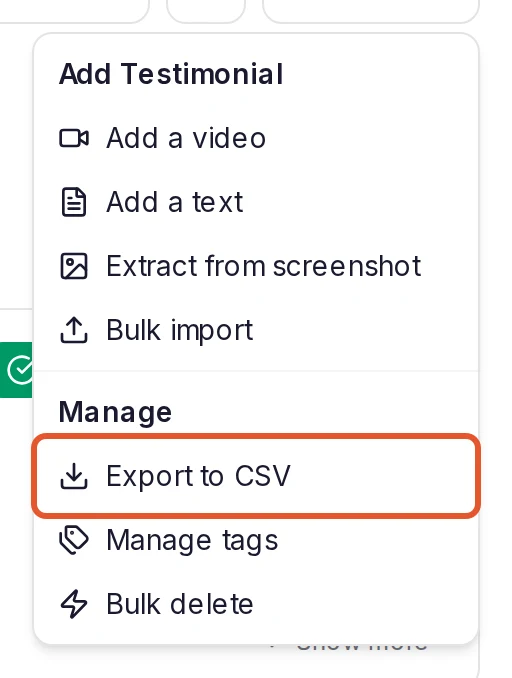
Click Options in the toolbar and choose Export to CSV. The workspace owner and the project's Admins have it.
The file holds every testimonial in the project, whatever the page, filters or view you're on: pending, approved, archived and spam ones alike, told apart by its Status, Archived and Spam columns. It also has each testimonial's author, content as plain text, rating, tags, Wall of Love pages, source, Testimonial Date (a review's own date) and Created At (when it reached ReTestimonial), and one column for each of your custom fields. Videos, photos and other files aren't in it.
To export only imported reviews, with your filters applied, use Export CSV on All Imports; see Review and export imported content.
On a phone
Filters opens as a sheet from the bottom of the screen. Your changes wait until you tap the button that shows how many testimonials will match, such as Show 12 results. Save keeps them as a view.
What happens next
Filters change only what you see. To act on what you found, see Approve, reject and archive testimonials: Select all in the selection bar picks every testimonial that matches your filters.
To get AI search, see Plans and pricing.
Was this page helpful?