Import testimonials from CSV, Excel or JSON
Bring the testimonials you already have into a project by uploading a CSV, Excel or JSON file, or by pasting rows from a spreadsheet.
If you already have testimonials in a spreadsheet or another tool, you can bring them into a project in one go.
For what each column of your file may hold, see Import file columns and formats. To undo an import or run one again, see Undo or re-run a file import.
If you don't see Import in the sidebar, your role doesn't include importing. Ask a teammate with import access.
Open the Import page
In your project, click Import under Collect in the sidebar. The page takes you through four steps: Upload Data, Map Columns, Review and Import.
Upload a file or paste your data
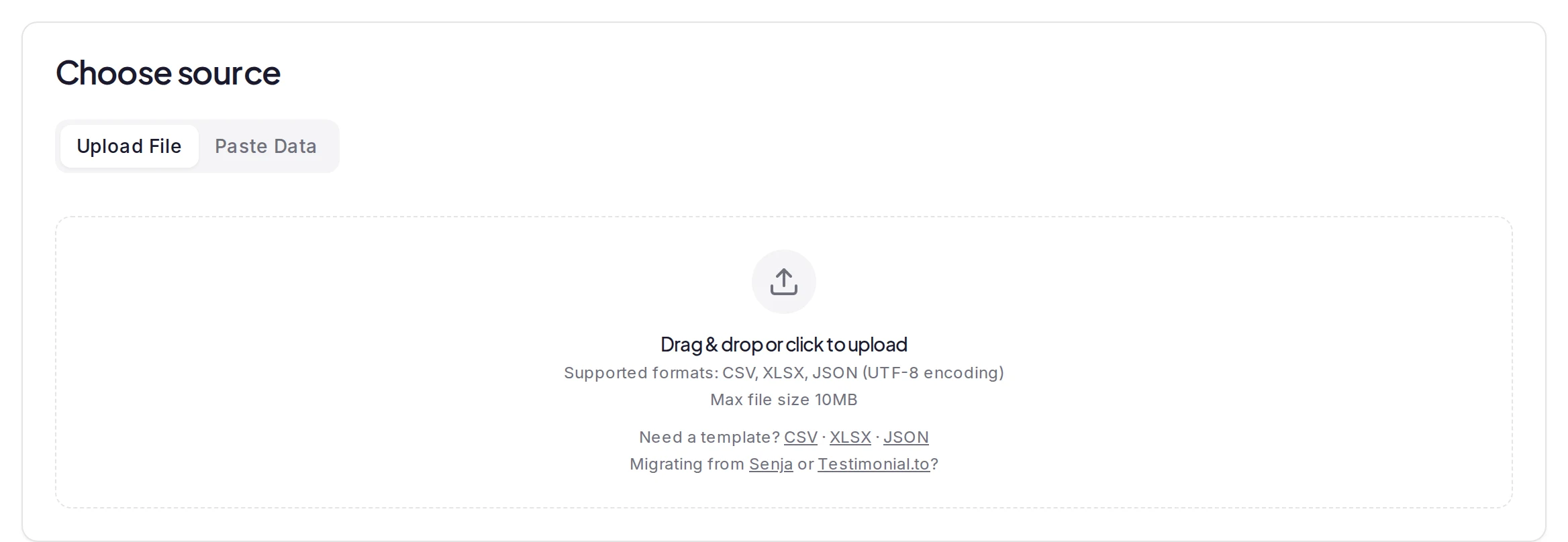
Under Choose source, pick a tab:
- Upload File: drag your file onto the box, or click the box to choose one, then click Parse File.
- Paste Data: paste rows copied from a spreadsheet, then click Parse Data. If the columns come out wrong, change the delimiter from Auto-detect.
In a CSV or Excel file, or in pasted data, the first row must hold your column names. In a JSON file, each object's property names are the columns. For the file types your plan accepts, see Supported files. To start from a sample file, see Templates and presets.
Match your columns to fields
Under Map your columns, pick the column for each testimonial field; sample values show beside it. Columns with common names are matched for you, and a guess based on a similar name is marked Auto-matched — verify.
You must map User Name and either Testimonial Content or Video URL. Then click Validate Data.
For what each field accepts, see Fields a column can fill. Your project's own fields are covered under Custom fields.
Review the results
You see how many rows will be imported and how many will be skipped because of errors. Filter by Warnings or Errors, or click Download report. The list and the report hold the first 500 issues; when your file has more, a line under the list says how many there are in all. Then set the Import Options below: see Import options.
For what makes a row an error or a warning, see What validation checks. If rows are skipped that you expected to come in, see File import failed or skipped rows.
Run the import
To try your mapping first, click Test Import (1 row), which imports your first row. Check it in your inbox, then click Run full import (the test row isn't doubled) or Adjust mapping.
Otherwise, click the Import … valid rows button. You can stop it with Cancel Import. When it's done, click View in Inbox, or Download report to see rows that had problems. You can open these results again later from History: see Check how an import ended.
Import options
- Auto-approve imported testimonials: approves everything you import. It overrides Default status, which is switched off while it's on: nothing is archived.
- Default status: Pending (the default), Approved or Archived.
- Add all imports to Wall of Love: adds them to your default Wall of Love page.
- Skip duplicates (on by default): skips a row with the same text and name as an earlier row, or as a testimonial that came from a form or an earlier file import. Testimonials you added by hand or imported from a platform aren't compared. See Import the same file again.
- Update existing by source URL: updates the testimonial whose source URL matches a row, instead of adding a new one.
- Download image URLs: stores copies of avatars, logos and attached images instead of linking to them. It starts off. Without it, each picture keeps loading from the address in your file.
- Source URL (applies to all rows): used for rows without a source URL of their own.
- Apply tags to all imported testimonials: adds tags you pick from the project's existing tags.
Plan limits
How many rows you can import at once depends on your plan:
- Free: 25 rows per import
- Pro: 100 rows per import
- Premium: 500 rows per import
- Business: unlimited rows per import
Data with more rows is rejected, so split it into smaller batches. Rows that would take you past your plan's testimonial limit aren't imported and show as errors in the report. See Plan limits.
The file types you can upload depend on your plan too: see Supported files.
If you leave before you finish
If you leave the Import page after your file is read but before you run the import, and come back in the same browser tab, the page reopens on the step you were on, with your file, your column choices and your options as you left them. A banner says "We restored your in-progress import so you can pick up where you left off." Click Start fresh on the banner to begin again with another file.
Once an import is running, it carries on if you leave the page.
What happens next
Imported testimonials arrive with the status you chose under Import Options: Pending unless you changed it. Widgets and Wall of Love pages show only approved testimonials.
When an import finishes or fails, the workspace owner and the project's Admins get an Import completed or Import failed notification under the bell at the top of the dashboard. Click it to open All Imports. See Manage your notifications.
To check an import later, run it again or delete what it brought in, click History at the top of the page: see Undo or re-run a file import.
Was this page helpful?
Add funds for gift card rewards
Add money to your workspace's rewards wallet, move it into each project's budget, and read the wallet's recent transactions.
Import file columns and formats
Every field a column of your import file can fill and what it accepts, the file types and templates, and what the import checks before it runs.