Choose which testimonials a widget shows
Hand-pick a widget's testimonials with Curate, let rules fill it with Auto-sync, or match testimonials to each page with Proof Match.
Every widget has a Selection Mode that decides which testimonials it shows. Curate and Auto-sync work on every plan; Proof Match is available on Premium and Business.
Open the Content tab
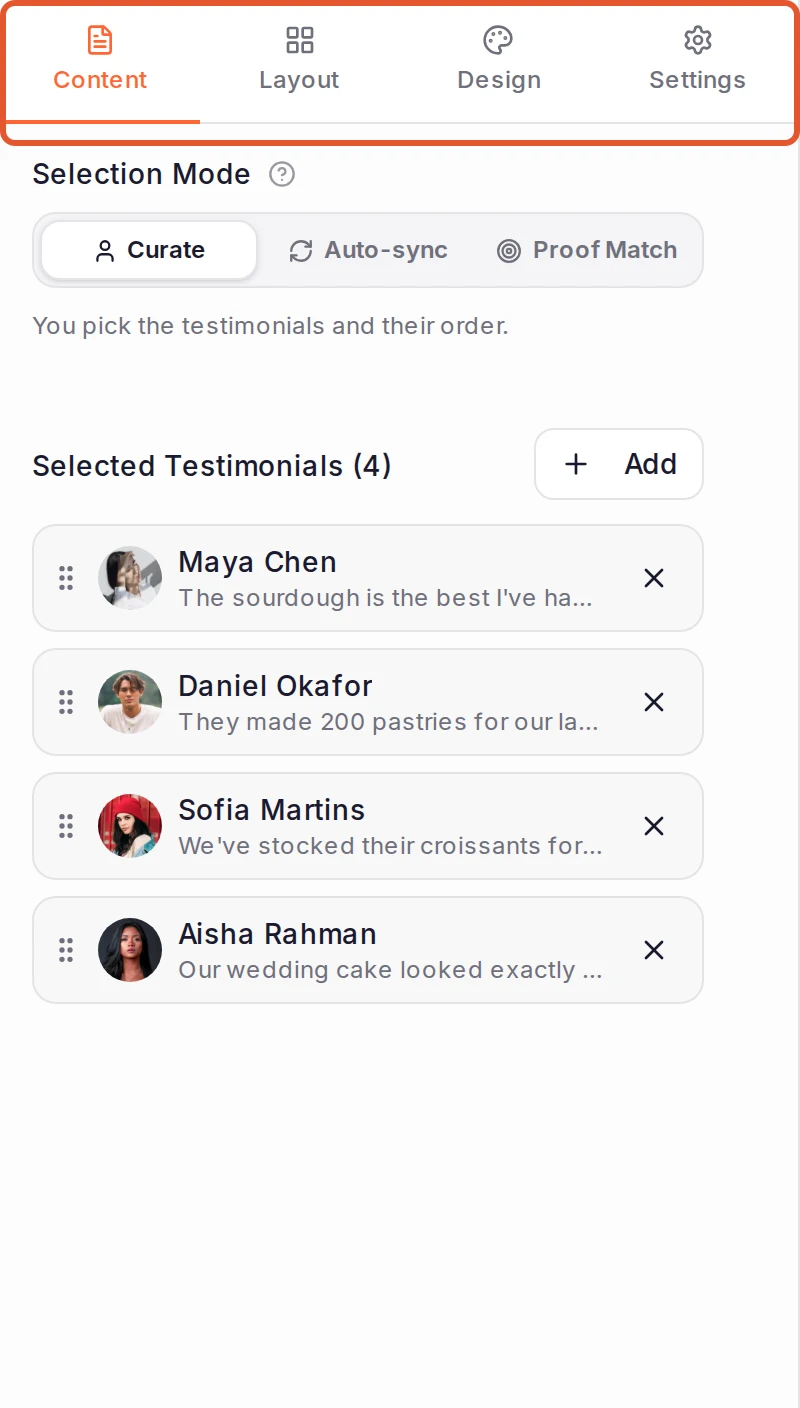
On the Widgets page, under Share in your project's sidebar, click the widget's name. The builder opens on the Content tab, with Selection Mode at the top.
Pick a selection mode
Click one of the three modes:
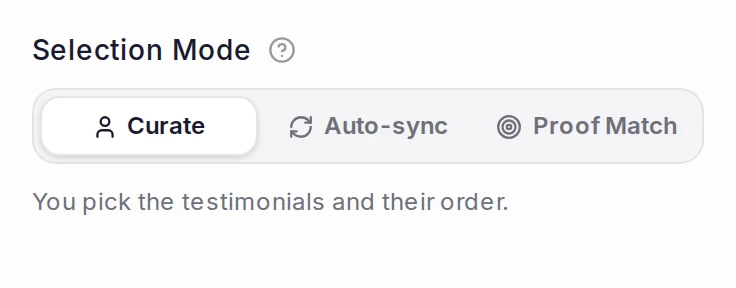
- Curate: you pick the testimonials and their order. Nothing changes until you change it.
- Auto-sync: rules such as rating, type, tags and source keep the widget filled as new testimonials are approved. Fill a widget with auto-sync explains the rules.
- Proof Match: shows the testimonials that fit each page of your site, by page address, campaign and referrer. See Set up Proof Match rules.
To compare them in the builder, click the question-mark icon beside Selection Mode. On a plan without Proof Match, its button shows a lock.
Add testimonials in Curate
Click Add beside Selected Testimonials. In the Add Testimonials window, search, sort or filter the list, then click each testimonial you want. Click Add Selected. The new testimonials join the end of the list.
The window lists only approved testimonials that aren't already in the widget.
Order and remove them
The widget shows your testimonials in the list's order. Drag one by the handle on its left to move it. Click the X on its right to take it off the widget; the testimonial itself stays in your project. If the widget is also linked to testimonials it doesn't show, such as rejected, archived or spam ones, they keep their place after the ones you arranged.
Switching away from Curate
If the widget has hand-picked testimonials, choosing Auto-sync or Proof Match asks first. Your hand-picked testimonials and their order stay saved. Click Use Auto-sync (or Use Proof Match) to switch, or Keep Curate to stay.
When you switch back to Curate, your saved list comes back. A widget that never had hand-picked testimonials starts Curate with the ones it was showing.
How Proof Match picks testimonials
Proof Match starts from the same rules as Auto-sync, which set the widget's base pool: what a visitor sees by default. On top of it you write context rules, one for each page, campaign or referring site that should see something else. A visitor gets the first rule that matches them, and the base pool when none does. Set up Proof Match rules has the steps, how to test a rule and what to check when one doesn't match.
Switching a Proof Match widget to Curate or Auto-sync deletes its rules. If your plan no longer includes Proof Match, upgrade to edit them again.
What happens next
- A widget only ever shows approved testimonials. If one is later rejected or archived, it drops off the widget.
- A Video widget shows only video testimonials, whatever the mode.
- Each plan caps how many testimonials one widget shows: 10 on Free, 50 on Pro, and unlimited on Premium and Business.
Related articles:
Was this page helpful?
Customize a widget
Use the widget builder to choose testimonials, pick a layout, style each element, preview the widget on any device and publish it.
Fill a widget automatically with auto-sync
Set rules once and let a widget fill itself with the approved testimonials that match them, including new ones as you approve them.