Fill a widget automatically with auto-sync
Set rules once and let a widget fill itself with the approved testimonials that match them, including new ones as you approve them.
Auto-sync fills a widget by rules instead of by hand. Every approved testimonial that passes your rules appears, and new ones join as you approve them. Auto-sync is on every plan; a few filters need a higher plan, as noted below.
Turn on Auto-sync
In the widget builder, open the Content tab and click Auto-sync under Selection Mode. If you had hand-picked testimonials, click Use Auto-sync to confirm. They stay saved for when you switch back to Curate.
Start from a recipe
The card at the top shows the current recipe. Click Change to pick another:
- Strongest proof: top-rated, best-scoring testimonials first, with themes mixed.
- Freshest first: 4★ and up, newest on top.
- Faces & voices: video and audio only.
- Custom: every setting is yours.
Every recipe except Custom replaces your format, rating, sentiment, score, order and cap settings with its own. A setting the recipe doesn't use, such as the cap, is cleared. Your sources, tags, themes, features, use cases and translated languages stay as they are. On a plan without Proof Intelligence, or until it has analyzed some of your testimonials, Strongest proof shows 5★ testimonials only.
Change one of those settings and the card shows · edited; to undo it, open Change and choose Reset to followed by the recipe's name.
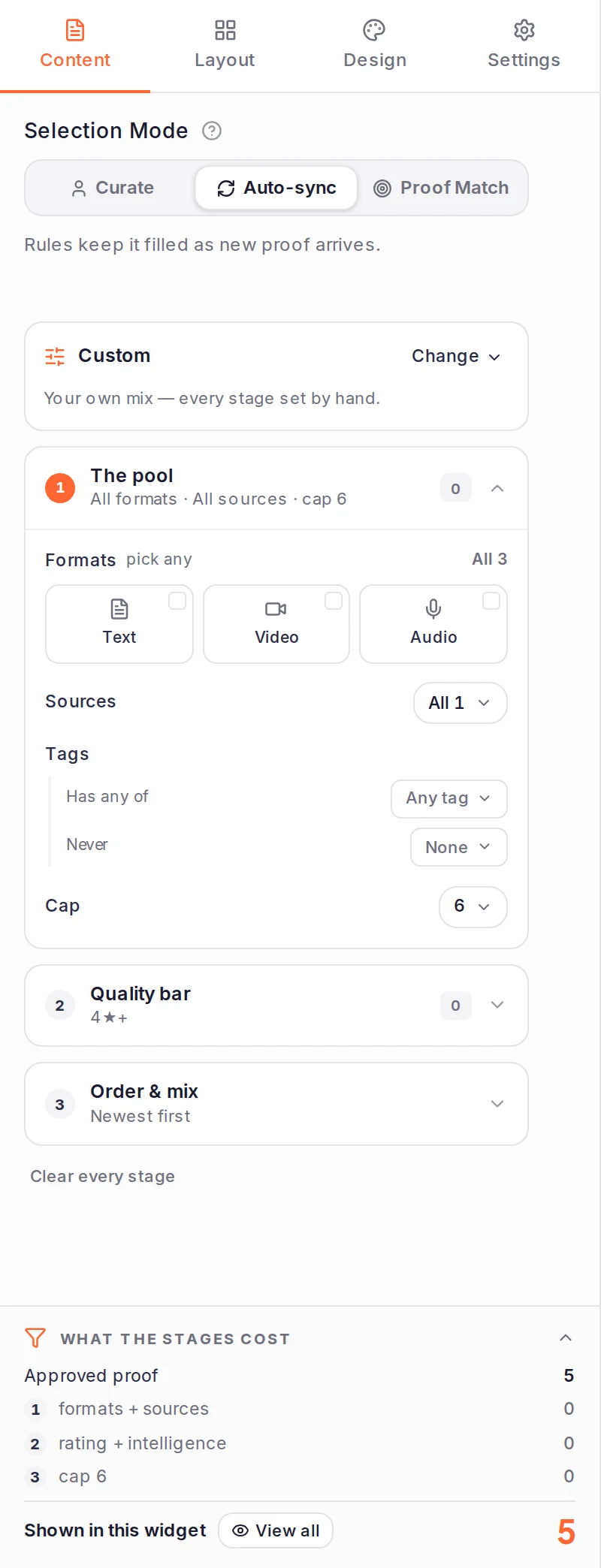
Choose the pool
Open The pool to decide which testimonials count at all:
- Formats: Text, Video and Audio. With none picked, every format counts. If the widget's style plays only video or audio, the format is set for you.
- Sources: where testimonials came from, grouped into sets such as Collection, Review Platforms and Social Media. A testimonial counts by its source or by the review platform it came from, the same in the builder preview and on the live widget. After you pick a review platform you can narrow it to specific locations, products or businesses, and after Form Submission to specific forms.
- Tags: Has any of keeps testimonials with at least one of the tags you pick, and Never leaves out any with those tags. This shows once your project has tags.
- Cap: the most the widget shows at once, applied last, after ordering. Pick a number or No cap. With No cap a widget still shows at most 50, so type a larger number to show more; the preview and the receipt count the same testimonials your site shows. On Free a widget shows at most 10 testimonials, and on Pro at most 50.
Set the quality bar
Open Quality bar:
- Minimum rating: Any, or a number of stars and up. Testimonials without a star rating don't pass a minimum rating.
- Proof Intelligence, on Premium and Business: filter by Sentiment, Themes, Features, Use cases and Showcase score. These read Proof Intelligence's analysis, so a testimonial that hasn't been analyzed yet doesn't pass them. See Analyze your testimonials with Proof Intelligence.
- Translated language, on Business: keeps testimonials translated into any of the languages you pick.
Pick the order
Open Order & mix. Sort puts the Newest first, or the highest AI score first. Diversify themes mixes themes instead of grouping similar testimonials together. Both are on Premium and Business; on other plans the newest come first.
Check what passes
Below the stages, What the stages cost counts it for you: Approved proof, what each stage removes, and the total Shown in this widget. Click View all to see those testimonials in the widget's order. If nothing passes, loosen the stage that removes the most. Clear every stage removes all your rules.
What happens next
The widget keeps itself up to date, with no need to edit or republish it. When you approve a testimonial that passes your rules, it joins the widget, and your site picks it up shortly. Archiving or deleting a testimonial takes it out.
A Wall of Love set to Auto-sync uses the same The pool and Quality bar stages, without recipes or Order & mix; see Choose and order the testimonials on a Wall of Love.
- Choose which testimonials a widget shows, including Curate
- Set up Proof Match rules, to show different testimonials by page, campaign or referrer
- Customize a widget
- Approve, reject and archive testimonials
Was this page helpful?
Choose which testimonials a widget shows
Hand-pick a widget's testimonials with Curate, let rules fill it with Auto-sync, or match testimonials to each page with Proof Match.
Set up Proof Match rules
Show different testimonials by page, campaign or referring site with Proof Match rules, test them in the simulator and fix a rule that never matches.