Choose a widget type
Compare the widget types, the styles each one offers and the plans that include them, and learn how to change a widget's type later.
A widget's type sets its basic shape on your page: a carousel, a grid, a rating badge, a popup and more. Each type then comes in a choice of styles. Pick the type that fits the space on your page first, then the look.
The widget types
| Type | Good for | Styles include |
|---|---|---|
| Carousel | Sliding testimonials with arrows and dots: a lot of proof in a little space. | Classic, Coverflow, Cards Stack, Before → After |
| Masonry Grid | A staggered grid of testimonial cards, like a wall. | Classic Grid, Results Board, Proof Bento |
| Badge | A compact star rating to place beside a call to action, a pricing table or a checkout button. | Rating Badge, Compact Badge, Floating Proof Tab, Review Summary Panel |
| Slider | One full-width testimonial at a time, for hero sections. | Spotlight, Typewriter, Cinematic, Scroll Story |
| Avatars | Customer faces first: the real people behind your reviews. | Stack, Grid, Orbit, Logo Wall |
| List | A vertical list of testimonials, from social-style feeds to ranked lists. | Social Feed, Magazine, Numbered, Objections |
| Video | Video testimonials only. | Stories, Theater, Wall, Playlist |
| Floating Proof | Popups and announcement bars that float over your pages. | Proof Toast, Proof Bar |
Open the type picker
In your project, open Widgets under Share in the sidebar and click Create Widget. The Choose Widget Type dialog lists every type with a short description.
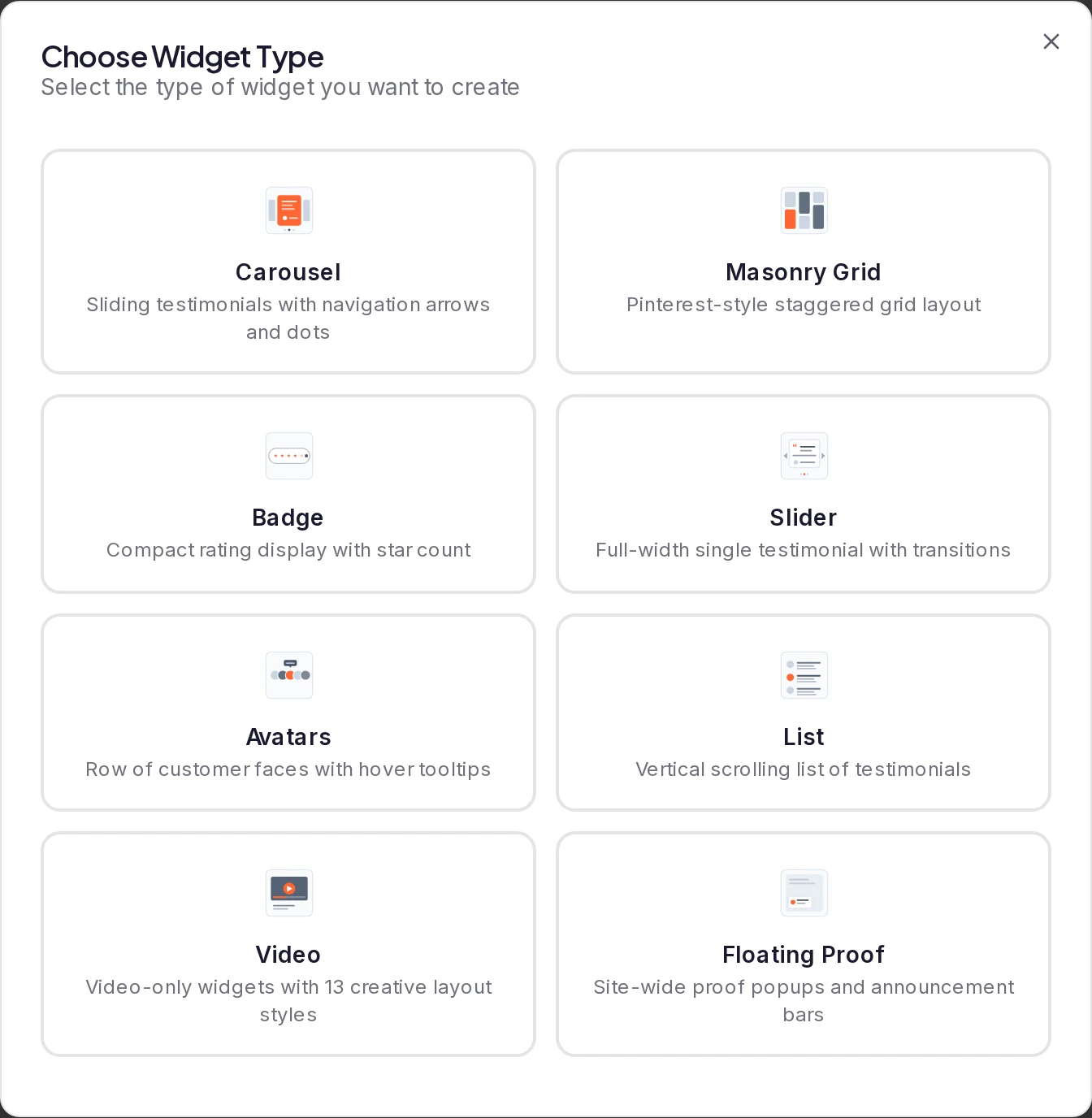
Pick a type and a style
Click a type. Then click one of the styles shown, or Start from Scratch to begin with the default settings.
Name the widget
Enter a Widget Name; visitors never see it. Click Create Widget and the widget builder opens.
Styles
You can switch a widget to any style of its type at any time. In the builder, open the Layout tab and use the type's style picker, such as Carousel Style, Badge Style or Avatar Style. Click a style to see it in the preview. You can preview every style; your plan's limits still apply when you publish.
Plans and limits
Carousel, Masonry Grid, Badge and Video are available on every plan. Slider, Avatars, List and Floating Proof are available on Pro, Premium and Business. The type picker shows every type; if your plan doesn't include the one you choose, a message says so when you click Create Widget, and no widget is created.
The number of widgets per project depends on your plan: 2 on Free, 10 on Pro, 20 on Premium and unlimited on Business. Archived widgets count too. The line under Create Widget at the top of the page shows your usage. At the limit, you can't create or duplicate a widget. Deleting a widget frees a slot, but it also stops the widget working on any site where it's embedded. Unpublishing or archiving one doesn't free a slot: see What is the difference between unpublishing, archiving and deleting a widget?.
If a widget that isn't published yet uses a type your plan doesn't include, the builder shows a banner and the widget can't be published. This can happen when you designed it in the free widget builder before signing up: see Keep the widget you built before signing up. Upgrade, or click Switch to a free layout: the button names the style it moves the widget to, on a type your plan includes (a Slider becomes a Carousel, for example). Your colours, fonts and card options stay, and the layout settings reset to that style's defaults.
Change a widget's type
Open the widget in the builder, go to the Layout tab and click another type under Widget Type. On a smaller screen, tap Change next to the current type first. The builder lists Masonry Grid as Masonry.
The widget keeps its testimonials, and the builder saves the change automatically. If the widget is published, your site shows the new type too. You can only switch to a type your plan includes.
Switching a widget that's already on your site to one that floats over the page (the Floating Proof type, the Badge's Floating Proof Tab style or the Video's Floating CTA style) changes its embed code. Copy the code again and replace the old one. Otherwise the widget may not appear until a visitor scrolls to where the code sits.
Only the workspace owner and project Admins can create widgets or change their type.
Next steps
Was this page helpful?
Create a case study from a testimonial
Turn an approved testimonial into a short case study with one of four templates, and see what it costs in AI credits and where its text is kept.
Customize a widget
Use the widget builder to choose testimonials, pick a layout, style each element, preview the widget on any device and publish it.