Buy and manage AI credits
How many AI credits your plan includes, what a credit pack costs, how to buy one or set credits aside for a project, and what uses them.
AI credits pay for the AI features that write or analyze for you, such as Proof Intelligence, case studies and AI translation. Premium and Business include AI credits every month (50 for each active project on Premium, 150 on Business), and on those plans the workspace owner can buy more. Packs start at $9.99 for 100 AI Credits, and credits you buy never expire.
Check your balance
Click your profile picture in the top-right corner and choose Billing.
- On the Overview tab, the AI credits tile shows your purchased credits, with the included credits you have left this period below them.
- On the Usage tab, Included AI Credits under Monthly Usage shows how many of this month's included credits you've used, out of your allowance.
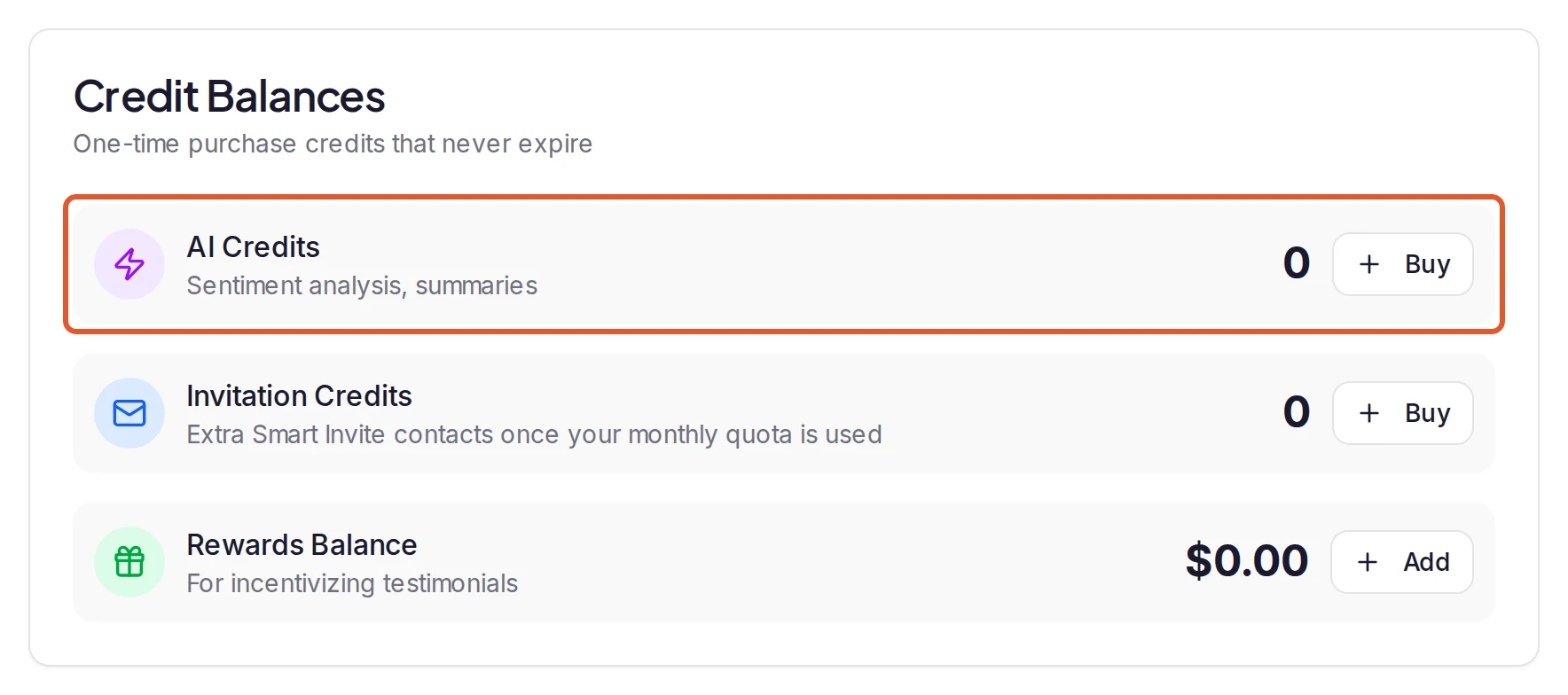
- On the Credits tab, AI Credits under Credit Balances shows your purchased credits that aren't set aside for a project.
Buy a credit pack
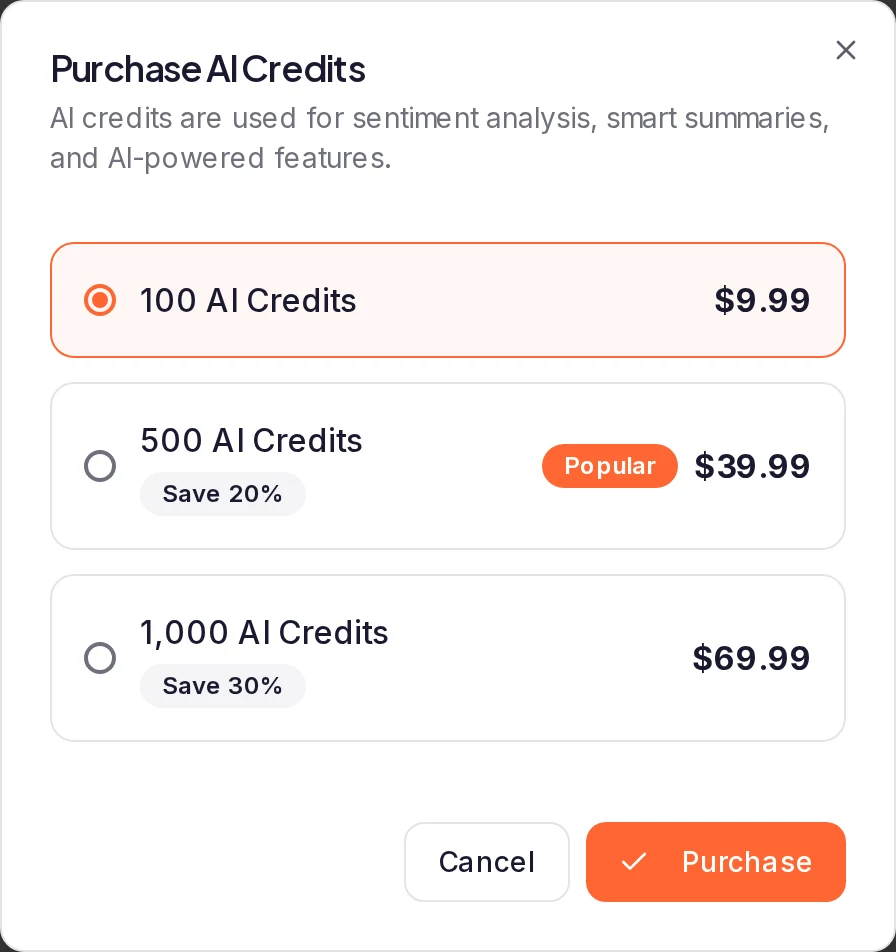
On the Credits tab, click Buy next to AI Credits, or click Buy AI credits on the Overview tab. In Purchase AI Credits, pick a pack, click Purchase and pay on the secure checkout page.
| Pack | Price |
|---|---|
| 100 AI Credits | $9.99 |
| 500 AI Credits | $39.99 |
| 1,000 AI Credits | $69.99 |
The two larger packs cost less per credit, and a badge on each shows the saving. Prices don't include tax: see Do prices include tax or VAT?
Back on Billing, a Credit payment received notice appears. Your credits are added as soon as the payment is confirmed, and the purchase is listed under Recent transactions on the Credits tab. If you leave checkout without paying, Credit purchase cancelled appears and no credits are added.
Only the workspace owner can buy credits: the Billing page always shows the workspace you own. On other plans, the Credits tab shows Upgrade instead of Buy.
Set credits aside for a project (optional)
Your credits are shared by all your projects. To reserve some for one project:
- Open the project's inbox and click Proof AI in the toolbar.
- Click Manage AI Budget.
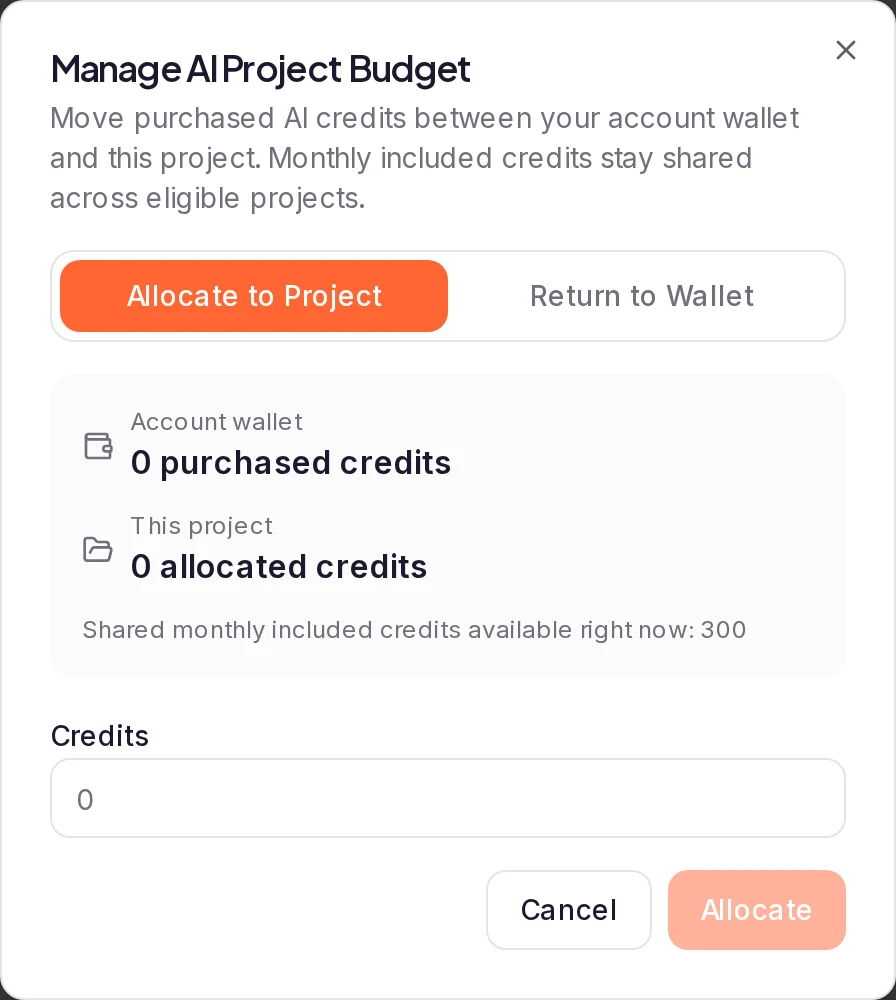
- Choose Allocate to Project, enter the number of Credits and click Allocate.
To take them back, choose Return to Wallet instead and click Return. Only purchased credits can be set aside; included credits stay shared. The workspace owner and the project's Admins can do this.
Where credits come from
| Credits | What they are | When they run out |
|---|---|---|
| Included | Come with Premium and Business: 50 credits a month for each active project on Premium and 150 on Business. They add up to one allowance, and any project can use it | Reset to your full allowance at the start of each month (UTC). Unused ones don't carry over |
| Purchased | The credit packs you buy | Never expire |
| Set aside | Purchased credits you've reserved for one project | Never expire; return them to your balance at any time |
If you add a project or upgrade during the month, the extra included credits are added straight away. Read-only projects don't count toward the allowance.
How many AI credits each plan includes
| Plan | AI credits included each month, for each active project |
|---|---|
| Free | 0 |
| Pro | 0 |
| Premium | 50 |
| Business | 150 |
Your monthly allowance is your plan's number for each active project, added up. The whole workspace shares it, so any project can spend it. It starts again at the beginning of each calendar month (UTC), and credits you didn't use aren't carried over.
On a plan that includes credits, the plan badge at the top of the dashboard shows your own numbers: click it, and Included AI gives your plan's credits per project, how many you've used this month and how many are left. For every other limit by plan, see Plan limits.
What Purchased Wallet, Monthly Included and Project Allocated mean
The Billing page shows your whole workspace's credits. A project shows what it can spend, under other names. Click Proof AI in the project's inbox toolbar:
- Purchased Wallet is your purchased credits that aren't set aside for a project: the same number as AI Credits on the Credits tab.
- Monthly Included is what's left of this month's included credits, shared by all your projects.
- Project Allocated is the purchased credits set aside for this project. The Billing page doesn't show them as a balance: setting credits aside lowers AI Credits there.
Manage AI Budget opens Manage AI Project Budget, which calls the two purchased balances Account wallet and This project. On the project's Insights page, AI Credits is all three added up: everything the project can spend.
Which credits are used first
Each AI action takes its credits in this order: the project's set-aside credits first, then included credits, then purchased credits. So the purchased credits in your balance are used only once this month's included credits are gone, while credits you set aside for a project are used before it touches the included ones. Set-aside credits are spent only in their own project: your other projects can't use them.
What uses AI credits
| Action | AI credits |
|---|---|
| Proof Intelligence analysis of a testimonial, which runs automatically for new and changed testimonials | 1 |
| Create case study | 2 |
| Emphasize text | 1 |
| Translating testimonials with AI, one at a time with AI translate or several at once (Business) | 1 per testimonial per language |
| AI translate texts in a widget's Language & Texts (Business) | 1 per language |
| Generate with AI for a Review Summary Panel badge's summary | 1 |
If an action fails, its credits are returned. Create case study and Emphasize text analyze the testimonial first when it isn't analyzed yet or its analysis is out of date, for one more credit: see What it costs.
These don't use credits: AI search in the inbox, Extract from screenshot, widget builder buttons such as Suggest metrics with AI, and the AI suggestions in the social video editor.
Credits belong to the workspace, so when a teammate runs an AI action in one of your projects, it uses your workspace's credits.
Automatic analysis uses credits on its own
Proof Intelligence analyzes every testimonial on a project's Pending and Approved pages by itself, and again when what a testimonial says changes, so it's usually where most of your credits go. Each analysis uses 1 credit, in the usual order: once this month's included credits are gone, it uses credits you bought. It works through everything that isn't analyzed yet, not only what arrives from now on: an import uses a credit for each testimonial it adds to those pages, and so do the testimonials a project already had when its plan first included Proof Intelligence.
To stop it for a project, open the project's inbox, click Proof AI in the toolbar and switch Analyze testimonials automatically off. You need access to the project's settings to change it, and it doesn't change your other projects. While it's off, nothing in that project is analyzed on its own. A testimonial is still analyzed, for 1 credit, when someone clicks Start Analysis or Reanalyze, or runs Create case study or Emphasize text on a testimonial that isn't analyzed yet or whose analysis is out of date.
While it's on, nothing limits how many credits it uses: it pauses only when the project has no credits left to spend. Each analysis is listed under Recent transactions on the Credits tab as "Proof Intelligence testimonial analysis". Approving a testimonial or changing its tags isn't such a change, and uses no credit. For what counts as one, see How analysis runs.
When you run out
A project has run out when the credits set aside for it, this month's included credits and your purchased credits are all used.
- Automatic analysis pauses. Testimonials wait (they show as Not analyzed in the inbox's Analysis state filter) and analysis starts again by itself once credits are available, from next month's included credits or a pack you buy. It then works through everything that waited, in batches. To queue all of it at once, click Start Analysis: see Analyze your testimonials with Proof Intelligence.
- Actions you start stop with "Insufficient AI credits", followed by how many credits you have and how many the action needs. That's Reanalyze, Create case study, Emphasize text, AI translate, AI translate texts and Generate with AI.
- Start Analysis (it reads Resume Analysis once some testimonials are analyzed) in the Proof AI window needs enough credits for every testimonial waiting. With fewer, it's unavailable, and the workspace owner and Admins see Buy AI Credits there. See If Start Analysis is greyed out.
- Translating several testimonials at once isn't refused at the start. It translates until the credits run out, and its closing message, "Translations finished", counts the testimonials it couldn't finish as failed. Run Translate again once you have credits: see Translate many testimonials at once.
Do AI credits expire?
Credits you buy never expire, whether they're in your balance or set aside for a project: they stay until they're used. Included credits are different: they start again at the beginning of each calendar month (UTC), and the ones you didn't use aren't carried over.
If you change plan, cancel or delete your workspace
- On a plan without these AI features, which includes Free once a cancellation takes effect, your purchased credits stay in your balance, and credits set aside for a project stay with it. You can't spend them or buy more until you're back on Premium and Business.
- On a plan with a smaller monthly allowance, your purchased credits aren't affected, and included credits you already have this month aren't taken back. The smaller allowance applies from the next month.
- Deleting a project returns the credits set aside for it to your purchased credits. See Your gift-card budget and AI credits.
- Deleting your workspace deletes its credits. The delete dialog lists your purchased AI credits, including those set aside for projects, and asks you to confirm. They can't be withdrawn or moved to another workspace. See Delete your workspace and account.
Refunds for AI credits
Credit packs aren't covered by the first-payment guarantee in our refund policy. If you were charged twice or by mistake, or a pack you paid for hasn't reached your balance, contact us.
What happens next
Your credits are spent as you and Proof Intelligence use AI features. Recent transactions on the Credits tab lists each purchase, spend and refund, and each move of credits to or from a project. It shows your last 50 credit and rewards transactions; a pack you bought reads "AI credits purchase". For AI credits, its Balance column is your purchased balance, marked purchased credits, so a spend from included or set-aside credits shows in Change but may leave Balance as it was.
Was this page helpful?
Plan limits
What each plan allows for testimonials, forms, imports, widgets, invites, seats and AI credits, what counts toward a limit, and where to see your usage.
Buy invitation credits
Buy a pack of invitation credits on the Billing page to keep sending Smart Invites after a project's monthly allowance is used up.