Share or embed your form
Send customers your form's link or QR code, or put the form on your website as an inline frame, a modal button or a floating popup.
When your form is ready, send customers its link or QR code, or embed it on your own website. You need to own the workspace or be an Admin on the project.
Check that the form is Active
Open the form from Forms under Collect in your project's sidebar. The status badge beside its name in the top bar should say Active. If it says Paused or Paused (draft), click the badge and choose Activate form.

Open the Share dialog
Click Share in the builder's top bar. You can also start from the Forms page: open a form's More options menu and choose Share & embed. Changes you make in the dialog save automatically.
Share the link or QR code
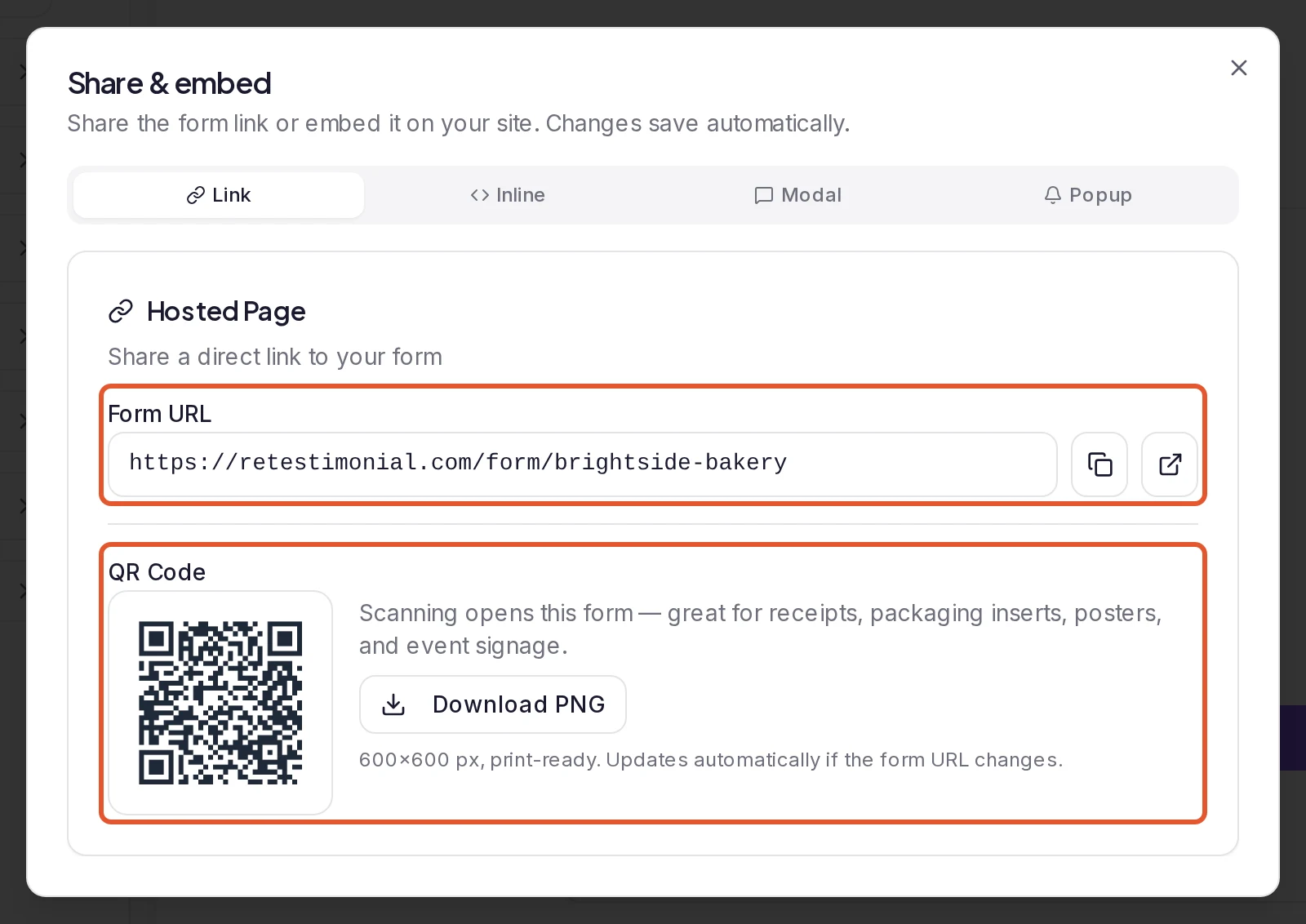
On the Link tab, click the copy button next to Form URL. Under QR Code, click Download PNG for a print-ready image that opens the form when scanned, handy for receipts, packaging and signs.
On the Forms page, each form's More options menu also has Copy link.
Or embed it on your website
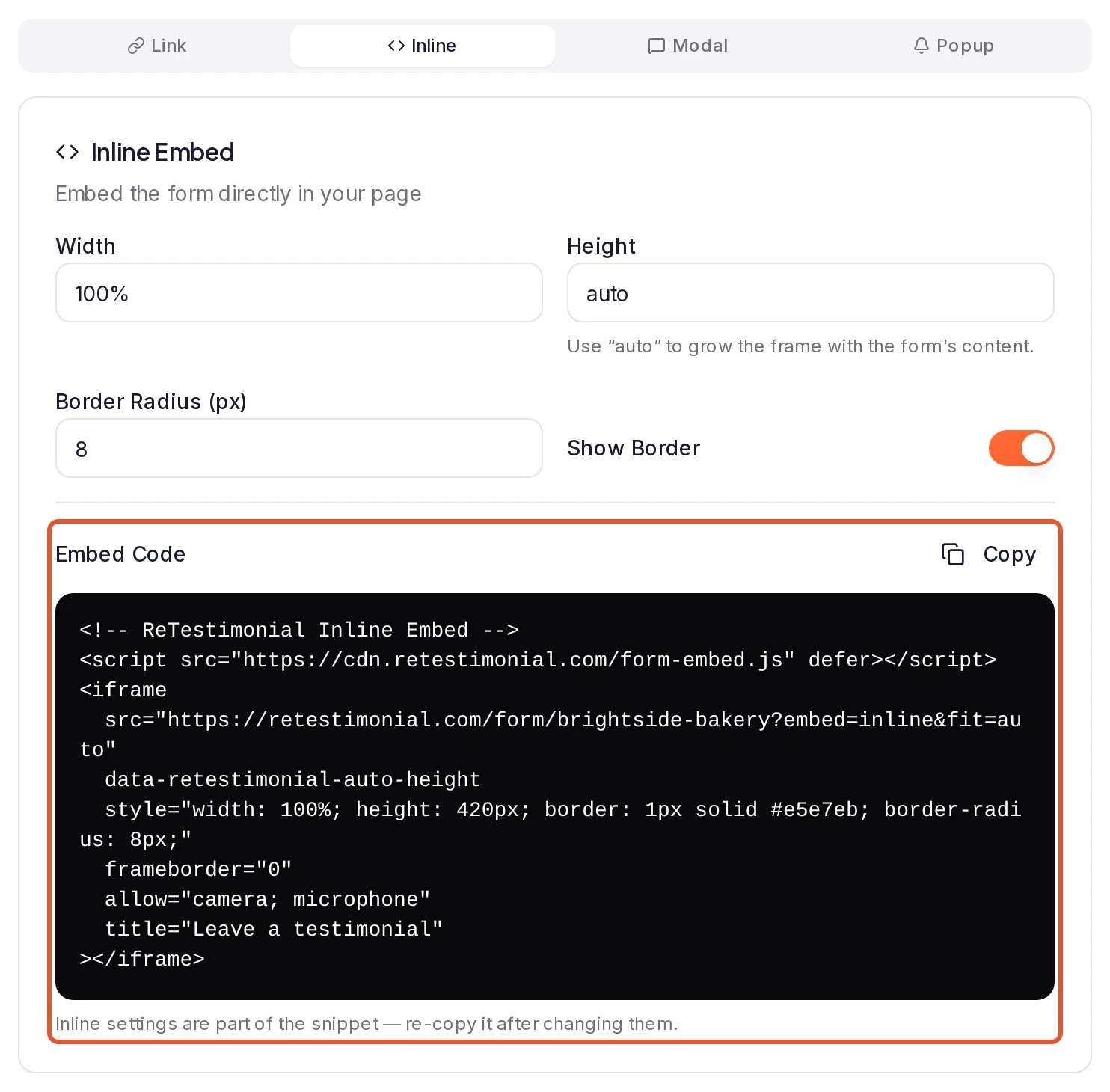
Pick a tab and set its options, then click Copy next to Embed Code and paste the code into your site's HTML.
- Inline shows the form inside your page. Set its Width, Height (type
autoto let the frame grow with the form), Border Radius (px) and Show Border. These are part of the code, so copy it again after changing them. - Modal adds a button that opens the form in a window over your page. Button Text and Button Color are part of the code. Modal Size, Close on backdrop click and Show close button reach your site without new code.
- Popup adds a round button that floats at the bottom of the page. It's off by default: turn on the Popup Widget switch to see its settings and code. Position, Icon, Button Color, Tooltip Text (optional), Show on Mobile and Hide After Submission all reach your site without new code. The window it opens uses the Modal tab's size and close settings.
Changes that need no new code can take about a minute to show.
Good to know
- Pausing a form closes every way in. Its link shows a page-not-found error (or No Form Available for the project's default form), inline frames show the same, modal buttons stop opening it and the popup button disappears. Open form in the top bar stays unavailable until you activate the form again. To remove a form for good, see What happens to my testimonials when I delete a form?.
- The link contains the form's URL slug. If you change URL slug on the Settings tab, the form gets a new link and the old address forwards to it, so links, QR codes and embed codes you've already shared keep working. If you later give the old slug to another form, the old address opens that form instead. The project's default form, marked Default, has a shorter link without a slug.
- Turning an embed off. Switching off Modal Embed stops its buttons from opening the form, and switching off Popup Widget removes the floating button. Inline Embed has no switch: an inline frame is the form's own page, so it keeps working until you remove its code or pause the form.
- Use your own button. Copy the
data-retestimonial-attributes from the modal code onto any button or link of yours, and keep the code's<script>line on the page. - Video works in embeds. Inline and modal frames can use the customer's camera and microphone. If customers can't record in an embedded form, see Customers can't record a video.
- A redirect moves the whole page. If the form's Thank You page has a Redirect URL (optional), an embedded form sends the page that holds it to that address after a submission. See Set up your form's Thank You page.
- Your own domain. On Pro, Premium and Business, the Form URL and QR code can use a subdomain of yours, such as
reviews.yourbrand.com. See Use your own domain for forms and your Wall of Love. If the form doesn't open on your domain, see Custom domain not connecting.
What happens next
Submissions reach your inbox whichever way customers found the form. To compare the ways, click Analytics on the form's card on the Forms page: Source Comparison shows views and completions for Hosted Page, Inline Embed, Modal and Popup.
Was this page helpful?
Design your form
Set your form's theme, colours, fonts, progress indicator and logo on the form builder's Design tab, and watch the preview change as you go.
Form questions
Short answers about collection forms, from plan limits, audio and video answers and optional questions to approval, blocked submissions and languages.