Collect video testimonials
Let customers record a video in their browser or upload one through your collection form, then watch it in your inbox.
A video testimonial is a customer telling your story on camera. Any Question page on your collection form can ask for one: customers record it in their browser or upload a video they already have, and it arrives in your inbox with your other testimonials. New to forms? Start with Build a collection form.
Open the question page
In your project, open Forms under Collect in the sidebar and click your form. In the Pages tab, click the Question page.
Choose a video question type
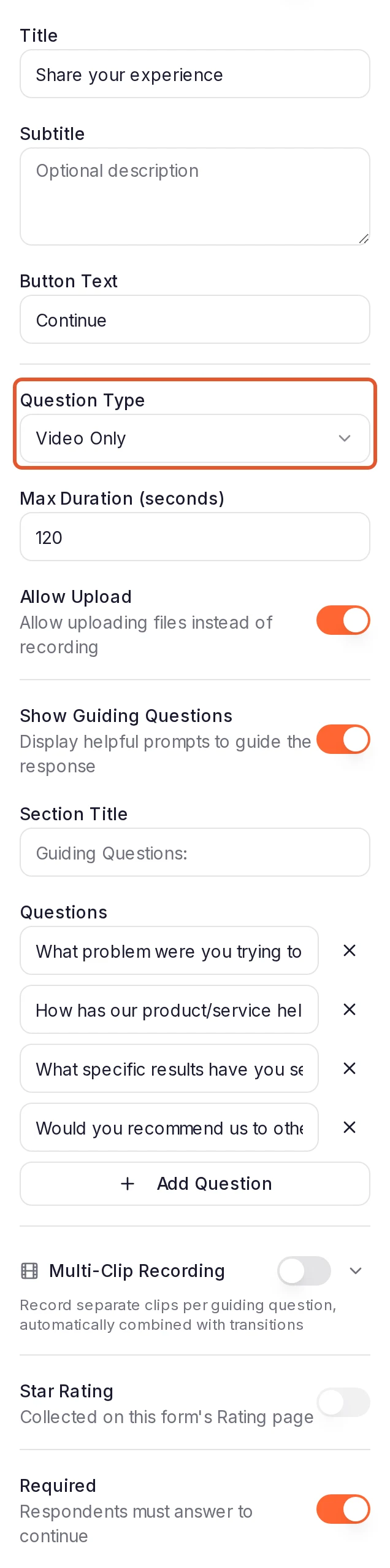
Set Question Type to one of these:
- Video Only: customers answer with a video.
- Video and Text: customers choose between a video and a written answer. The two buttons read Record a video and Respond with text; you can rename them with Video Prompt CTA Text and Text Prompt CTA Text.
Set the longest video you'll accept
Enter a length in Max Duration (seconds), or Max Video Duration (seconds) for Video and Text. It can't go above your plan's limit (see below).
On a Video Only question, Allow Upload lets customers send a video file they already have. Turn it off to accept only videos recorded on the form.
Give customers prompts (optional)
Turn on Show Guiding Questions and click Add Question for each thing you'd like customers to talk about. Leave Required on if every customer must answer this page.
The builder saves your changes automatically.
What your customers see
- They click Start Camera to Record to turn on their camera, then Start Recording when they're ready. Or they click Upload a Video to pick a file; a Video Only question with Allow Upload off doesn't offer it. On a Video and Text question, they choose the video button first.
- While they record, a timer runs. They click Stop Recording when they're done, and recording stops on its own at your maximum length.
- They watch the recording back, then click Use this video or Re-record.
- Once the video is uploaded, the page shows Video uploaded (processing) and they can carry on with the form. Change swaps it for a different video.
A file that's longer than your maximum length or larger than your plan allows is refused with a message, and so is a recording when the browser blocks the camera or can't record. See Customers can't record a video for each message and what to tell your customer.
After someone submits
- It arrives in your inbox. While the form's Require Approval setting (in the Settings tab) is on, the testimonial waits in Pending unless its rating meets the form's auto-approve threshold. With the setting off, it's approved straight away.
- It's processed first. When the video is ready, its thumbnail appears on the testimonial. Click it to play the video.
- Find videos quickly. Click Filters and choose Video under Type.
- Transcripts. On Pro, Premium and Business plans, each video also gets an automatic English transcript a few minutes after it's ready. To read or correct it, click Show more on the testimonial, then Edit, and use Edit transcript in the Transcript section.
Limits by plan
- Free: videos up to 120 seconds and 50 MB, and 2 video testimonials across your account.
- Pro: videos up to 120 seconds and 100 MB, and 10 video testimonials per project.
- Premium: videos up to 180 seconds and 150 MB, and unlimited video testimonials per project.
- Business: videos up to 300 seconds and 250 MB, and unlimited video testimonials per project.
When you reach your video testimonial limit, your forms stop accepting new videos. Rejected, archived and spam testimonials don't count toward it. See Plan limits.
Multi-clip videos
On Business plans, a video question can ask for a few short clips instead of one long take. Turn on Multi-Clip Recording on a Video Only or Video and Text question and add guiding questions; the editor tells you if it needs more. Each guiding question becomes its own clip, and Max Duration Per Clip sets how long each clip can be. Question Title Screens shows each question between the clips.
After recording, customers can change the order of their clips on the Review & Reorder Clips screen with the up and down buttons. The clips are then combined into one video. Until that's done, the testimonial in your inbox shows Combining video clips….
Show your videos
- Widgets: approved videos can appear in your widgets. For a video-only layout, choose the Video type when you create one. See Embed a widget on any website.
- Wall of Love: approved videos can appear on your Wall of Love page too.
Next steps
Was this page helpful?
Form questions
Short answers about collection forms, from plan limits, audio and video answers and optional questions to approval, blocked submissions and languages.
Smart Invites
How Smart Invites emails customers to ask for a testimonial, with reminders, a monthly allowance, invite credits, a cooldown and a do-not-email list.