Smart Invites
How Smart Invites emails customers to ask for a testimonial, with reminders, a monthly allowance, invite credits, a cooldown and a do-not-email list.
Smart Invites emails your customers to ask for a testimonial, then reminds them until they respond. They answer through one of your forms, and their testimonial arrives in your inbox with the rest. Open Invites in your project's sidebar to start.
How it works
- A customer is added: automatically by a webhook when they buy, from a CSV file of customers you already have, or one email address at a time.
- They get your sequence: Email 1: Initial Request, then up to two reminders, Email 2: First Reminder and Email 3: Final Reminder. With the default template, the first email is queued as soon as the customer is added, and the reminders follow 3 and 7 days after it. Each template sets its own timing: a Delay on Email 1 and a Delay from Email 1 on each reminder. For customers who arrive by webhook, the webhook's Wait before the first email takes the place of Email 1's Delay. You can turn the reminders off; the final reminder only ever follows the first, so turning off Email 2 stops both.
- They answer through your form: the email's button opens the form the invite points to, with the name and company you have for them already filled in. Once they submit it, no more reminders are sent.
Each invited customer lands in a campaign, which Smart Invites creates for you: one for each webhook, one for each CSV upload, and one for single invites that share a form and template. The Campaigns tab shows who was emailed, and who opened, clicked or responded.
Three ways to add customers
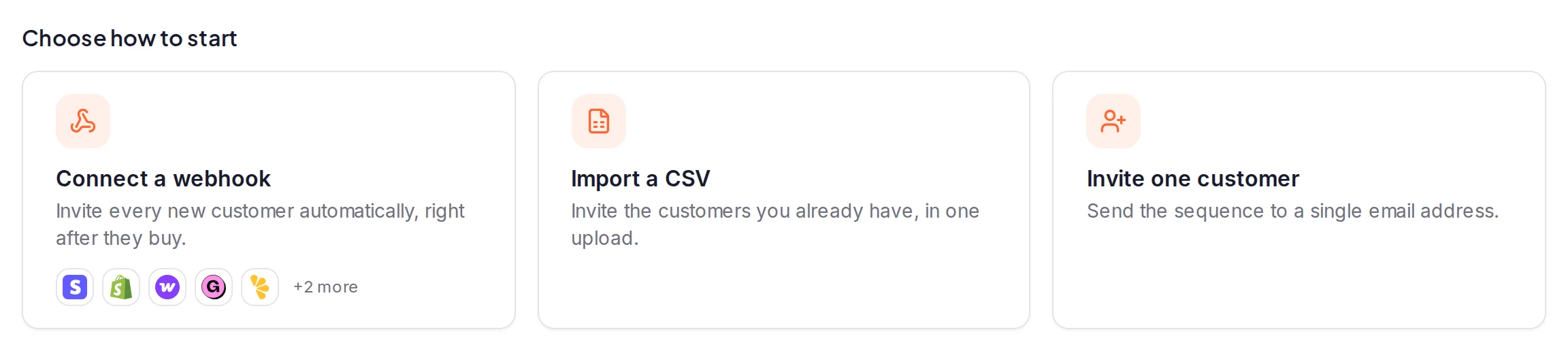
Start from the cards on the Overview tab, or from the New invite menu:
- Connect a webhook invites every new customer automatically, right after they buy. Setup is guided for Stripe, Shopify, WooCommerce, Gumroad, Lemon Squeezy and Paddle, and Custom webhook works with any other app that can send one.
- Import a CSV invites a list of the customers you already have, in one upload. See Invite customers from a file.
- Invite one customer sends the sequence to a single email address. See Invite one customer.
Every invite points to one of your forms, so you need at least one. See Build a collection form.
What your customers receive
- The sender is your project's name followed by "via ReTestimonial", at
invites@campaigns.retestimonial.com. The email shows your project's name, and its logo when the project has one. - Replies go to the template's Reply-to email, or to the workspace owner's email address when the template has none.
- An unsubscribe link is added below the button of every email. You can't remove it.
- Unsubscribing takes a click to confirm. Opening the link shows a page with an Unsubscribe button, so a link checker that opens every link doesn't unsubscribe anyone. The unsubscribe button in their email app works too.
What counts as an invite
Each customer added to a sequence uses one invite, however they arrive. The reminders don't use more, and neither does Restart sequence on a customer who was already invited. The invite is used as soon as the customer is added, so cancelling their emails later doesn't give it back.
Customers who are skipped because of the re-invite cooldown or the do-not-email list (both below) don't use an invite. Neither do test events from Stripe, Shopify or Lemon Squeezy, addresses that bounced or reported spam, or events for a form that's paused or a draft. An invite is used when the customer is added, not when an email is delivered, so it counts even if their email later bounces. A project's allowance counts each email address once in a calendar month (UTC).
Monthly allowance and invite credits
Each project has a monthly allowance of invites (see the table below), which resets at the start of each calendar month. One customer uses one invite, and their reminders don't use more. The Invites this month card on the Overview tab shows how many you've used and the reset date.
Once a project's allowance for the month is used up, new invites use invitation credits. The workspace owner buys them in packs, they never expire, and every project in the workspace shares them: see Buy invitation credits.
With no allowance and no credits left, the card says "You're out of invites — new customers won't be invited until this resets." Until then:
- Invite one customer fails with an error, and a CSV import that needs more invites than you have left imports nobody.
- A customer who arrives by webhook isn't invited, now or when the allowance resets. The webhook's activity says "You were out of invites, so this customer wasn't invited."
The re-invite cooldown
Invite one customer and Import a CSV skip anyone this project invited in the last 90 days. A webhook has its own Re-invite cooldown (days): 90 unless you change it, so a customer who buys again isn't asked twice. 0 turns it off.
The do-not-email list
The Do not email tab lists the addresses this project never invites. Smart Invites adds an address when the person unsubscribes, when an email to them bounces permanently, when they report an invite as spam, or when the email provider refuses to deliver to them. Their remaining emails are canceled straight away.
An unsubscribe covers the project whose email they unsubscribed from. You can take it off the list only if the person asks to hear from you again. Bounces and spam reports can't be removed: they also block the address for every email ReTestimonial sends.
When the emails stop
A customer gets no more invite emails once:
- they submit your form from an invite email;
- they unsubscribe, an email to them bounces or can't be delivered, or they report one as spam;
- you choose Cancel remaining emails for them on their campaign's page;
- your workspace moves to a plan without Smart Invites, or the project becomes read-only. Reminders already scheduled don't go out either. They don't start again by themselves afterwards: see Invite emails not sending.
Open and click tracking
Each invite email records the first time it's opened, with a tiny invisible image, and the first click on its button, which passes through ReTestimonial on the way to your form. An open is recorded only when the reader's email app loads images, so some opens go uncounted.
You see opens and clicks in each customer's timeline on the Campaigns tab, and in the Conversion Funnel on the Analytics tab: Invited, Sent, Opened, Clicked and Submitted. The Overview tab adds up Customers invited, Testimonials received and Response rate.
Which plans include it
Smart Invites is on Premium and Business. On other plans, Invites shows a lock in the sidebar, and its page explains Smart Invites with a See plans button. See Plans and pricing.
| Premium | Business | |
|---|---|---|
| Invites per project each month | 500 | 1,000 |
| Webhooks per project | 1 | 3 |
| Email templates of your own per project, besides the default one | 3 | unlimited |
Conditional routing, which sends a webhook's customers to different forms or templates depending on what the event contains, is on Business.
Who on your team can use it
The workspace owner and the project's Admins can use everything in Smart Invites. Members and Viewers see only the Analytics tab, and the Overview tab tells them Smart Invite access is restricted. See Invite team members.
If a webhook isn't inviting your customers, see Smart Invites webhook not inviting customers. If invite emails don't go out or don't reach your customers, see Invite emails not sending.
In this section
- Invite one customer
- Invite customers from a file
- Send invites automatically with a webhook
- Test a Smart Invites webhook
- Pause, change or delete a Smart Invites webhook
- Customize your invite emails
- Invite email merge tags
- Preview and send a test invite email
- Manage invite templates
- Track invite campaigns and contacts
- Read your invite analytics
- Manage the do-not-email list
- Send invites from Stripe
- Send invites from Shopify
- Send invites from WooCommerce
- Send invites from Gumroad
- Send invites from Lemon Squeezy
- Send invites from Paddle
- Send invites from any app
Was this page helpful?