Embed a widget on WordPress
Add your widget to a WordPress page, post, widget area or template with a Custom HTML block, then preview and publish it.
WordPress shows a ReTestimonial widget through its Custom HTML block. You copy the widget's code once, paste it into the block and publish the page. There's no plugin to install.
On WordPress.com, the widget's code works only on a paid plan with hosting features activated. See If the code disappears after you save.
Copy your widget's embed code
In the widget builder, click Get code. Click Publish and copy code, or Copy code if the widget is already published. If you haven't made a widget yet, start with Embed a widget on any website.
Add a Custom HTML block
Open the page or post in the WordPress editor. Click the + block inserter where the widget belongs, search for "HTML" and choose Custom HTML. You can also type /html in an empty paragraph and press Enter.
Paste the code
Click Edit HTML on the block, paste the code into the editor and click Update. Paste all of it without changing it, down to the closing </script> tag. If the editor has separate HTML, CSS and JavaScript panels, paste it into the HTML one.
Preview and publish
Click View in the editor's top toolbar and choose Preview in new tab to see the page with your widget. When it looks right, publish or update the page. Your site shows the widget only once it's published in ReTestimonial.
Other places to add it
- A widget area (classic themes): go to Appearance > Widgets, pick an area such as the footer or sidebar, and add a Custom HTML block there.
- A template (block themes): block themes have no Widgets screen. Add the Custom HTML block to a template or template part in the Site Editor instead.
- The classic editor: if your site uses the Classic Editor plugin, switch from Visual to Code (called Text in older versions of WordPress) before you paste.
If the code disappears after you save
WordPress.com
WordPress.com accepts script and iframe tags only on a paid plan with hosting features activated. If the code vanishes or is cut short after you save:
- Make sure your site is on a paid plan.
- Activate hosting features by installing at least one plugin.
- Paste the code into the block again and save.
Self-hosted WordPress
Posting scripts needs the unfiltered_html permission. Administrators and Editors have it on a single site; on a multisite network, only Super Admins do. For other roles, such as Author or Contributor, WordPress strips disallowed tags when the page is saved. Ask someone with the permission to add the block.
Good to know
- Keep Script selected. If Get code offers Script and Iframe / Embed URL, keep Script, the default. Some styles only work with it, and WordPress.com restricts iframes just like scripts. See Script or iframe.
- Floating widgets attach to the browser window, not to the block. To show one on many pages, add it to a widget area or template.
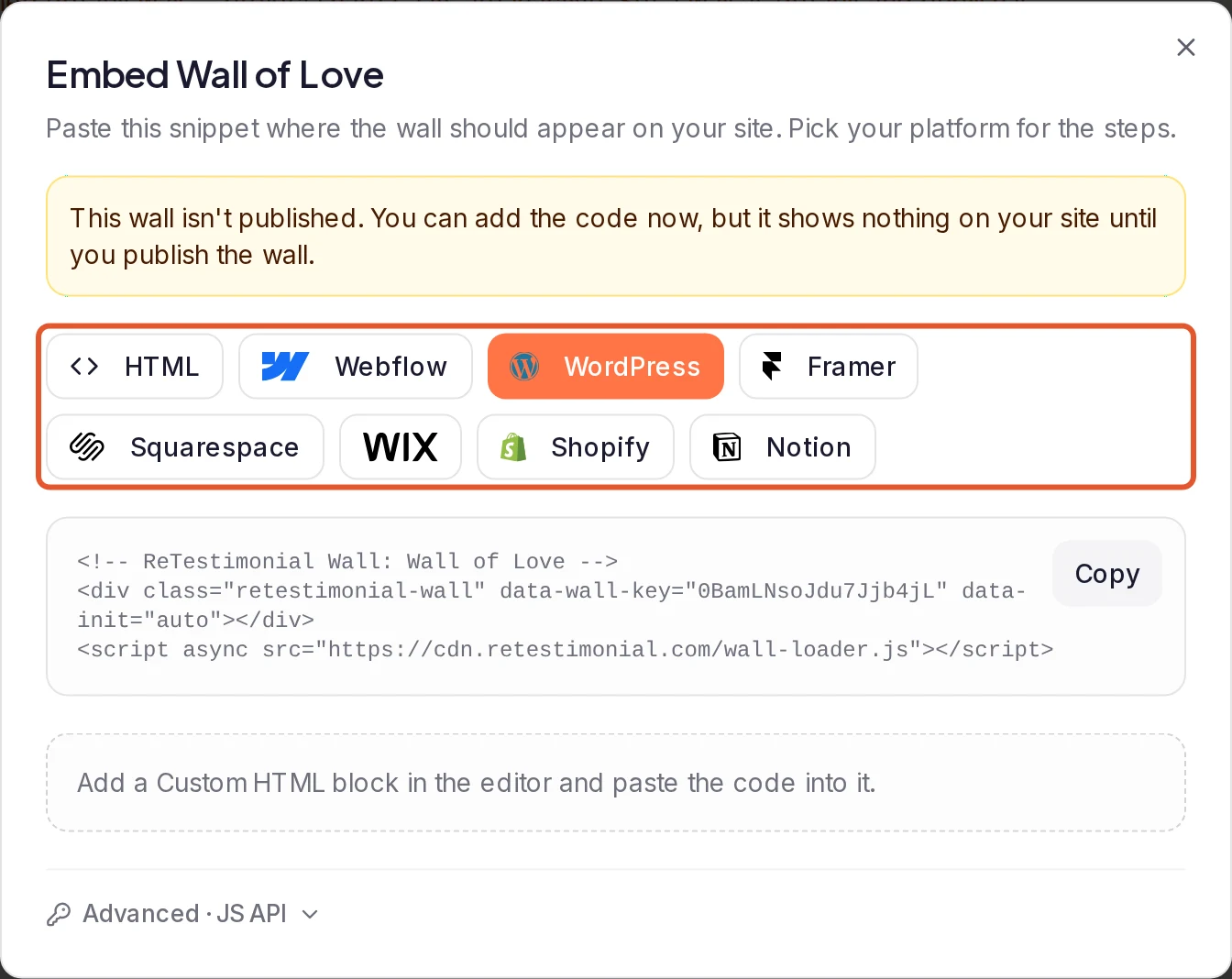
- A Wall of Love works the same way. Click Embed code… on its card, choose WordPress, click Copy and follow these steps. See Embed a Wall of Love on your website.
Next steps
Was this page helpful?