Embed a widget on Shopify
Add your widget to your Shopify store with a Custom Liquid section in the theme editor, on your home page, product pages or every page.
Shopify shows a ReTestimonial widget through a Custom Liquid section, which you add to your theme in Shopify's theme editor. You copy the widget's code once, paste it into the section and save. There's no Shopify app to install.
These steps are for themes with sections on every page, which includes every theme in the Shopify Theme Store today. On an older theme, see On a vintage theme.
Copy your widget's embed code
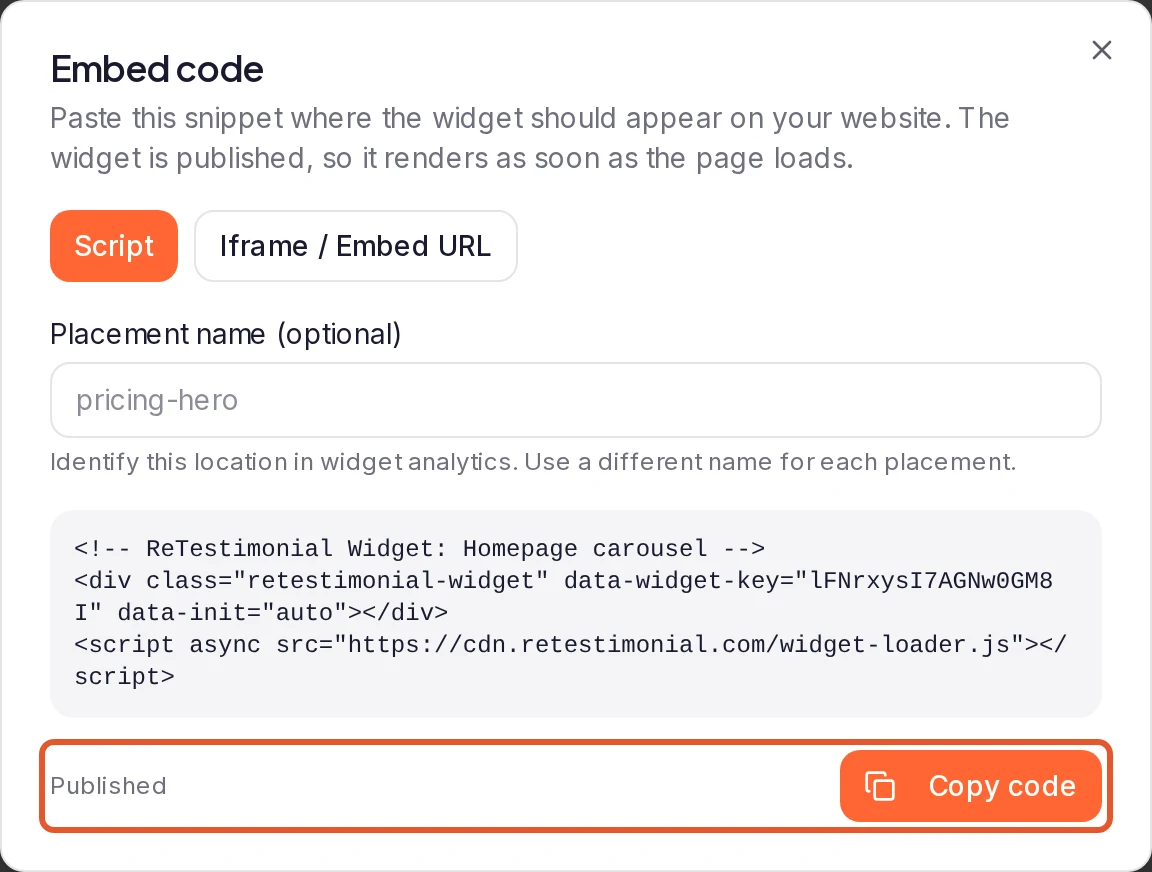
In the widget builder, click Get code. Click Publish and copy code, or Copy code if the widget is already published. If you haven't made a widget yet, start with Embed a widget on any website.
Open the page in the theme editor
In your Shopify admin, go to Online Store > Themes, find your theme and click Edit theme (Customize on some screens). The editor opens on your home page. For another page, pick its template from the Home page menu at the top, such as Products > Default product for your product pages.
Add a Custom Liquid section
In the sidebar, click Add section, search for "Custom Liquid" and select it. Drag the new section by its handle to the spot where the widget belongs.
Paste the code and save
Click the section and paste the code into its code box in the sidebar. Paste all of it without changing it, down to the closing </script> tag. Then click Save. On your live theme, Shopify may ask you to click Publish to make the change live.
The editor's preview draws the widget a moment after you add the section. Open your store to check how it looks to visitors.
Good to know
- A template covers every page that uses it. A widget added to Default product shows on all your product pages. To show it on some products only, create a new product template in Shopify, add the section there and assign that template to those products.
- Use the footer for every page. Your header and footer are shared by all pages, so a Custom Liquid section added to the sidebar's footer area appears everywhere. That suits floating widgets: Floating Proof widgets, the Floating Proof Tab badge and the Video type's Floating CTA style attach to the browser window, not to the section.
- Change the design in ReTestimonial. Your theme's CSS can't restyle the widget. Only its text follows your theme's font, until you choose a font in the builder. See Widget looks different on your website. Once the widget is published, your edits in the builder reach your store with the same code. The exception is switching to a floating style: Get code then gives you new code to replace the old.
- Several widgets can share a page. Give each one its own section.
- No Custom Liquid section? Not every theme offers one. Check your theme's documentation, or ask its developer, for a way to add custom HTML.
- A Wall of Love works the same way. Click Embed code… on its card, choose Shopify, click Copy and follow these steps. See Embed a Wall of Love on your website.
On a vintage theme
If no Add section button appears below your product template's sections, your store uses a vintage theme, which can't take sections on its other pages. To place the widget there, the code has to go into your theme's code through Edit code. Do this only if you know HTML, or ask your theme's developer.
Next steps
Was this page helpful?
Embed a widget on Wix
Add your widget to a Wix page with an Embed HTML element, size the element to fit it, then publish your site so visitors can see it.
Show testimonials in Notion
Notion can't run embed scripts, so paste a widget's Embed URL into an Embed block, and add your Wall of Love to a page as a link.