Embed a widget on Squarespace
Add your widget to a Squarespace page with a Code block, then save the page so visitors can see your testimonials.
Squarespace shows a ReTestimonial widget through its Code block, which runs custom HTML and scripts on a page. You copy the widget's code once, paste it into the block and save the page.
The widget's code includes JavaScript, which Squarespace runs in Code blocks on its Core, Plus and Advanced plans, the older Business and Commerce plans, and free trials. On its Basic plan, the code stays in the block but doesn't run.
Copy your widget's embed code
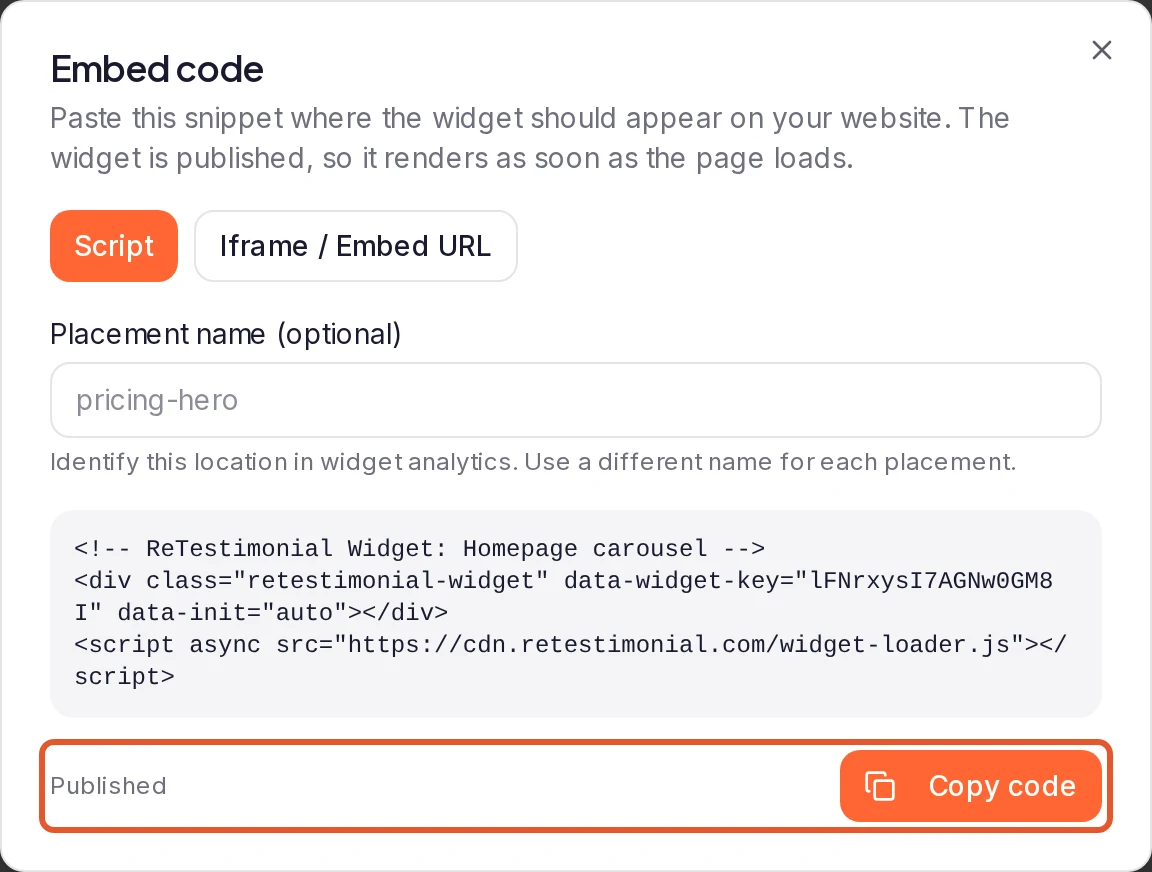
In the widget builder, click Get code. Click Publish and copy code, or Copy code if the widget is already published. If you haven't made a widget yet, start with Embed a widget on any website.
Add a Code block
Open the page in Squarespace and click Edit in the top-left corner. Hover over the section where the widget belongs, click Add Block and choose Code. On version 7.0 sites, and in sections that use the classic editor, click + instead of Add Block.
Paste the code
Click the block, then the pencil icon. Check that Type is set to HTML and Display Source is off, or Squarespace shows the code as text. Replace the placeholder content with your code, all of it, down to the closing </script> tag.
Save and check it
Click Save in the top-left corner, or Exit and then Save to close the editor. As a security measure, Squarespace sometimes hides a Code block's output while you're logged in, even though visitors see it. If the block looks empty, click Preview in Safe Mode, or open the page in a private window.
Good to know
- Check the phone layout. Drag the Code block's edges to change its width. Resizing on the computer view doesn't change the phone layout, so click the Mobile View icon and check the block there too.
- Change the widget's design in ReTestimonial. The widget draws itself in its own isolated area, so your Squarespace styles don't restyle it. Once it's published, your changes in the builder reach your page with the same code. The exception is switching to a floating style: Get code then gives you new code to replace the old.
- Floating widgets attach to the browser window, not to the block. That's Floating Proof widgets, the Floating Proof Tab badge and the Video type's Floating CTA style. To show one on every page, use Squarespace's site-wide footer instead: in the Pages panel, click Custom Code, then Code Injection (under Website Tools on version 7.0), paste the code into Footer and click Save. Code Injection needs the same Squarespace plans.
- Keep Script selected. If Get code offers Script and Iframe / Embed URL, keep Script, the default. Some styles only work with it, and Squarespace restricts iframes in Code blocks just like scripts. See Script or iframe.
- A Wall of Love works the same way. Click Embed code… on its card, choose Squarespace, click Copy and follow these steps. See Embed a Wall of Love on your website.
If the widget doesn't show
- On the Basic plan, Squarespace shows you a note, while you're logged in, that the code isn't supported.
- The widget must be published in ReTestimonial before your site shows it.
- On a page inside an Index, Squarespace says the code might not render. To test, remove the page from the Index, then view it logged out.
- Ajax loading can cause issues with custom code, Squarespace says. Turn it off to test.
For other causes, see Widget not showing, and Squarespace's own Code blocks guide.
Next steps
Was this page helpful?
Embed a widget on Framer
Add your widget to a Framer page with an Embed component, then publish your site to see your testimonials on the live page.
Embed a widget on Wix
Add your widget to a Wix page with an Embed HTML element, size the element to fit it, then publish your site so visitors can see it.