Embed a Wall of Love on your website
Set your wall's embed layout, columns, motion and size in the builder's Embed tab, then copy the code and paste it into your site.
Your Wall of Love can live on your own website as well as on its hosted page. The builder's Embed tab sets how the embedded wall looks: its layout, columns, motion and size. It changes the embed only, never the hosted page. Only the workspace owner and project Admins can edit a wall.
Open the Embed tab
In your project, open Wall of Love in the sidebar, click Edit on the wall's card and choose the Embed tab. The preview switches to Embed. On Desktop it shows the wall on a sample web page; use Tablet and Mobile above it to check smaller screens.
The tab's rows sit in groups: Layout, Behaviour, Frame and Developer. Which rows you see depends on the layout you choose; Grid has no motion, so it shows no Behaviour group.
Choose a layout
Open Layout and pick one:
- Masonry: cards keep their natural height and tile together. Good for a full-width section.
- Grid: tidy rows of equal cards.
- Carousel: one row of cards that visitors move through, or that rotates on its own.
The hosted page has its own layout, set in the Hosted Page tab.
Set the columns or slides
For Masonry and Grid, open Columns and set how many columns to show on Desktop, Tablet and Mobile. Beside each one, the tab shows roughly how wide the cards will be. The embed picks the count from the width of the space you paste it into, not the visitor's screen, so a wall in a narrow sidebar uses the Mobile count even on a desktop.
For Grid, Card shape sets every card to Fit the quote, Square, Portrait, Landscape or Wide. With a fixed shape, a quote longer than the card scrolls inside it.
For Carousel, open Slides and set Cards in view. A tablet-width space shows at most two and a phone-width space one. Loop back to the start keeps it going after the last card; off, it stops there.
Add motion (optional)
- Masonry: Auto-scroll. Switch it on in its row to make the columns drift slowly. Set Seconds per step (higher is slower), a Direction (Up, Down, Left or Right), Alternate column direction and Pause when hovered. Advanced · easing changes how each step moves. While auto-scroll is on, the column counts are locked; switch it off to change them.
- Carousel: Auto-rotate. It's on by default. Set Seconds per card and Pause when hovered, or switch it off so visitors click through.
- Carousel: Arrows & dots. Turn Previous / next arrows and Position dots on or off, and place the arrows Over the cards or Beside them. Advanced · size and shape has Arrow size, Dot style and Dot placement. Their colours are in the Design tab, under Global Colors.
Set the size and heading
Open Size & fit and pick Full-width section, Banner strip or Sidebar, or type your own Width and Height with a unit, such as 100%, 720px or 60vh. The line under the fields says what your values will look like on a typical page.
How the height works depends on the layout:
- Masonry with auto-scroll on is always exactly that height.
- Every other layout grows with its testimonials up to that height. Anything taller scrolls inside the wall.
The height covers the testimonials; the heading sits above them.
Heading is the title above the cards, "What our customers say" unless you change it. Set its text, alignment and size, or switch it off.
Copy the embed code
Publish the wall first: while it's a draft, the embed shows nothing. Then click Get the code at the bottom of the Embed tab, or open Share in the builder's top bar and click Embed code…. On the Wall of Love page, Embed code… on the wall's card opens the same dialog.
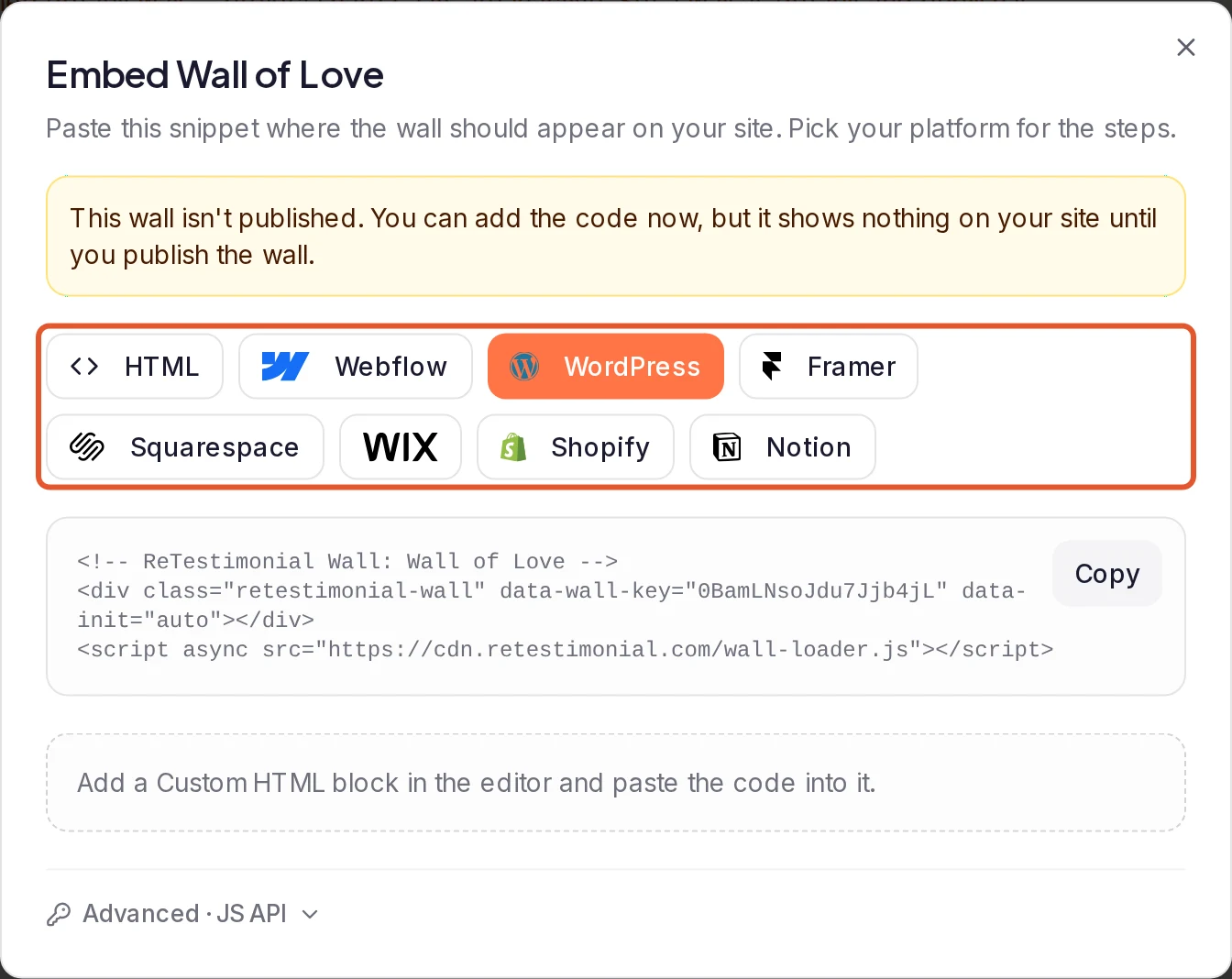
In the Embed Wall of Love dialog, choose your platform, click Copy and follow the steps shown for it.
Paste it into your site
Paste the code where you want the wall to appear. It's a <div> that marks the spot and a <script> that loads the wall, and you can place several walls on one page. For step-by-step help, see the guide for your platform:
- Any website (HTML)
- WordPress, Webflow, Framer, Squarespace, Wix or Shopify
- Notion, which can't run the code: link to the hosted page instead.
The guides use a widget as the example; a wall's code goes in the same way.
Good to know
- The code never changes. Edits to a published wall reach your site on their own. Changing the wall's address, under Page address in the Hosted Page tab, doesn't affect the embed either.
- Unpublishing takes the embed down. Your site shows nothing in its place until you publish the wall again; the code stays the same. See Unpublish a wall.
- The chip at the top of the tab says Ready, or how many things to fix: cards too narrow for their column count, a height that clips the cards, a size with no unit, too many cards in view or motion that's too fast. Click it and pick an item to jump to the setting.
- Colours, fonts and card style come from the Design tab and apply to both the embed and the hosted page.
- Custom JavaScript (Business), under Developer at the end of the tab, runs your own script after the wall renders on your site. It never runs on the hosted page or in the builder's preview. A script with a syntax error doesn't run: its row says so, and so does the chip at the top of the tab.
- To find any setting, press ⌘K on a Mac or Ctrl K elsewhere, or click Search embed settings.
What happens next
To shape the hosted page around your testimonials, see Design your Wall of Love page. For choosing which testimonials appear and publishing, see Create and publish a Wall of Love.
Was this page helpful?
Design your Wall of Love page
Set up your wall's hosted page in the builder's Hosted Page tab, from the header and hero to the closing button, background and search preview.
Add custom cards to a Wall of Love
Place your own call-to-action and social proof cards between the testimonials on a Wall of Love, and choose where each one appears.