Embed a widget on Wix
Add your widget to a Wix page with an Embed HTML element, size the element to fit it, then publish your site so visitors can see it.
Wix shows a ReTestimonial widget through its Embed HTML element. You copy the widget's code once, paste it into the element, size the element to fit and publish your site.
Wix runs the code in an iframe, a box whose size you set in the editor. The widget can't resize that box, so the size you give the element is the size visitors see.
Copy your widget's embed code
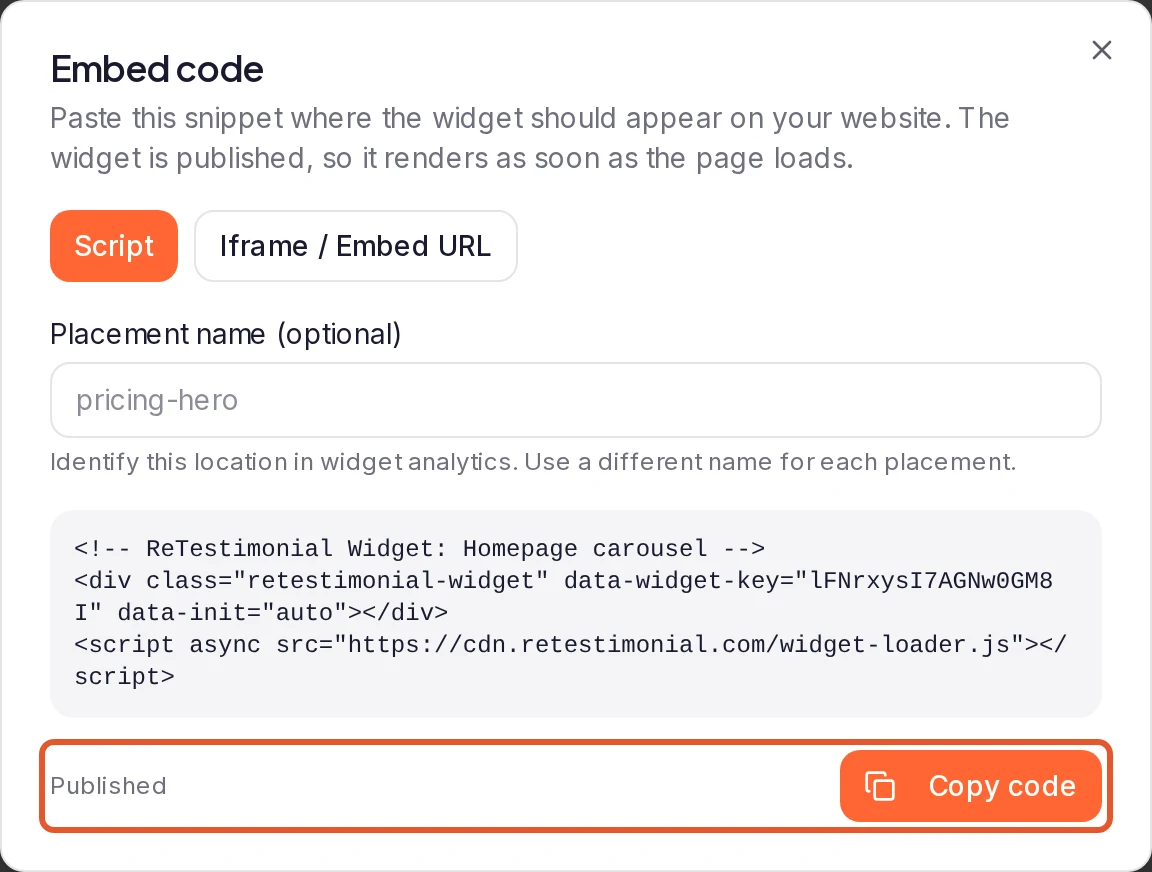
In the widget builder, click Get code. Click Publish and copy code, or Copy code if the widget is already published. If you haven't made a widget yet, start with Embed a widget on any website.
Add an Embed HTML element
In the Wix Editor, open the page where the widget belongs. Click Add Elements on the left, click Embed Code, then Popular Embeds, and choose Embed HTML. Move the element to where the widget should appear.
Paste the code
Click the element, then click Enter Code. Paste the code under Add your code here without changing it, down to the closing </script> tag, and click Apply.
Size the element to fit
Resize the element until the whole widget shows. If the widget is bigger than the element, Wix cuts it off or shows scroll bars. Pop-ups the widget opens, such as its video player, also stay inside the element, so leave them enough room.
Publish and check it
Click Publish at the top right of the editor, then open your live site to check the widget. Check it on a phone too: if it's cut off or shows scroll bars there, resize the element in Wix's mobile editor.
In Wix Studio or Wix Harmony
Only the way you add the element differs; then size it and publish as above.
- Wix Studio: click Add Elements, then Embed & Social, and choose Embed Code. Click Enter Code, paste the code and click Apply.
- Wix Harmony: click + Add and select Elements. Hover over More Options, scroll down, click Embed and drag the Embed code element onto the page. Click the Settings icon on the action bar and paste the code under Enter HTML embed code.
Add a floating widget to every page
Floating Proof widgets, the Floating Proof Tab badge and the Video type's Floating CTA style attach to the edge of the browser window. Inside an Embed HTML element they can't leave the element's box, so add them to your whole site as custom code instead.
- Publish your site and connect a domain to it, if you haven't yet. Wix accepts custom code only on a published site with a connected domain.
- In your site's dashboard, go to Settings and click Custom Code under Development & integrations.
- Click + Add Custom Code, paste your widget's code and give it a name.
- Under Add Code to Pages, choose All pages. Under Place Code in, choose Body – end.
- Click Apply.
Good to know
- Edits reach your site on their own. Once the widget is published, your builder changes reach Wix with the same code. If the widget grows taller, make the element taller too. The exception is switching to a floating style: Get code then gives you new code to replace the old.
- Several widgets can share a page. Give each one its own Embed HTML element.
- Tell the widget which page it's on. Inside an Embed HTML element the widget can't see your page's address. Without it, a Proof Match rule's Path patterns don't match, and Top pages in Widget Analytics lists the element's own address instead of your page. To fix both, add
data-page-path="/pricing", with that page's own path, to the<div>in the code you paste on each page. A visitor's referrer and UTM values can't be read inside the element, so rules that use them don't match there. See Set up Proof Match rules. A widget added as custom code sees the page itself and needs none of this. - Keep Script selected. If Get code offers Script and Iframe / Embed URL, keep Script, the default. Some styles only work with it. See Script or iframe.
- A Wall of Love works the same way. Click Embed code… on its card, click the Wix logo, click Copy and follow these steps. See Embed a Wall of Love on your website.
Next steps
Was this page helpful?
Embed a widget on Squarespace
Add your widget to a Squarespace page with a Code block, then save the page so visitors can see your testimonials.
Embed a widget on Shopify
Add your widget to your Shopify store with a Custom Liquid section in the theme editor, on your home page, product pages or every page.