Create your first project
Set up a project for your product or website, see what a new project comes with, and what to do when Create Project is unavailable.
A project holds everything for one product, brand or website: its testimonials, forms, widgets and Wall of Love. Most people start with one project. If you signed up from the free widget builder, you already have one, named My project: see Keep the widget you built before signing up.
Start a new project
Go to your Projects page and click New Project. If you don't have a project yet, the empty page also has a Create your first project button. Both open the same form.
Add the details
Enter a Project Name. It's the only required field. You can also add a short Description and your Website URL.
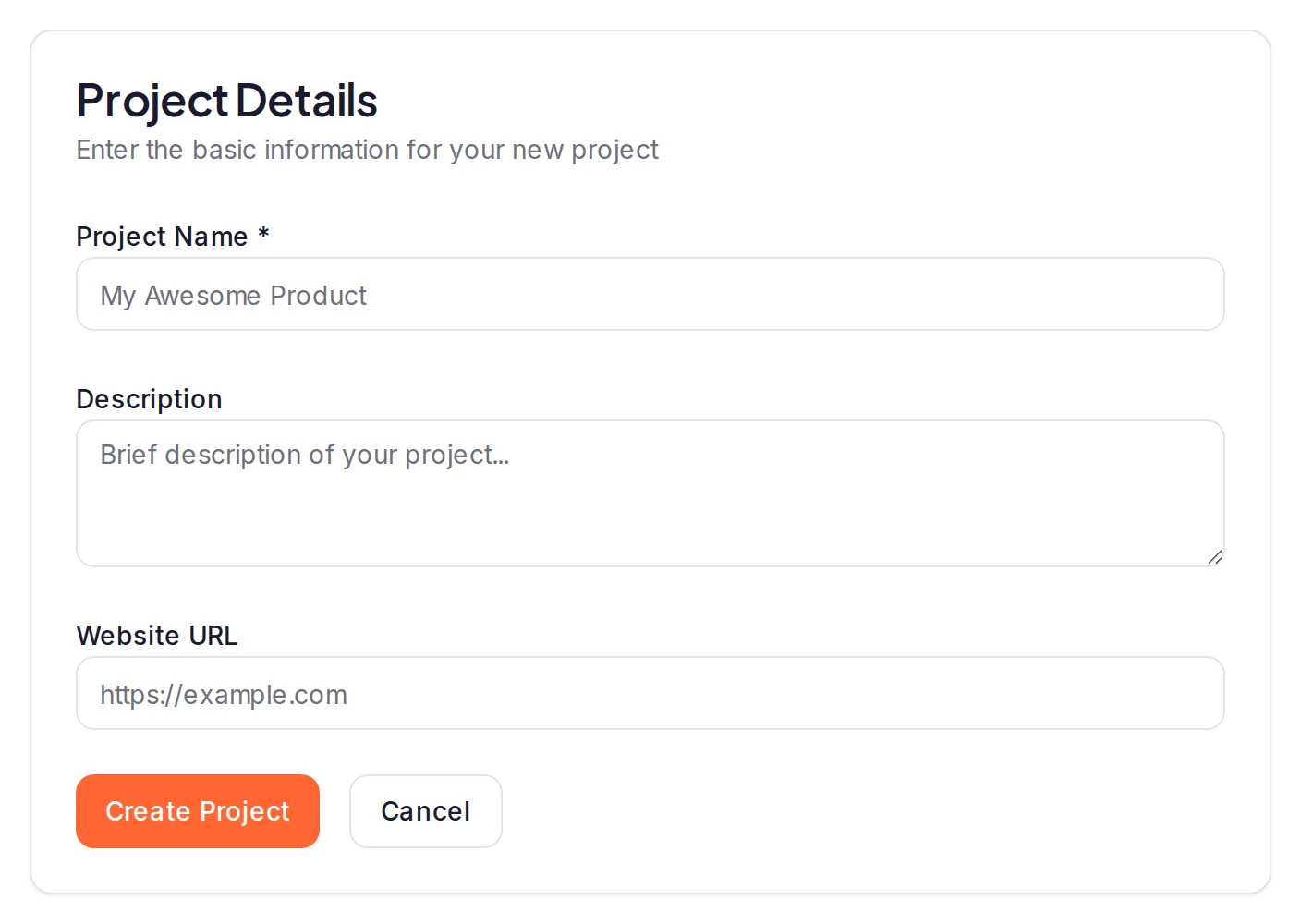
Create it
Click Create Project. Your new project opens on its Pending inbox, which says No testimonials yet until one arrives. To get the first one, see Collect your first testimonial.
If you've used all the active projects your plan includes, Create Project is unavailable and the page offers Add project capacity instead. See If you can't create a project.
What happens next
Every new project comes with a Wall of Love page already set up, so you have a place to show your best testimonials from day one. It stays a draft until you publish it: see Create and publish a Wall of Love. The project also has a default email template for Smart Invites, which are on Premium and Business. It has no form and no widget yet.
In the sidebar, only Inbox is open at first. Click another section's name to open it: Imports lists what you've brought in from other places, Collect has the ways to get testimonials, Share the ways to show them, and Analyze how they perform. What is ReTestimonial? describes each one.
How many projects you can have
The card above the form shows two numbers, as "used / licensed active projects": the projects that are active now in your workspace, and how many your plan keeps active. A read-only project isn't counted.
- Without a paid plan, the card adds "Free includes one active project." Free keeps 1 project active.
- On a paid plan, each project licence keeps one project active, and the card shows what one more project would add to your bill. One subscription holds up to 100 licences.
A project you create always goes into your own workspace: as a teammate, you can't add one to someone else's. Plans and pricing compares the plans.
If you can't create a project
When every project your plan keeps active is in use, Create Project is unavailable and the card shows Add project capacity, which opens the Plans & capacity tab of Billing. If you click Create Project before the card has loaded, a message gives the reason instead.
You're not on a paid plan
The message reads "Upgrade to a paid plan to add more projects." Click Add project capacity: Project licences is already set to two, the project you have and one more. Choose a plan, change the number if you want more, then click Continue to secure Checkout. See Upgrade to a paid plan.
Every licence on your paid plan is in use
The message reads "You've reached your … licensed project limit. Add a project licence to continue.", with your number of licences. Click Add project capacity: Project licences is already raised by one. Click Review billing change, then Confirm and pay. See Change your plan, project licences or seats. Or delete an active project you no longer need, which frees its licence.
Your workspace is read-only after a failed payment
A payment for your plan failed and wasn't fixed in time, so no project can be created, whatever the card shows. The message reads "This workspace is read-only while payment recovery is required. Update the payment method in Billing to continue." Adding capacity isn't the fix: see Payment failed.
It says Failed to create project
A Project Name can have up to 100 characters and a Description up to 500. Shorten them and try again. If it still fails, contact us.
Your project's name and address
Two projects can have the same name. Each project also gets an address, its Project Slug, made from the name and used in your form and Wall of Love links. If that address is taken or reserved, a number is added to the end. You can change both later: see Project settings.
Next steps
Was this page helpful?
What is ReTestimonial?
ReTestimonial helps you collect testimonials, choose the ones you want to show, and display them on your website.
Collect your first testimonial
Take a new project from an empty inbox to one approved testimonial by creating a form from a template, sharing its link and approving the answer.