Project settings
Open a project's settings, see what each tab is for, and change the project's name, address, logo and video embed colour.
Each project has its own settings: its name and address, the fonts and badges its widgets use, who can see it, and more. This page lists every tab, then covers the two that have no article of their own, General and Embed.
Open project settings
In your project, click the gear icon (Project Settings) next to the project's name at the bottom of the sidebar. If the sidebar is collapsed, expand it first. On a phone, tap Settings in the bar at the bottom of the screen. The bar shows it only to the owner and admins.
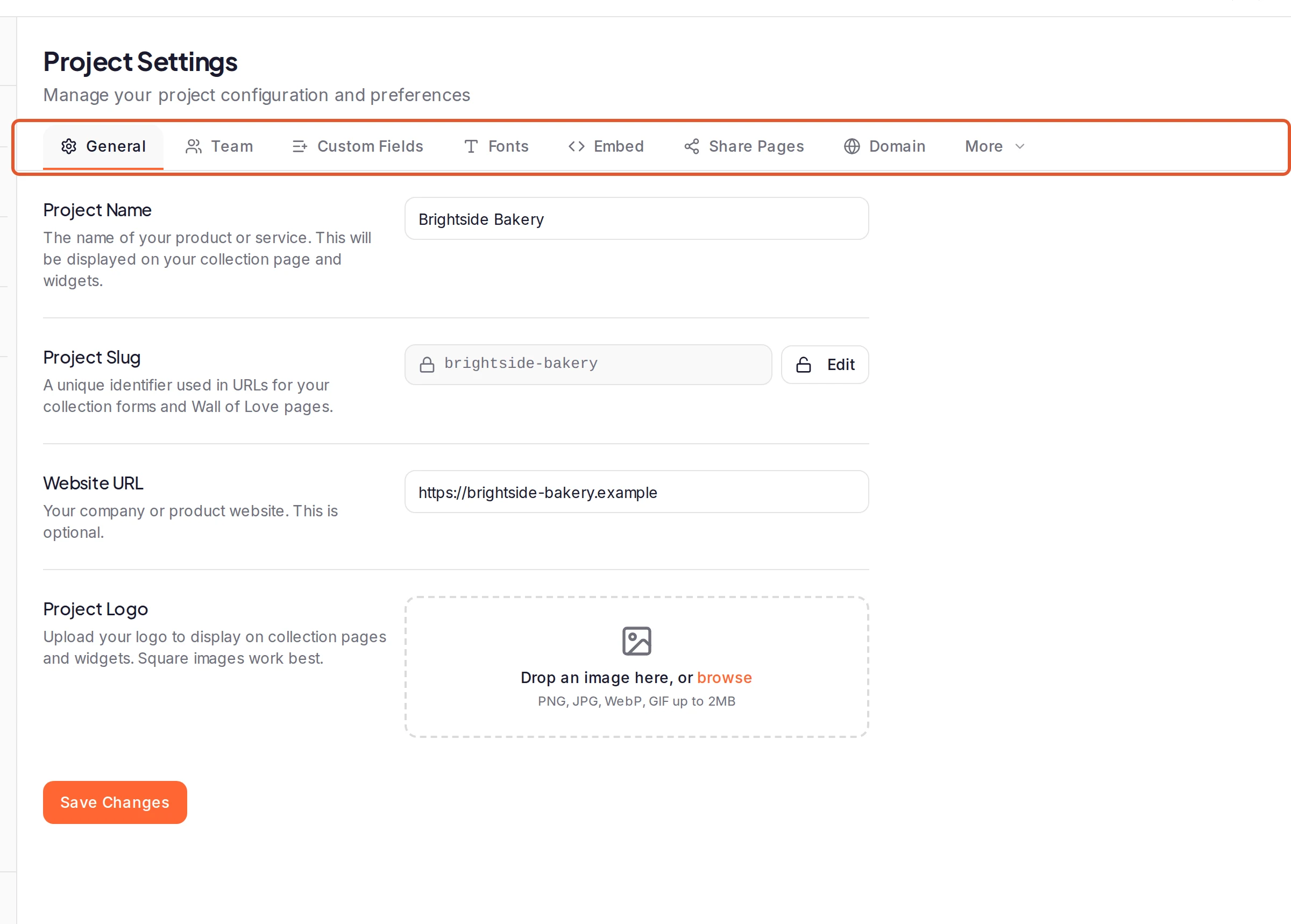
Settings open on General. Tabs that don't fit across the page fold into More at the end of the row.
What each tab is for
| Tab | What it holds |
|---|---|
| General | The project's name, slug, website and logo. See below. |
| Team | Who can open this project, and their roles. The workspace owner gets Manage Team. See Invite team members. |
| Custom Fields | Extra details to collect with each testimonial. See Add custom fields. |
| Fonts | Google fonts and your own font files for the project's editors. See Use your own fonts. |
| Embed | The accent colour of video embeds. See below. |
| Share Pages | A public page for each approved testimonial. See Testimonial share pages. |
| Domain | Your own domain for the project's forms and Wall of Love. See Use your own domain for forms and your Wall of Love. |
| Notifications | The emails sent when someone submits one of the project's forms, and the branding on those emails. See Set up the emails a project sends. |
| Email Log | The emails the project sent in the last 30 days, and what happened to each. See Check whether an email was sent. |
| Rewards | Whether the project's forms can send gift cards, its budget and its low-balance alert. See Set up rewards for a project and its forms. |
| Developer | Tracking for Proof Impact, and Webhooks. See Set up Proof Impact tracking and Webhooks. |
| Powered By | The badge on share pages and video embeds, and your partner key. See Remove ReTestimonial branding. |
| Danger Zone | Deleting the project. See Delete a project. |
General: name, slug, website and logo
Make your changes, then click Save Changes. Nothing on this tab is saved until you do, including a new logo.
- Project Name appears on your collection forms, at the top of your Wall of Love pages, in the emails your customers get, and in link previews of your share pages.
- Project Slug is the project's part of your form and Wall of Love addresses, such as
/form/your-project-slug/your-form-slugand/love/your-project-slug/your-wall-slug. It's locked: click Edit to change it, or Lock to go back to the saved one. A slug has 3 to 50 lowercase letters, numbers and hyphens (other characters become hyphens as you type), and it must be free: if it's taken or reserved, pick one of the suggestions under Try:. - Website URL is optional. It's stored with the project; your widgets and pages don't show it.
- Project Logo takes a PNG, JPG, WebP or GIF, and square images work best. It's the default logo on your forms and at the top of your Wall of Love pages (each form and wall can use its own instead; for a form, see Design your form), and it appears in the emails your customers get. In the dashboard it's shown beside the project's name at the bottom of the sidebar. Use Change or Remove to replace it.
Before you change the slug
The old address isn't redirected. Links to your forms and Walls of Love that use it stop working, including QR codes, links on your website and links in emails you've already sent. Update them after you save.
Some links don't use the slug and keep working: your widgets' embed code, share page links and video embed links. If the project uses a custom domain, addresses on that domain don't include the slug either.
Embed: video embed colour
The Embed tab styles the video player you get for a single video testimonial: in your inbox, click Show more on its card, open Share and choose Embed video.
- Accent Color colours the play button and the accent bar. Pick a preset or type a colour code with
#and six characters, check the Preview, and click Save Changes. Share pages that use the Project Default theme take their accent from it too. - Whether the author's name and title show on a video is set per video, not here: each video has its own Show author name switch in its Embed video tab, and it's on for new videos.
Who can change project settings
- The workspace owner sees every tab.
- Admins see every tab except Danger Zone.
- Members and Viewers see Team, and General only as a notice that it's restricted.
A project that's read-only because it's beyond your plan's project licences keeps its settings, but changes aren't saved until it's active again. The owner can still delete it. See Project is read-only.
Which plans include what
The tabs are on every plan, but some features in them are paid: uploading your own fonts (Pro, Premium and Business), hiding the badge (Pro, Premium and Business), custom fields (Pro, Premium and Business) and project webhooks (Premium and Business). A tab shows what your plan doesn't include. See Plans and pricing.
In this section
- Use your own fonts: add Google fonts or upload your brand's font files.
- Remove ReTestimonial branding: hide the "Powered by" badge wherever your plan allows.
- Set up the emails a project sends: who gets the new testimonial email, and the emails your customers get.
- Check whether an email was sent: the project's email log, and what each status means.
- Delete a project: what's deleted, and what to save first.
Was this page helpful?