Save and share inbox views
Save your inbox filters and sort as a view, share it with your team, and update, rename, reorder or delete views later.
To keep a set of inbox filters, click Save view, name it and choose who sees it: only you, or everyone on the project. A view holds your filters and your sort, and you open it from the view menu on Pending and Approved. Anyone who can open the inbox can save views of their own, Viewers included. Sharing a view with the team is for the workspace owner and the project's Admins and Members.
Set your filters
On Pending or Approved, add filters and choose a sort until the list shows what you want. See Filter and search your inbox.
Save the view
Click Save view at the end of the chip row, or Save as view in the All filters panel. Name the view, choose Your view or Shared with team, and click Save view. The view keeps your filters and your sort.
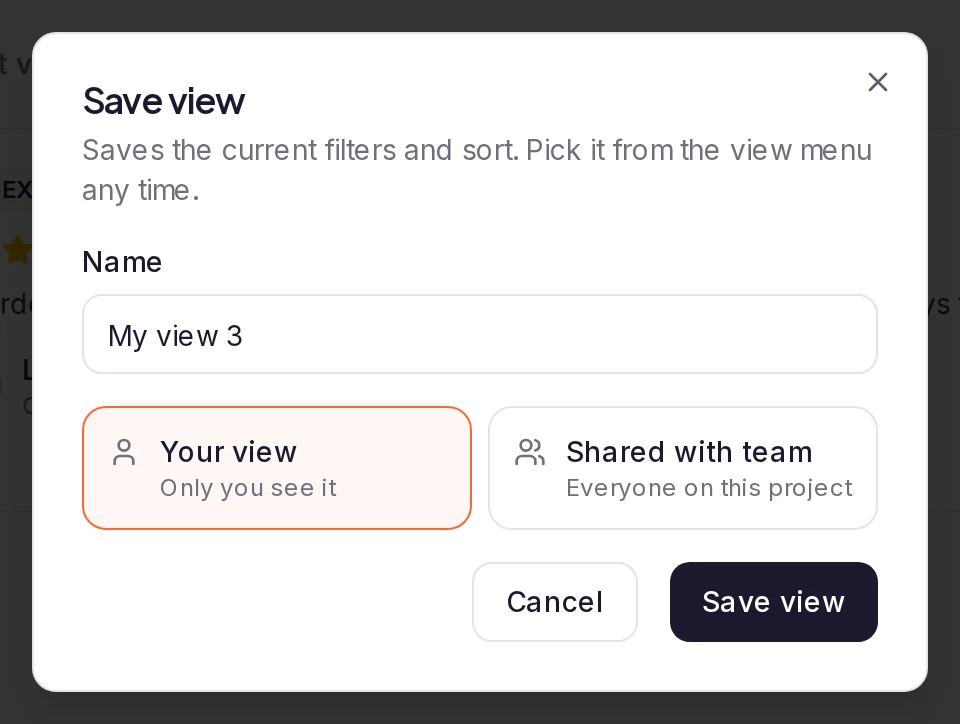
Save view shows on the chip row once you've set a filter, and only in a wide window. When it isn't there, open the view menu and choose Save current filters as view…, which opens the same dialog. A keyword in the search box is saved with the view.
Open it again
The view menu at the start of the toolbar shows All pending (or All approved) until you pick a view. It lists your views and the team's, with how many testimonials each matches on this page. The same views appear on Pending and Approved.
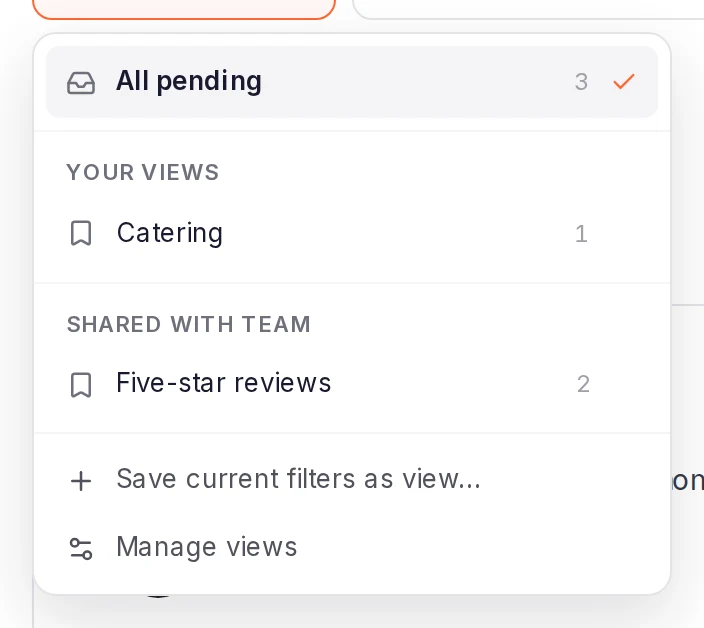
Picking a view swaps your filters and sort for the ones it holds. To leave it, pick All pending (or All approved), which clears its filters.
Update a view you changed
If you change an open view's filters, a dot appears on the view menu. Click Update view to save the change, Save as new to keep it as another view, or Revert to undo it (in a narrow window, click Update below the toolbar). Changing the sort counts as a change too.
A team view you can't change has no Update view. Use Save as new to keep your version as a view of your own.
Rename, share, reorder or delete views
To rename, share, reorder or delete views, choose Manage views in the view menu. Each view you can change has these controls on its row:
- Personal or Team says who sees the view. Click Personal to share it with the team. On a team view you created, click Team to make it yours alone again; on a teammate's team view, Team is greyed out.
- The pencil renames it: type the new name and press Enter.
- The arrows move it up or down among your own views, or among the team's. The team's views are in the same order for everyone.
- The bin, then Delete, removes it for good; a team view is gone for everyone. If the view was open, its filters stay on the list.
A team view you can't change shows a lock and Team instead.
Who can share and edit views
- Only you see a personal view. Anyone who can open the inbox can save one.
- Everyone on the project sees a team view. The workspace owner and the project's Admins and Members can share views; Viewers can't.
- A team view can be changed or deleted by its creator, the workspace owner and Admins. Only its creator can make it personal again.
For a Viewer, Shared with team is greyed out in the Save view dialog and reads "Ask a teammate who can edit testimonials to share views". A creator who has since become a Viewer can't change their team views any more. For what each role can do, see Roles.
Limits and messages
- Names: a view's name can have up to 60 characters. Save view stays greyed out until the view has a name.
- Personal views: each person can keep up to 50 in a project. At the limit, saving another, or making a team view personal, says "You can keep up to 50 personal views".
- Team views: a project can have up to 50, whoever shared them. At the limit, saving another, or sharing a personal view, says "You can keep up to 50 team views".
To make room, delete a view you no longer use in Manage views.
"View not found" or "This view just changed — try again" means a teammate deleted the view, or changed who sees it, while you had it open. The list of views reloads, so check it and try again.
On a phone
To switch views, tap the page title. The Views sheet lists the same views, with Manage and Save current below them. In the Filters sheet, Save applies your changes and opens Save view.
After you change an open view's filters, the Views sheet shows a row that names the view, with Revert and Update view. A team view you can't change has only Revert: tap Save current to keep your version as a view of your own.
What happens next
A view changes only what the list shows. To act on what it finds, see Act on several testimonials at once.
- Filter and search your inbox
- Organize testimonials with tags: a view that filters on a tag follows the tag when you rename it, but not when you delete it.
Was this page helpful?
Filter and search your inbox
Find testimonials with keyword or AI search, narrow the list with filters, change the sort, and export every testimonial to a CSV file.
Organize testimonials with tags
Create and color tags, add them to testimonials, and use them to filter your inbox and choose what widgets and Wall of Love pages show.