Organize testimonials with tags
Create and color tags, add them to testimonials, and use them to filter your inbox and choose what widgets and Wall of Love pages show.
Tags are labels you make up for a project, such as "Enterprise" or "Onboarding", and add to testimonials so you can find and group them later. The workspace owner and the project's Admins and Members can create and add tags. Viewers see them but can't change them.
Create your tags
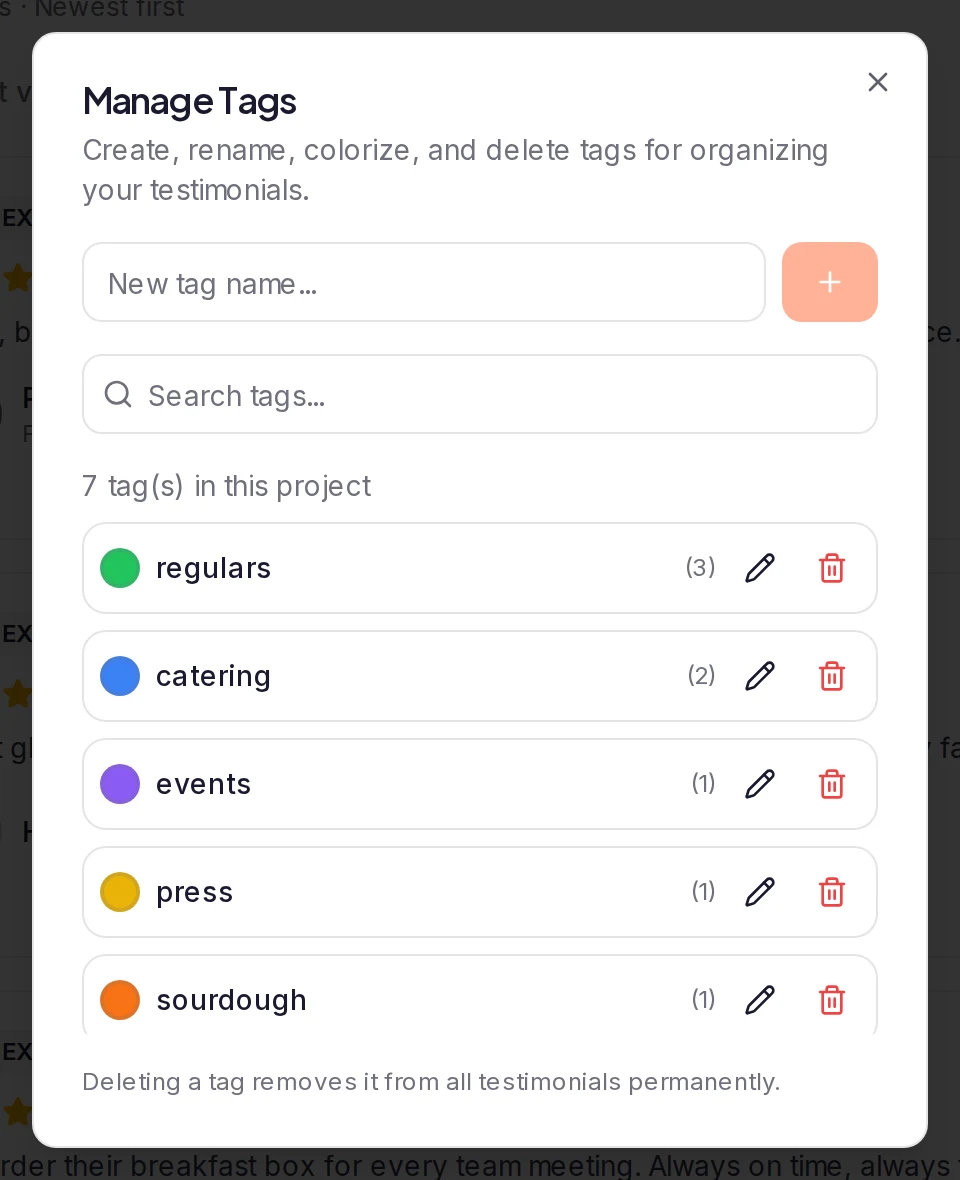
In Pending or Approved, click Options and choose Manage tags. In Manage Tags, type a name in the New tag name... box and press Enter, or click the plus button.
Each name can be used once per project, whatever its capitals: if "Enterprise" exists, adding "enterprise" says "Tag already exists".
Give a tag a color
Click the round swatch at the start of the tag's row and pick a color, or pick the dashed circle to remove it. The color shows next to the tag when you add tags to a testimonial and in the inbox's Tags filter.
Add tags to a testimonial
On the testimonial's card, click Show more, then Tags. Under Assign Tags, tick each tag you want and untick any you don't. Each change is saved straight away.
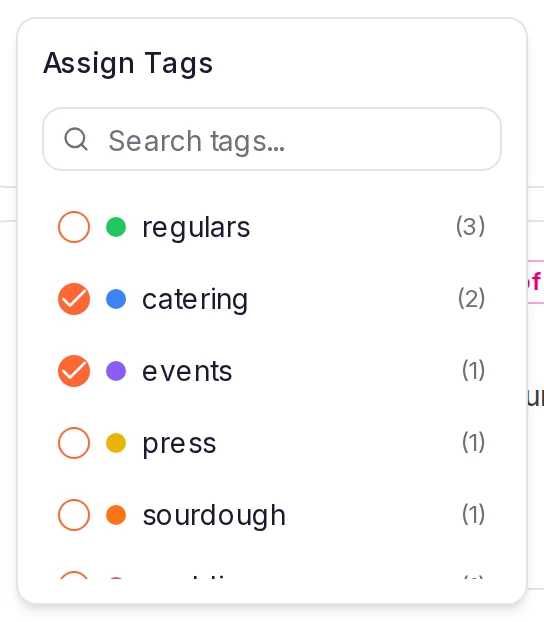
The card shows its first two tags, plus a count such as +2 when it has more.
Rename or delete a tag
Open Options and choose Manage tags again. The number beside each tag is how many testimonials have it.
- Rename: click the pencil, type the new name and press Enter. Every testimonial with the tag gets the new name, and the tag keeps its color. Widget and Wall of Love rules, Proof Match rules and saved inbox views that use the tag switch to the new name too.
- Delete: click the bin, then Delete. The tag is removed from every testimonial that has it. This can't be undone.
Deleting a tag doesn't change the rules or saved views that use it. A widget that shows only testimonials with that tag has nothing left to show. The message after you delete says how many widgets, Wall of Love pages and saved views you can see (team views and your own) still filter on the tag, whether a rule keeps testimonials with it (Has any of) or leaves them out (Never). Open them and take it out: a rule still lists the deleted tag, so you can remove it there.
When a testimonial loses its tags
Rejecting or archiving a testimonial keeps its tags, so they're still there when you restore it from Archived. A testimonial loses a tag only when you take it off, or delete the tag itself under Manage tags.
Cards in Spam have no Tags button, so you can't tag a testimonial there.
Tag many testimonials at once
The inbox has no bulk tagging, so you add tags one testimonial at a time. One other place can tag as testimonials come in:
- Imports from a file: choose tags under Apply tags to all imported testimonials, or map a column of tags. Tags the project doesn't have yet are skipped, so create them first. See Import testimonials from CSV, Excel or JSON.
Where tags are used
- Your inbox: click + Filter and choose Tags to see the testimonials that have any of the tags you pick. See Filter and search your inbox.
- Auto-sync rules: a widget or Wall of Love page set to Auto-sync has Tags under The pool. Has any of keeps testimonials with at least one of the tags you pick, and Never leaves out any that have them. It shows once your project has tags.
- Picking by hand: when you choose a widget's or a Wall of Love page's testimonials yourself, you can narrow the list to a tag.
- Exports and webhooks: Export to CSV includes a Tags column, and project webhooks send each testimonial's tags.
Widgets never show tags. A Wall of Love page shows them only if you turn them on: in its builder, the Tags element on the Design tab has Show tags, which puts them on the cards (choosing the Detailed card preset turns it on too), and the Hosted Page tab's Filters section can add a Tags filter for visitors. If you use either, name your tags with visitors in mind.
What happens next
Tag new testimonials as you review them, then use a tag in an auto-sync rule so a widget picks up every testimonial you tag that way.
Was this page helpful?
Save and share inbox views
Save your inbox filters and sort as a view, share it with your team, and update, rename, reorder or delete views later.
Act on several testimonials at once
Select testimonials in your inbox and approve, reject, archive, delete, translate or add them to a Wall of Love page in one go.