Act on several testimonials at once
Select testimonials in your inbox and approve, reject, archive, delete, translate or add them to a Wall of Love page in one go.
In Pending and Approved, you can select testimonials and act on all of them at once. You need to own the workspace or be an Admin or Member on the project. Adding testimonials to a Wall of Love page and deleting them are for the owner and Admins only.
Select testimonials
Tick the checkbox on each card you want, or click Select visible above the list to take every card that has loaded.
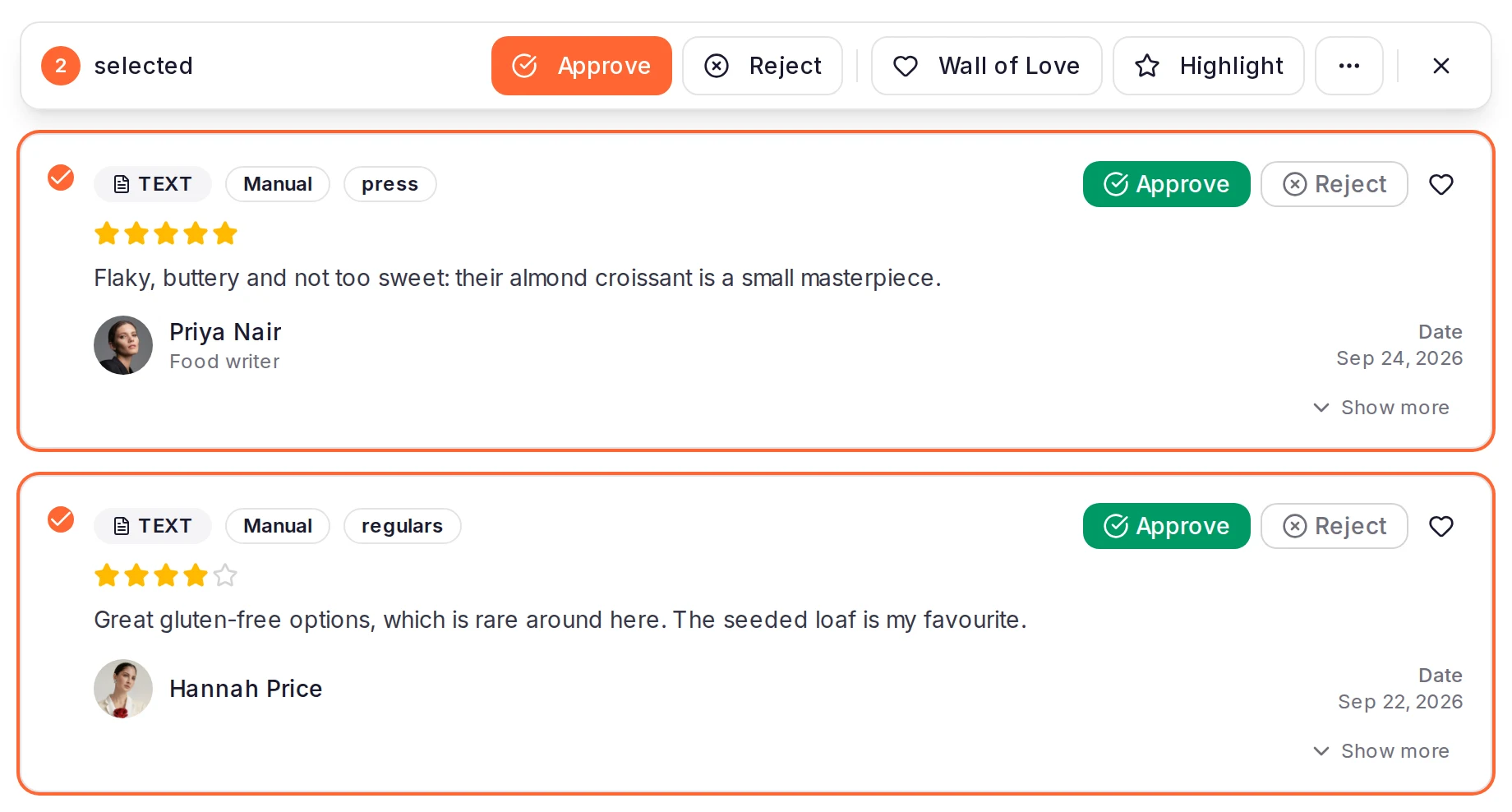
The list loads more as you scroll. When more testimonials match than have loaded, the selection bar offers Select all with the total, such as Select all 57. Click it to include every one of them; the bar then says "(all matching filters)".
To act on a group, such as every 5-star video from last month, filter the list first. Changing a filter clears your selection. See Filter and search your inbox.
Choose an action
The bar at the top counts what you've selected and offers Approve, Reject (in Pending only), Wall of Love and Highlight. Translate, Archive and Delete are in the More bulk actions menu (the three dots) at the end of the bar.
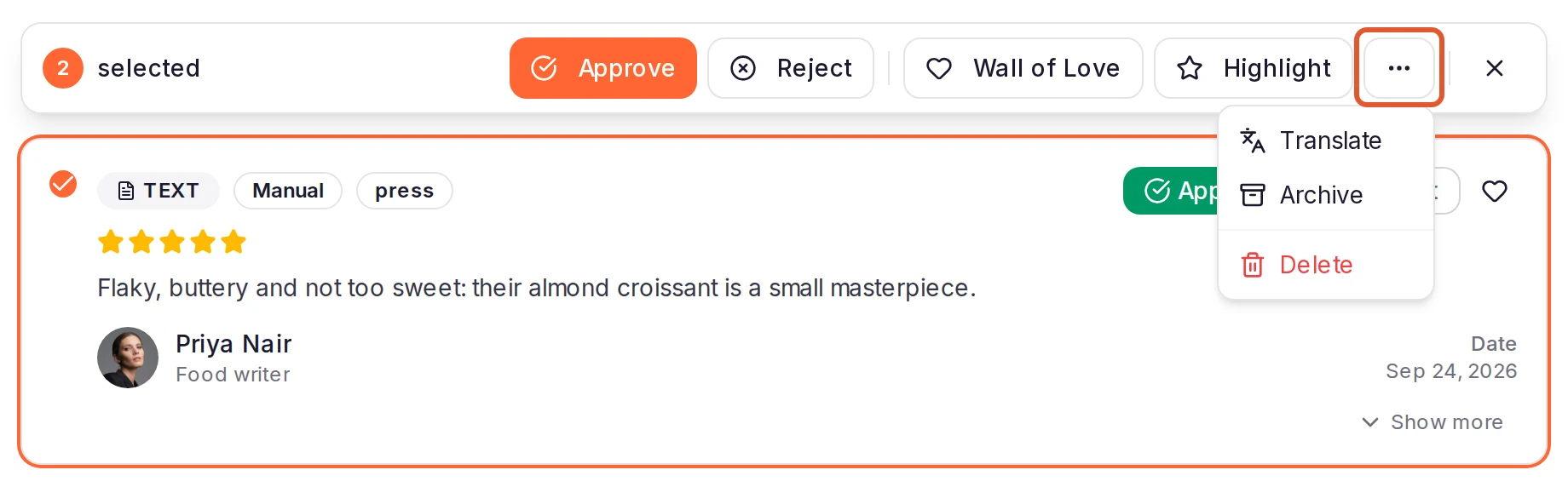
Confirm it
- Delete asks you to confirm first.
- Wall of Love and Highlight ask which Wall of Love page to use, with your default page already picked. Click Confirm. If the project has no Wall of Love page yet, you're told to create one first and nothing changes.
- Translate opens Translate testimonials, where you pick the languages.
Everything else happens straight away. A message tells you how many testimonials were updated, and the selection clears. To drop a selection without acting on it, click Clear selection (the X at the end of the bar).
What each action does
| Action | Who can use it | What happens |
|---|---|---|
| Approve | Owner, Admins, Members | Pending testimonials move to Approved. Their authors may get an approval email, depending on your email notification settings. In Approved, it changes no statuses, but it does retry any gift card that was waiting. |
| Reject | Owner, Admins, Members | Only in Pending. The testimonials move to Archived and leave every Wall of Love page. Their tags are kept. |
| Archive | Owner, Admins, Members | The same as Reject, from either view. |
| Wall of Love | Owner, Admins | Adds the testimonials to the page you pick. Pending ones are approved at the same time. |
| Highlight | Owner, Admins | Adds the testimonials to the page you pick, if they aren't on it yet, and highlights them: highlighted testimonials show first on that page, in its Featured group (Choose and order the testimonials on a Wall of Love). Pending ones stay pending and appear once you approve them. |
| Translate | Owner, Admins, Members, on Business | Translates the testimonials into the languages you pick, in the background. See Translate testimonials. |
| Delete | Owner, Admins | Permanently deletes the testimonials and their media. This can't be undone. A review imported from a review platform can't be imported again afterwards: see Review and export imported content. |
Every testimonial changes just as if you'd acted on it alone, including the events your project webhooks send.
Gift cards waiting for approval
If your forms hold gift cards until you approve a testimonial:
- Approve sends the gift cards that were waiting, just as approving one at a time does. So does Wall of Love, which approves pending testimonials as it adds them. If a gift card didn't go out when you approved, ReTestimonial tries again on its own after a few minutes; you can also select the testimonial in Approved and click Approve again. Gift cards that already went out aren't sent twice.
- Reject, Archive and Delete cancel them, and the money set aside goes back to your project's reward budget. If that can't be done, nothing changes and you can try again.
Delete many from a table
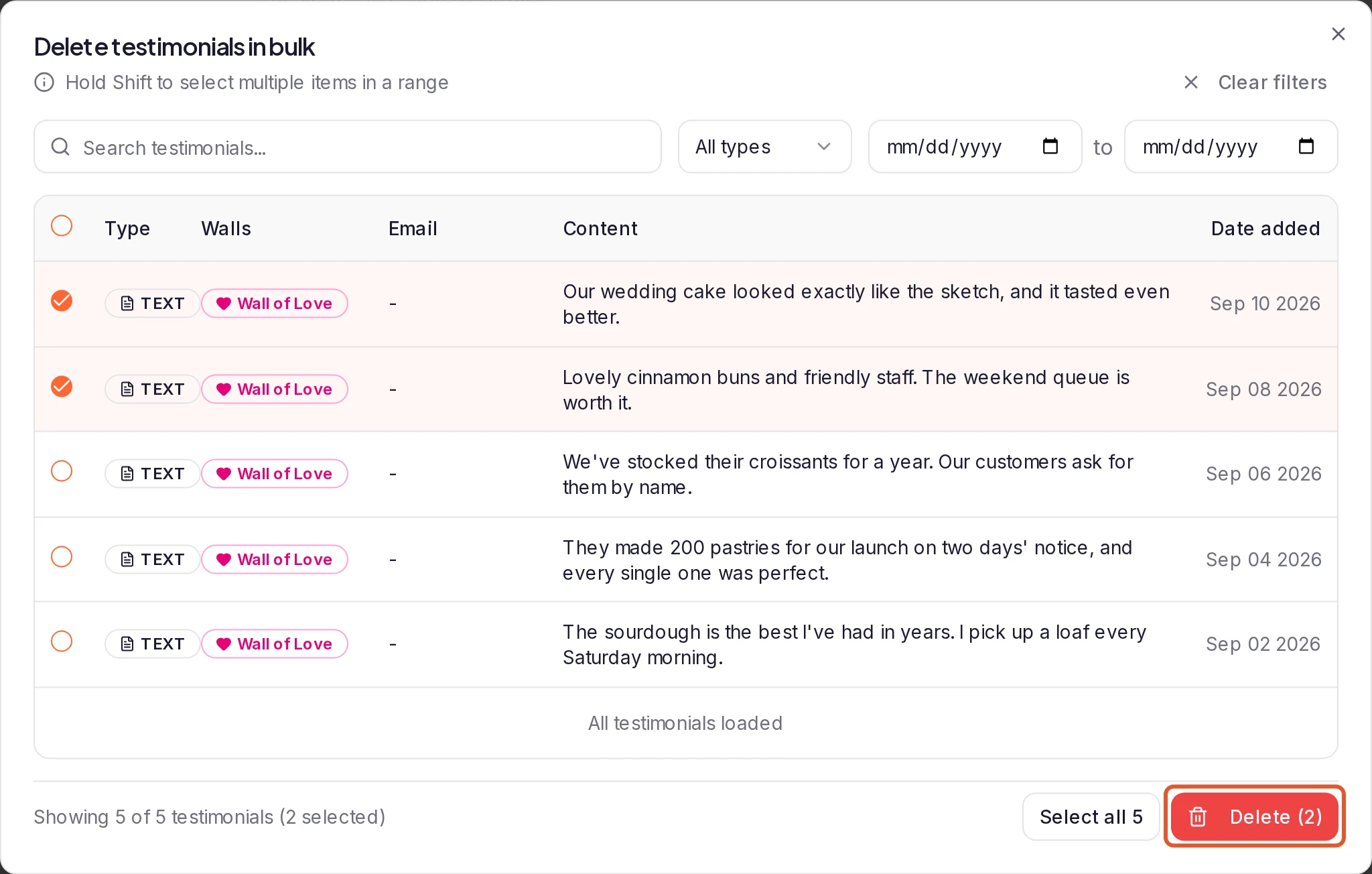
The owner and Admins can also clear out testimonials from a table. Click Options and choose Bulk delete. Delete testimonials in bulk lists the testimonials on the page you're on that match your filters, and has its own search, type and date filters. Click rows to select them (hold Shift to select a range), or tick the box in the header row to select every match. Then click Delete and confirm. Deleting is its only action.
Other views and limits
- Spam has its own bar, with Not Spam and Delete. Delete asks first there too. Not Spam can refuse when restoring would go past your plan's limits. See Keep spam out of your inbox.
- Archived has no bulk actions, so restore testimonials there one at a time.
- Tags can't be added in bulk. See Organize testimonials with tags.
- There's no limit on how many testimonials you select, except for Translate, which takes a limited number per run. Its dialog tells you when to narrow your selection.
- While testimonials are selected, the inbox's keyboard shortcuts are paused.
- If an action ends with Failed to perform action, nothing changed. See Can't approve, edit or delete a testimonial.
What happens next
Was this page helpful?
Organize testimonials with tags
Create and color tags, add them to testimonials, and use them to filter your inbox and choose what widgets and Wall of Love pages show.
Keep spam out of your inbox
Set how strictly form submissions are checked for spam, block or allow email addresses, and restore or delete testimonials in Spam.