Design your Wall of Love page
Set up your wall's hosted page in the builder's Hosted Page tab, from the header and hero to the closing button, background and search preview.
Your wall's hosted page is the page its link opens: your testimonials, with an optional header, hero, filters and closing call to action around them. You set all of that in the builder's Hosted Page tab. Its settings change the page only, except Translations and Review stars in results, which apply to the wall's embed too. Only the workspace owner and project Admins can edit a wall. New to walls? Start with Create and publish a Wall of Love.
Open the Hosted Page tab
In your project, open Wall of Love in the sidebar, click Edit on the wall's card and choose the Hosted Page tab. The preview switches to Hosted page; use Desktop, Tablet and Mobile above it to check each size.
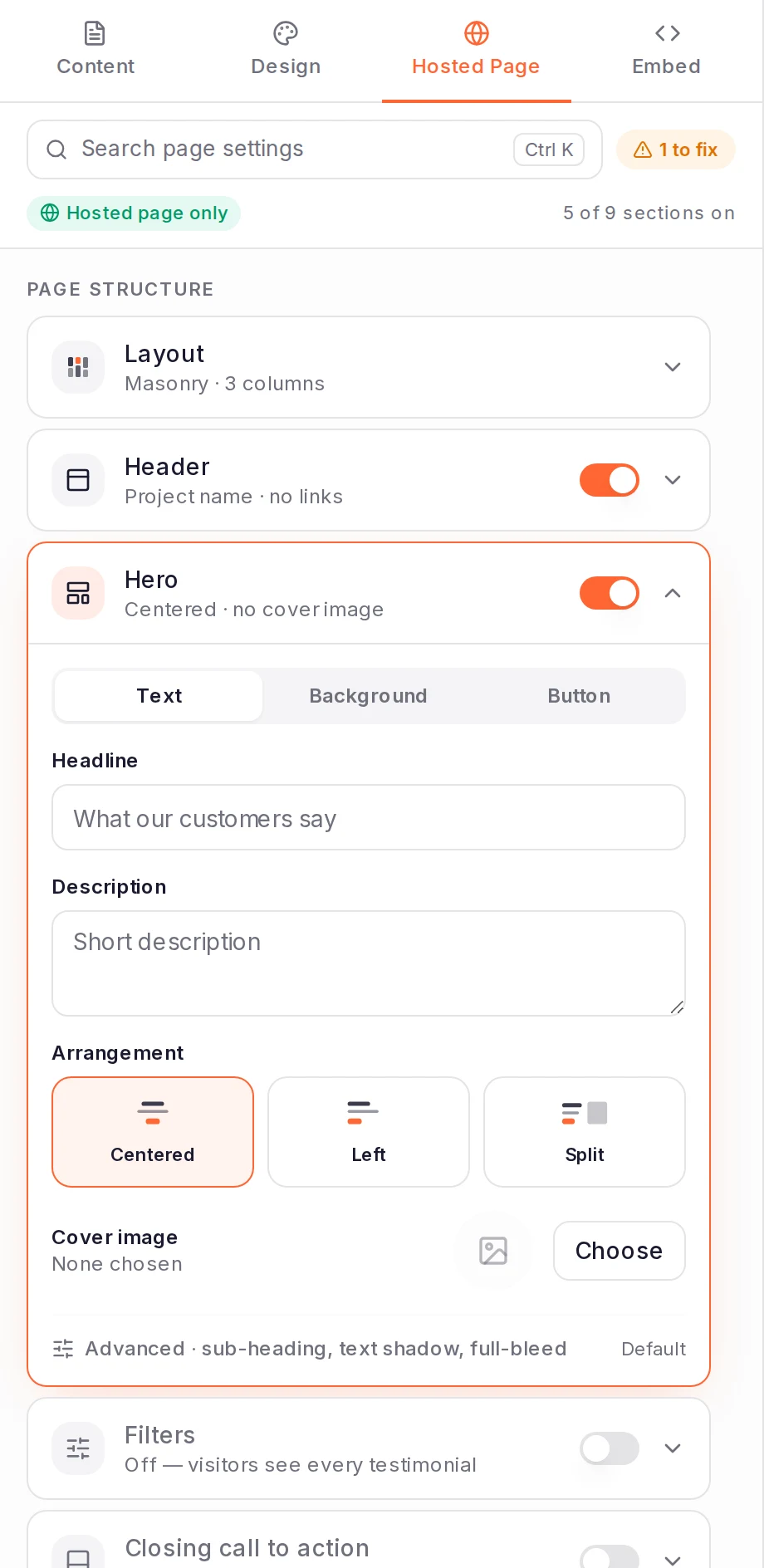
The tab lists the page's sections in three groups: Page structure (Layout, Header, Hero, Filters, Closing call to action), Found & shared (Page address, Search & social preview, Translations) and Appearance (Background override). Each row shows what's set. Click a row to open it; one row is open at a time. Where a row has a switch, it turns that section on or off, and the bar at the top counts how many are on.
In the preview, a section that's off shows as a dashed placeholder. For the hero, filters and closing call to action, click Turn on in the placeholder to switch the section back on.
To find any setting in the builder, press ⌘K on a Mac or Ctrl K elsewhere (or click Search page settings) and type what you're looking for.
Choose the layout
Open Layout and pick Masonry, Grid or One column. Masonry and Grid show up to three columns on a wide screen and fewer on smaller ones. One column stacks the cards down the middle of the page.
The embed has its own layout, set in the Embed tab.
Set up the header
The Header is the bar at the top of the page. It shows your project's name. Turn on Show your logo to show your project's logo instead, or click Choose logo to pick another image.
To add links (to your site or pricing page, say), click Add link under Navigation links and fill in a label and a URL. A link appears on the page once it has both. Drag a link by its handle to reorder it. Advanced · background colour gives the header a colour of its own.
Write the hero
The Hero is the headline section above the testimonials. It has three panes:
- Text: the Headline and Description, and the Arrangement: Centered, Left or Split. Split puts a Cover image beside the text, so choose one, or that half stays empty.
- Background: None, Solid, Gradient, Image, Pattern or Video. Once you pick one, set the Text colour so the text stays readable. For a video, Hide video on mobile shows its poster image on phones instead.
- Button: turn on Show a button, enter the button text and URL, and choose Primary, Secondary or Outline. Turn on Open in a new tab if you like. Repeat it at the bottom turns on the closing call to action with this same button.
Under Advanced · sub-heading, text shadow, full-bleed, add a Sub-heading (small text above the headline). With a background set, you can also turn off Text shadow or turn on Extend behind header, so the header sits on top of the hero's background.
Close with a call to action
Switch on Closing call to action to end the page with a headline and a button below the testimonials. Under Button, choose where the button comes from:
- Same as hero: the hero's button, repeated. Edit it once in the hero and both update. It shows only while the hero is on and its button is switched on, with text and a URL.
- Its own: enter a separate button text and URL, and choose its style. The button appears once it has a URL; with no text, it reads "Get started".
- No button: the section keeps its headline and description only.
Then write the Headline. Advanced · description, background colour adds a line of text under it and a background colour for the section.
Set the background and colours
The page uses the background you set in the Design tab, which the embed uses too. Open Design, then Theme & Background: pick a Theme, then a Background of Solid, Gradient, Image or Pattern. For a pattern, filter the swatches by family (Grid, Dots, Lines, Geometric, Organic, Marks), set the Pattern Color and Background, and adjust Scale, Opacity, Rotation and Edge Fade. Some patterns are two-tone and add an Accent Color. Reset all starts the pattern over.
For text and accent colours across the whole wall, open Global Colors in the Design tab.
To give the hosted page a different background from the embed, switch on Background override in the Hosted Page tab and choose one there. Switched off, the page goes back to the Design tab's background.
Check it and publish
The chip at the top of the tab says Ready when nothing needs attention. Otherwise it shows how many things to fix, such as a button or navigation link with no valid URL, an address changed since the wall was published, or a wall that's still a draft. Click it and pick an item to jump to the setting.
When you're happy, click Publish in the builder's top bar. Changes save automatically, and once the wall is published they go live as you make them.
Filters, search results and translations
- Filters adds a bar above the testimonials. Turn on any of Search box, Type and Tags; the bar appears once at least one is on. Tags can only be turned on when a testimonial on the wall has a tag (see Tag testimonials).
- Page address holds the end of the page's link, under URL, and shows the Domain the link is on. Changing the URL of a published wall breaks links to the old address: see Rename a wall or change its address.
- Search & social preview shows how a search result for the page will look. Fill in the Title and Description, and choose a Sharing image to show when the link is posted on social media. Review stars in results (Business) adds the rating markup that search engines read, to the page and to the wall's embed. Once it's on, you see how many of the wall's ratings count and whether that's enough, with a link to Test in Google Rich Results. To keep the page out of search results, turn on Hide from search engines; the page then shows no stars either.
- Translations (Business) shows the page in your visitor's language. Auto-detect matches their browser's language; Fixed language shows everyone one language. Language selector lets visitors switch. It uses the translations you've added to your testimonials; the rest show in their original language. See Translate testimonials. The same setting also picks the language of the wall's embed on your website.
What happens next
Once the wall is published, open Share in the top bar: Open live page opens the page in a new tab, and Copy link copies its address. On ReTestimonial's own address, the link ends in /love/your-project-slug/your-wall-slug. If your project has an active custom domain, the link uses it instead.
To show the same wall on your own website, see Embed a Wall of Love on your website.
Was this page helpful?
Choose and order the testimonials on a Wall of Love
Pick a Wall of Love's testimonials by hand or let rules fill it, then set their order and put your best ones first.
Embed a Wall of Love on your website
Set your wall's embed layout, columns, motion and size in the builder's Embed tab, then copy the code and paste it into your site.