Embed a widget on Showit
Add your widget to a Showit page with an Embed Code element, size it on your desktop and mobile designs, then publish your site.
Showit shows a ReTestimonial widget through its Embed Code element, which puts your code into the page just as you paste it. You copy the widget's code once, paste it into the element in the Showit Design App, size it and publish your site.
Showit's help names a plan only for code in blog posts. See On your blog.
Copy your widget's embed code
In the widget builder, click Get code. Click Publish and copy code, or Copy code if the widget is already published. If you haven't made a widget yet, start with Embed a widget on any website.
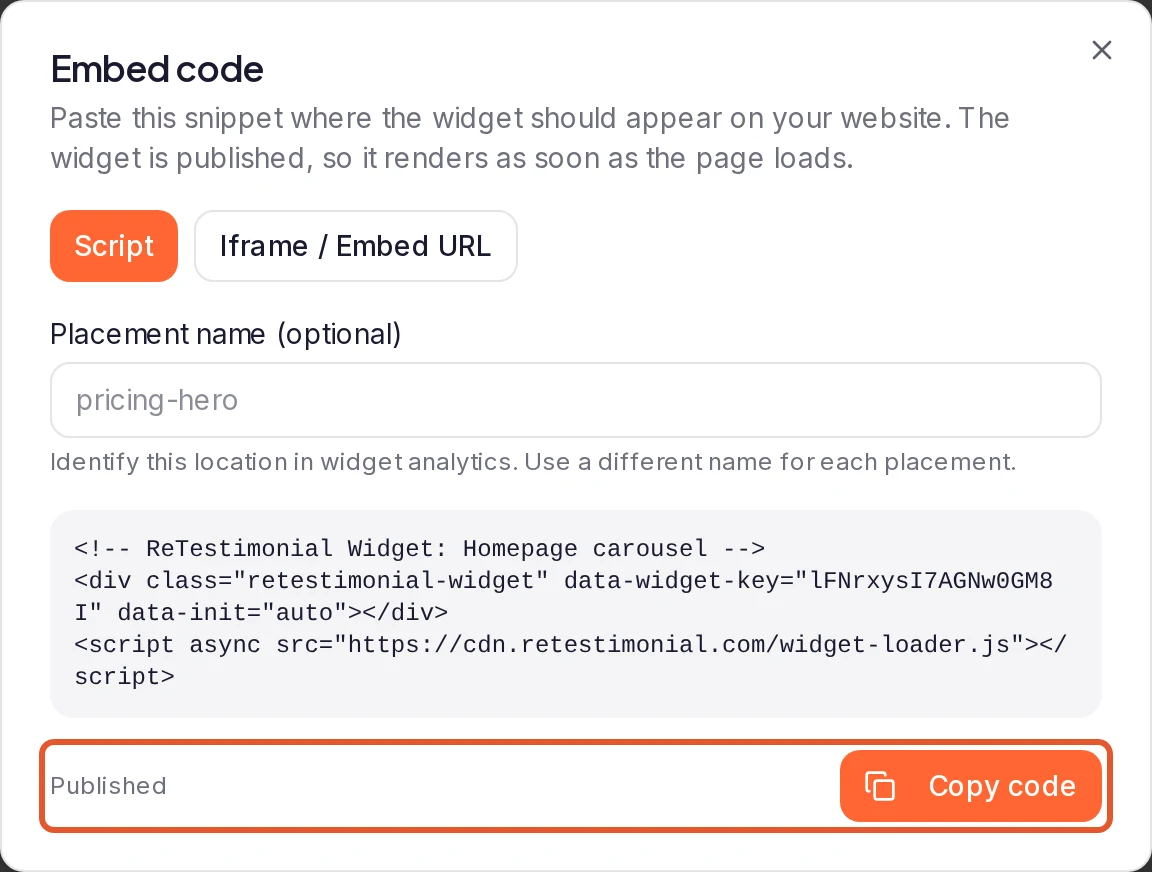
Add an Embed Code element
In the Showit Design App, open the page and select the canvas where the widget belongs. Hover over the Element Icon in the Bottom Toolbar and choose Embed Code. A black box appears on the canvas.
Use a canvas that's always visible: Showit says not every embed code displays properly on a hidden canvas or in a canvas view.
Paste the code
Click the box, then open the Embed Info tab at the top of the Properties Panel on the right. Click the Custom Code box, paste the code without changing it, down to the closing </script> tag, and click Save.
If Chrome won't let you paste, open Chrome's privacy settings, go to Site settings, select app.showit.com and allow Clipboard. Then refresh the Design App and paste again.
Size it on desktop and mobile
Drag the box's corners to set its size, and place it where the widget should appear. The widget takes the width of the box, so make the box as wide as you want the widget, and tall enough for all of it.
Showit adds the box to your mobile design too, but you place and size it there separately. Switch to the mobile design and size the box there as well.
Preview, publish and check it
Embedded code may not show in the Design App itself, so click Preview in the top-right corner to check the widget there. Then click Publish in the upper-right corner and choose to publish your site, or your site and blog.
Showit's caching servers can take 5 to 10 minutes to update. Then open your live site in a private window to check the widget, on a phone too.
On your blog
Your Showit blog runs on WordPress, and whether a post can hold the widget's code depends on your blog plan:
- Basic Starter Blog: Showit removes custom embed code, such as JavaScript, from every post, so the widget can't go in one. Link from the post to your Wall of Love instead. See Create and publish a Wall of Love.
- Advanced Blog: posts accept custom embed code. Add the code to a post in the WordPress editor, as in Embed a widget on WordPress.
Good to know
- Change the widget's design in ReTestimonial. The widget draws itself in its own isolated area, so your Showit styles don't restyle it. Once it's published, your changes in the builder reach your site with the same code. If the widget grows taller, make the box taller too. The exception is switching to a floating style: Get code then gives you new code to replace the old.
- Several widgets can share a page. Give each one its own Embed Code element.
- Keep Script selected. If Get code offers Script and Iframe / Embed URL, keep Script, the default. Some styles only work with it. See Script or iframe.
- A Wall of Love works the same way. Click Embed code… on its card, click Copy and follow these steps. The code is the same whichever platform you pick in that window. See Embed a Wall of Love on your website.
If the widget doesn't show
- The widget must be published in ReTestimonial before your site shows it.
- Give it a few minutes after you publish, then check in a private window. Showit's caching servers can take 5 to 10 minutes to update.
- On a site with a blog, check that your domain is set under the Blog tab of your site settings, then publish again. Showit names a missing domain there as one reason changes don't appear.
- Move it off a hidden canvas or a canvas view, onto a canvas that's always visible.
For other causes, see Widget not showing, and Showit's own How to Embed HTML Code guide.
Next steps
Was this page helpful?
Embed a widget on Kajabi
Add your widget to a Kajabi website page, landing page or sales page with a Custom Code block, then check it on the live page.
Show testimonials in Notion
Notion can't run embed scripts, so paste a widget's Embed URL into an Embed block, and add your Wall of Love to a page as a link.