Emails not arriving
Find out why an email from ReTestimonial didn't arrive, from new testimonial alerts to verification links and team invitations, and fix it.
ReTestimonial emails you when a testimonial arrives, emails the people who fill in your forms, sends Smart Invites to your customers, and sends your team invitations. If one of these emails doesn't arrive, start with the first check below, then go to the section for that email. Waiting for a sign-in or sign-up code instead? See Can't sign in. Is it a Smart Invites email to a customer? See Invite emails not sending.
Check this first
Most missing emails are sitting in a spam or junk folder, or in a tab such as Promotions.
- Search every folder for "ReTestimonial" or your project's name.
- If you find the email, mark it as not spam.
- Add our sending domains to your contacts or safe senders:
mail.retestimonial.com, andcampaigns.retestimonial.comfor Smart Invites. If your company filters email, ask your IT team to allow both.
Find out whether the email was sent
If the email isn't there, or the inbox is your customer's and not yours, search for the address in the project's Email Log. It lists every email the project sent in the last 30 days, with the kind of email, such as New testimonial alert or Submitter confirmation, and its status. The workspace owner and the project's Admins can open it: see Check whether an email was sent, which also explains every status.
What the log shows tells you where to look next:
- Delivered: we sent the email and the recipient's mail server accepted it. The cause is on their side, most often a spam or junk folder or a company filter. Go back to the steps above.
- Sent or Delayed: the email went out, and the recipient's mail server hasn't confirmed delivery yet. Look again a little later.
- Queued, Scheduled, Retrying or Waiting: the email hasn't gone out yet. See Some emails arrive late.
- Bounced, Blocked or Reported as spam: see An address stopped getting emails.
- The email isn't listed: it wasn't created. Most often that email is switched off, or nothing happened that sends it. Go to the section for that email below.
The log holds one project's emails. Team invitations aren't in it, and neither are sign-in codes.
The addresses our emails come from
Each kind of email comes from its own fixed address, and sender addresses can't be customized:
| Sender name | Address | |
|---|---|---|
| New testimonial and negative feedback alerts | ReTestimonial | notifications@mail.retestimonial.com |
| Team invitations | ReTestimonial | accounts@mail.retestimonial.com |
| Emails to the people who fill in your forms: confirmations, approvals, Wall of Love and verification links | Your project's name, then "via ReTestimonial" | testimonials@mail.retestimonial.com |
| Rewards | Your project's name, then "via ReTestimonial" | rewards@mail.retestimonial.com |
| Smart Invites | Your project's name, then "via ReTestimonial" | invites@campaigns.retestimonial.com |
New testimonial emails don't arrive
These alerts are sent when someone submits one of your forms. Reviews you import and testimonials you add yourself don't send one. The Email Log lists each alert as New testimonial alert, with the address it went to under To.
Open your project, click the gear icon next to its name at the bottom of the sidebar, and choose Notifications. Under Email Notifications, open Owner Notification and check:
- Enable notifications is on.
- Recipients (comma-separated) lists everyone who should get the email. Left empty, it goes to the workspace owner's email address only. Once it holds an address, the owner no longer gets the email automatically, so list the owner's address with your teammates'.
- Notify team members, on Premium and Business, also emails the teammates who can open this project.
Click Save Changes after any change.
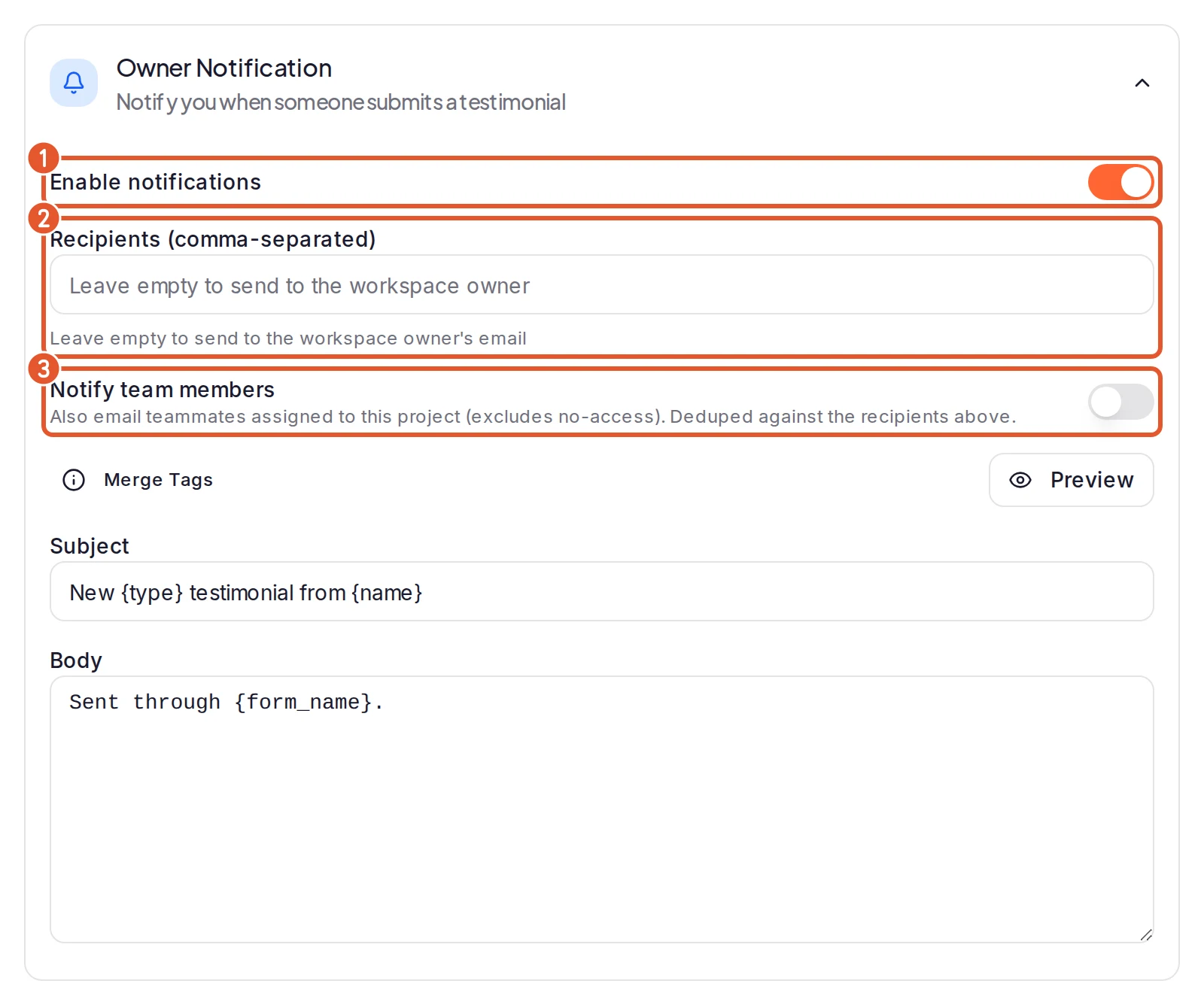
- Enable notifications: switches the new testimonial email on or off.
- Recipients (comma-separated): the addresses that get the email.
- Notify team members: adds the teammates who can open this project.
A form can replace these settings on its own Notifications tab. If the email is missing for one form only, check there: see Give one form its own emails.
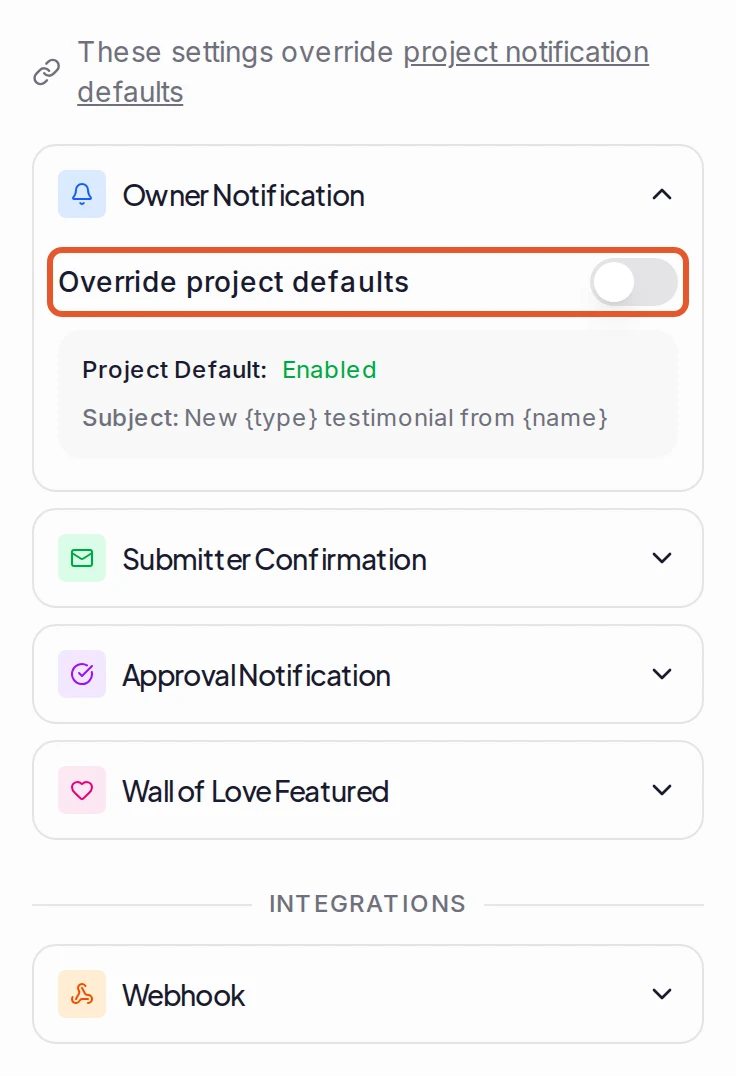
The negative feedback alert doesn't arrive
The negative feedback alert is set separately, on the form's Settings tab under Behavior. It goes to the address in Negative Feedback Alert Email (optional) whenever a rating is at or below the Negative Feedback Threshold, even with Owner Notification off. That box is empty in a new form, and no alert is sent until it holds an address. See Collect negative feedback privately.
Account notification settings don't control these emails
The Notifications page under Account Settings controls in-app alerts. Its Defaults and Project overrides tabs decide which alerts appear in the app, not which emails you get. Product communications, on the same page, covers only optional product emails from the ReTestimonial team.
Your customers don't get their emails
Customers who submit through one of your forms and give an email address can get these emails:
- Submitter Confirmation, when they submit.
- Approval Notification, when you approve their testimonial from Pending. It's sent once per testimonial, and a testimonial the form approved as it arrived doesn't get one.
- Wall of Love Featured, when you add their testimonial to a Wall of Love yourself. It's off until you turn it on.
If the email you expect isn't in the Email Log, it wasn't created. Check that:
- The testimonial came through one of your forms, with an email address. Imported reviews and testimonials you add yourself never get these emails.
- The email is switched on. Each has a switch under Notifications in your project's settings, and a form can have its own.
- The submission isn't in Spam. A submission the form holds in Spam sends no emails until you click Not Spam on it: see Form submissions not arriving.
To switch these emails on, reword them or change them for one form, see Set up the emails a project sends. For a gift card that didn't reach a customer, see Gift card not received.
Invite emails don't arrive
For a Smart Invites email, start with the customer's row in their campaign: in your project's sidebar, open Invites under Collect, go to the Campaigns tab, open the campaign and read the customer's Status. Queued or Invitation scheduled means the invitation hasn't gone out yet, and Invitation sent means it has.
For one that went out, search the customer's address in the Email Log, where it's listed as Smart Invite: Delivered means their mail server accepted it, so ask them to look in spam and junk for an email from invites@campaigns.retestimonial.com. For every other status, and for a customer who isn't in any campaign, see Invite emails not sending, which has each cause and its fix.
Verification links don't arrive
When a form has Require Email Verification on (the form's Settings tab, under Behavior), customers must open a link we email them before their testimonial is submitted. The form shows Check your inbox while it waits. Tell them:
- Keep the form tab open. The testimonial is submitted there once they open the link.
- Look in spam and junk for an email with the subject "Confirm your email to send your testimonial", sent in your project's name.
- Only the newest link works, once, and only for the time the form shows. Send another email sends a new link and cancels the earlier one. It counts down before it can be used again.
- Use a different email fixes a mistyped address.
If the form shows one of these messages:
| Message | What to do |
|---|---|
| This verification link expired. Send another email to continue. | Click Send another email. |
| We couldn’t deliver the verification email. Check the address or use another one. | Click Use a different email and check the address. |
| This address cannot receive verification email. Please use another address. | The address is blocked. Use another one. |
| Too many verification emails requested. Please try again later. | Wait a while, then try again. |
If customers still can't finish, turn off Require Email Verification for that form.
Team invitations don't arrive
The invitation's subject reads "[your name] invited you to [your workspace's name] on ReTestimonial", or "[your name] invited you to their workspace on ReTestimonial" if your workspace has no name of its own. Check the person's row on the Team page (click your profile picture, choose Workspace settings, then Team):
- They already had an account. They joined your team straight away and got an email saying they've been added. There's no invitation to accept.
- The invitation expired. A Pending row shows when it expires. Choose Resend invitation to send a new email with a new expiry date. The link in the earlier email stops working.
- Your plan changed. Invitations are sent only while your workspace has an active subscription on Premium and Business. An invitation still waiting to go out when that changes isn't sent.
See Invite team members for the whole process. If the email arrived and its link doesn't work, see If the invitation link doesn't work.
An address stopped getting emails
If an email to an address bounces permanently, or the person marks one of our emails as spam, we stop emailing that address. The block covers every email ReTestimonial sends, from any project, so sending again won't help. In the Email Log, a blocked address has We no longer send to this address under it.
- If the address had a typo, use the corrected one.
- If it's your own address, or you think it was blocked by mistake, contact us.
Smart Invites also keep a do-not-email list for each project: people who unsubscribed, bounced or marked an invite as spam aren't emailed again. See Invite emails not sending.
Some emails arrive late
Emails usually arrive within a few minutes. If a send fails for a temporary reason, we try again several times. And if a project sends a very large number of emails in an hour, or one address receives a very large number in a day, the extra emails wait and go out later. Verification links are never held back this way.
The Email Log shows which it is: Retrying for a send that's being tried again, Waiting for an email held back by one of these limits, and Scheduled, with its time, for one that's set to go out later, such as a Smart Invite. You don't need to do anything while an email shows one of these.
Still not arriving?
Contact us and include:
- which email is missing, such as a new testimonial alert or a team invitation;
- the address it should have gone to;
- your project's name, and roughly when the email should have arrived;
- the email's status in the Email Log, if it's listed there.
Next steps
Was this page helpful?
Video testimonial still processing
Why a new video testimonial shows no video yet, how long processing takes, and what to do when a video is refused or fails to process.
Can't sign in
Get back into your account when a sign-in code doesn't arrive, your email or password isn't accepted, or you've lost your authenticator app.