Send invites automatically from Gumroad
Connect Gumroad's Ping to a Smart Invites webhook so buyers are invited to leave a testimonial after a sale, and test it safely.
Gumroad's Ping tells ReTestimonial about each sale, and the buyer is added to your invite emails. You create a webhook in ReTestimonial, then paste its URL into Gumroad's Ping endpoint. Smart Invites are on Premium and Business.
Create a Gumroad webhook in ReTestimonial
Follow Send invites automatically with a webhook and pick Gumroad under Where do your customers buy?. The fields come filled in for a Gumroad sale:
- Email path is
email, the buyer's email address. - Name path is
full_name. Gumroad sends it only when the buyer gave a name; without one, the customer is invited without a name. - Only invite when (optional) is set to Field path
test, Condition not equals, Valuetrue. Keep it: it stops Gumroad's test pings from emailing a real customer.
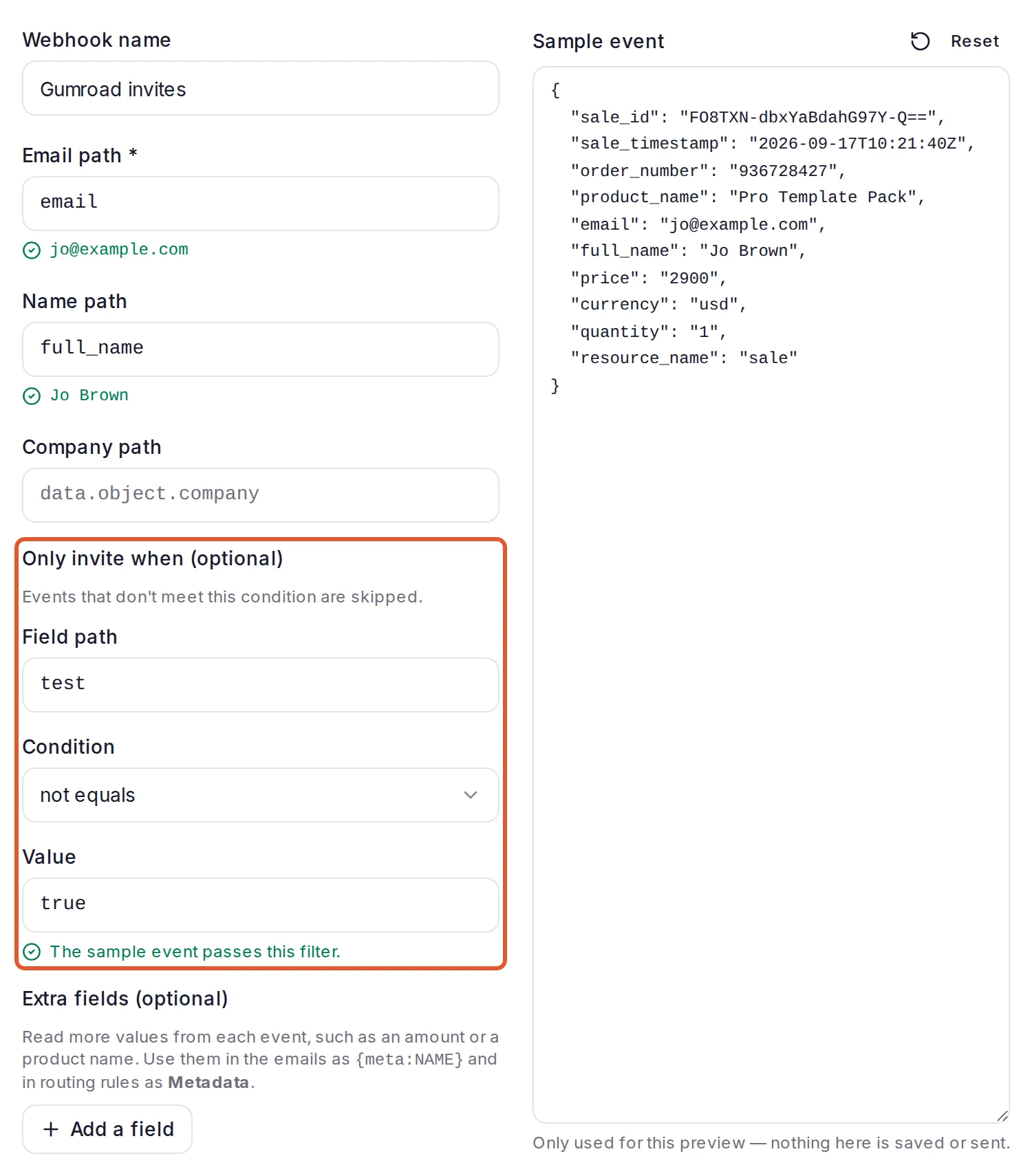
After you click Create webhook, click Copy next to Your webhook URL.
Paste the URL into Gumroad
In Gumroad, open Settings and the Advanced tab. In the Ping section, paste the URL into Ping endpoint, then click Update settings. Gumroad explains its pings in Gumroad Ping.
Gumroad has one Ping endpoint per account, and it covers every product you sell. If another tool already uses it, pasting this URL replaces that tool's.
Send a test ping
Click Send test ping to URL in Gumroad. Gumroad sends your most recent sale again, with test set to true. In ReTestimonial the event is Skipped, with the reason "Didn't match your “only invite when” filter". That's the result you want: the connection works, and the customer from that sale wasn't emailed.
If Gumroad says your endpoint responded with HTTP 401 or 404, the URL wasn't pasted whole. Copy it again from the webhook's Setup tab. If your account has no sales yet, Gumroad has nothing to send; your first real sale will appear on the webhook's Activity tab.
What ReTestimonial reads from a sale
Gumroad sends each sale as form fields, not JSON, and each field's name is its path. The Sample event and the webhook's Test tab show a sale as flat JSON. To dry-run a sale on the Test tab, write its fields the same way, for example {"email": "jo@example.com", "full_name": "Jo Brown"}. Add "test": "true" to see the filter skip it.
- Company: Gumroad has no company field. If your checkout asks for one in a custom field, set Company path to that field's name inside
custom_fields[…], such ascustom_fields[Company]for a field named Company. - Different products, different forms: one Ping covers all your products. On Business, add a Conditional routing rule on the
product_namefield to send each product's buyers to their own form.
A webhook has one Only invite when filter. If you change it, for example to pick one product, Gumroad's test ping is no longer skipped: it invites and emails the customer from your most recent sale.
Gumroad sales that don't invite anyone
- Test pings and your own purchases: Gumroad marks both with
test, so they're Skipped. - The same test ping twice: each one is Skipped for the same reason and counted under Skipped, but the second doesn't add a row to the Activity tab. It replaces the first one's row.
- Membership renewals: Gumroad pings on every charge of a membership, not only the first. A renewal within the Re-invite cooldown (days) is Skipped as "Customer was already invited within the cooldown window". After the cooldown, the next renewal invites the member again, even if they already responded. A longer cooldown, set in the webhook's Settings, asks less often.
- Gifts: the ping carries the recipient's email, so the person who received the gift is invited, not the person who paid.
Refunds
A refund doesn't cancel an invite. To stop emailing a customer you refunded, open the webhook's campaign on the Campaigns tab (its name ends in "— Auto") and choose Cancel remaining emails from the menu in their row. See Track invite campaigns.
Keep the URL private
Gumroad doesn't sign its pings, so unlike Stripe or Shopify there's no signing secret to add. The webhook URL itself is the only protection: it ends in a secret, and requests with a wrong one are refused. Anyone who has the whole URL can add contacts to your project and send them your invite emails, so the Setup tab shows it masked until you reveal it.
The URL can't be changed. If it gets out, delete the webhook, create a new one and paste its URL into Gumroad. Customers the old webhook already invited keep getting their emails.
Related articles
Was this page helpful?
Send invites automatically from WooCommerce
Connect your WooCommerce store with a webhook so every customer whose order is completed gets an email asking for a testimonial.
Send invites automatically from Lemon Squeezy
Connect your Lemon Squeezy store to Smart Invites so each new order sends that customer a testimonial request by email.