Send invites automatically from Paddle
Connect Paddle Billing to Smart Invites so new Paddle customers get an email asking them for a testimonial.
Paddle can tell ReTestimonial each time it records a new customer, and Smart Invites then emails that customer a request for a testimonial. You'll add a notification destination in Paddle that sends the customer.created event to your webhook's URL. Smart Invites are on Premium and Business.
This guide is for Paddle Billing. For Paddle Classic, see Paddle Classic below.
Create the webhook in ReTestimonial
Follow Send invites automatically with a webhook, and under Where do your customers buy? choose Paddle. The next step comes filled in for Paddle's customer.created event:
- Email path:
data.email. - Name path:
data.name. Company path is left empty. - Only invite when (optional):
event_typeequalscustomer.created.
Keep that filter. If the destination in Paddle also sends other events, such as customer.updated, they're skipped instead of inviting the customer.
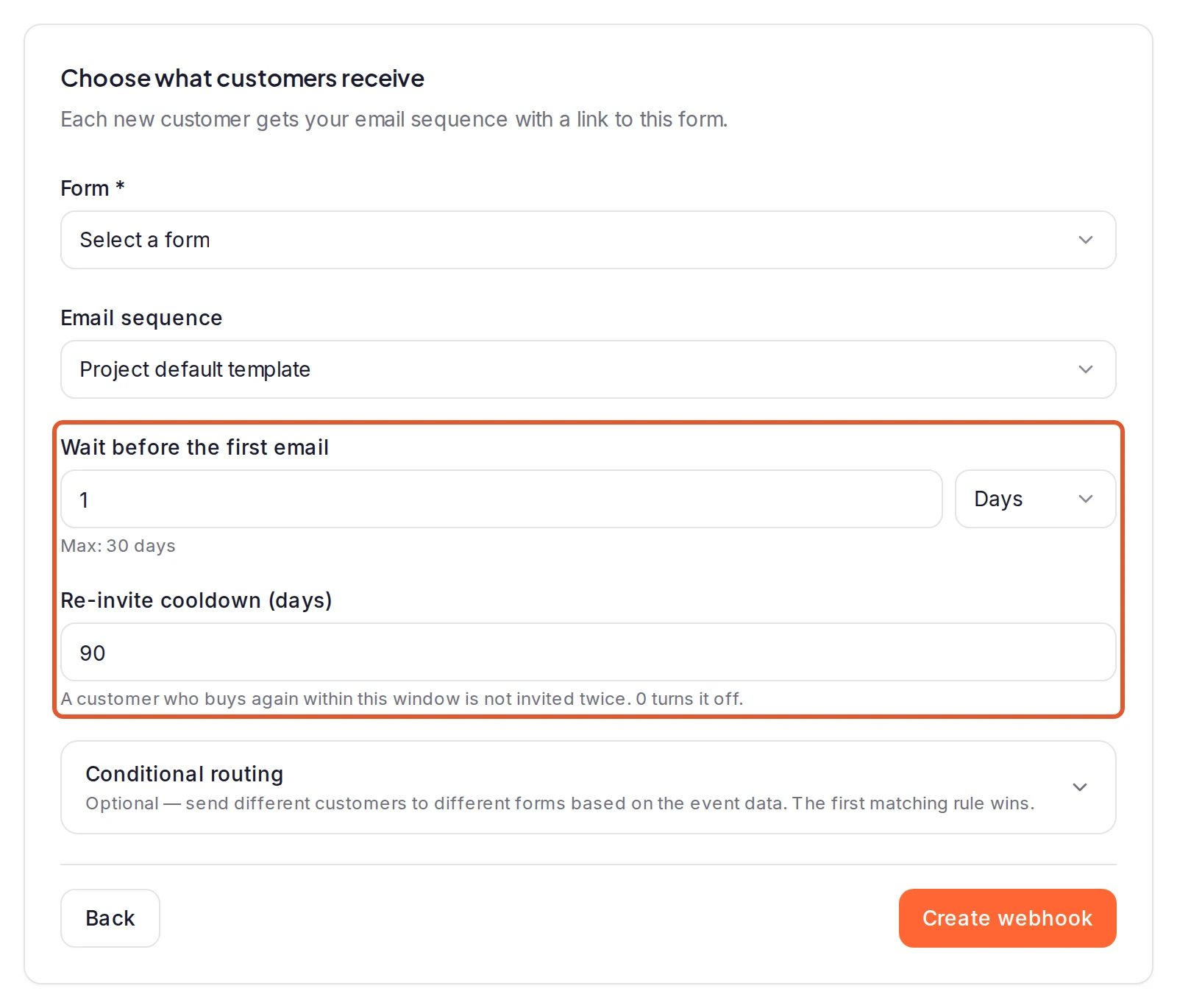
On the Delivery step, Wait before the first email starts at one day for Paddle. Keep it at a day or more; When Paddle sends the event explains why. Click Create webhook, then click Copy next to Your webhook URL. Keep that page open.
Add a notification destination in Paddle
In Paddle, go to Developer tools > Notifications and click New destination. Give it a Description, set the Notification type to URL, and paste your webhook URL. Choose the customer.created event, then click Save destination. Paddle's guide: Create or update notification destinations.
Copy the secret key into ReTestimonial
In Paddle's list of destinations, click the button next to your new one, choose Edit destination and copy its secret key. It starts with pdl_ntfset_ (Paddle's steps).
Back in ReTestimonial, paste it into Paddle destination secret key (recommended) and click Save. The page then shows Signature verification is on — unsigned events are rejected. From then on, only events signed by Paddle are accepted.
Wait for the first event
The page shows Listening for the first event… until Paddle sends one, then Event received — it works, or why the event was skipped or failed. You can leave the page at any time; the webhook is already live.
When Paddle sends the event
Paddle Billing's transaction events carry a customer ID but no email address, so the Paddle webhook listens for customer.created instead. Paddle sends that event as soon as a new customer enters their email at checkout, before the payment goes through (Paddle's event order). That's why a wait of a day or more before the first email is a good idea. ReTestimonial doesn't check whether the payment completed, so someone who enters their email and then leaves the checkout can be invited too.
The event comes once per new customer, not with every purchase, so a returning customer isn't invited again when they buy. Customers you create through Paddle's API count as new customers too. Customers you had before connecting Paddle aren't invited; to ask them, invite them from a file.
Sandbox and live
Paddle's sandbox and live accounts are separate, each with its own destinations and secret keys. ReTestimonial treats a sandbox event like a live one: the address in it is invited, emailed and uses one invite, so test with your own email addresses.
A webhook holds one secret key. When you move from sandbox to live, add a destination in your live account, then open the webhook's Setup tab, click Replace secret and paste the live destination's key. Events signed with a different key fail.
Test without a real customer
- A dry run: on the webhook's Test tab, paste an event from Paddle into Event payload and click Run test. Nothing is saved and no email is sent. See Test a Smart Invites webhook.
- Paddle's webhook simulator: in Developer tools > Simulations, Paddle can send a sample
customer.createdto a destination whose Usage type is Simulation or Platform and simulation (Paddle's guide). A simulated event is handled like a real one, so change the email in the payload to your own first. Sending the same address again is skipped by the Re-invite cooldown (days).
If events are skipped or fail
The webhook's Activity tab shows each event as Invited, Skipped or Failed. In Paddle, choose View logs from the destination's menu to see delivery errors.
- Failed with "The signature didn't match": the saved key belongs to another destination, or to your other Paddle account. On the Setup tab, click Replace secret and paste the key from this destination's Edit destination.
- Skipped because it "Didn't match your “only invite when” filter": the destination sent an event other than
customer.created. That's expected; untick the events you don't need in Paddle.
Paddle Classic
The Paddle choice reads Paddle Billing's events and checks Billing's signature. Paddle Classic sends its alerts in a different format, so the Paddle webhook skips them, or rejects them once a secret key is saved. To connect a Classic account, choose Custom webhook under Something else and set Email path to the alert field that holds the customer's email; see Send invites from any app. A custom webhook doesn't check signatures, so keep its URL private.
Related
Was this page helpful?
Send invites automatically from Lemon Squeezy
Connect your Lemon Squeezy store to Smart Invites so each new order sends that customer a testimonial request by email.
Send invites from any app with a custom webhook
Post a customer's email from your own backend, Zapier, Make or n8n to a custom webhook, and ReTestimonial emails them a testimonial request.