Invite one customer
Send your Smart Invites emails to one customer by typing their address, and copy their personal invite link to share it yourself.
To invite a single customer, open Invites in your project's sidebar, click Invite one customer, type their email address, choose a form and click Send invite. They're sent your invite emails, and you get their personal invite link to pass on yourself. To invite a whole list at once, see Invite customers from a file. Smart Invites are on Premium and Business, and you need to own the workspace or be an Admin on the project.
Before you start:
- Have a form ready. Every invite links to one of your collection forms. If the project has none, the page shows This project has no forms yet: click Create a form (it opens in a new tab), then I've created one. Check that the form you'll use is Active, because a paused form's link doesn't open. See Share or embed your form.
- Know which emails they'll get. Email sequence picks the template whose invitation and reminders are sent. Project default template is used unless you choose another; see Customize invite emails.
- Invite only people who expect to hear from you, such as recent customers. Every invite email has an Unsubscribe link, and anyone who uses it goes on the project's do-not-email list.
Open the invite page
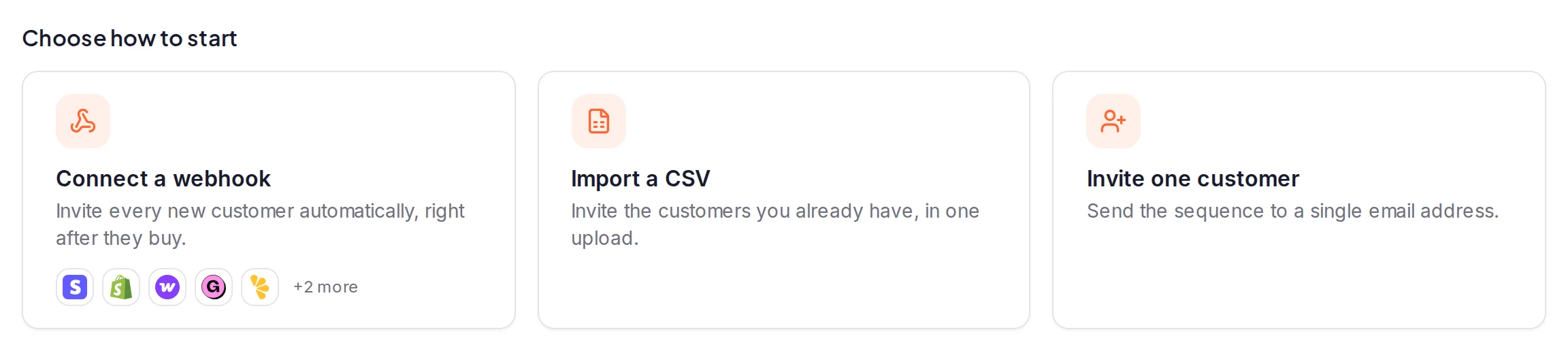
Click Invites under Collect in your project's sidebar. On the Overview tab, click Invite one customer, or open New invite and choose Invite one customer.
Enter their details
Type their Email. Name and Company are optional; they fill in the email when your template uses them.
Choose the form and send
Choose the Form they're invited to and the Email sequence, then click Send invite. A paused or draft form is listed but can't be chosen. The line beside the button says how many invites you have left: each customer uses one, and their reminders don't use more. See What counts as an invite.
A card headed Invite scheduled for and their address confirms it, with their personal invite link. Click Invite someone else to invite the next person to the same form, with the same emails. If the page shows an error instead, see If the invite isn't sent.
Their personal invite link
Under Their personal invite link on the confirmation card, you can copy the link to send it yourself, in a chat or on a call; a testimonial sent through it counts as their response. Their invite emails are sent as well, until they respond.
To copy the link again later, choose Copy invite link in the three-dot menu on the customer's row in their campaign: see Track invite campaigns and contacts.
If the invite isn't sent
A single invite is refused on the spot: the page shows a message that says why, and no invite is used.
- "That doesn't look like an email address — check for typos.", under Email: correct the address.
- "This address was invited in the last 90 days.": this project invited them in the last 90 days, by hand, from a file or by a webhook, whatever happened to that invite. To email them again now, restart their sequence from their campaign.
- A message that starts "This address is on the project's do-not-email list": it ends with the reason, such as "(unsubscribed)". See Manage the do-not-email list.
- "This address bounced or reported an earlier email as spam, so it can't be emailed.": the address is blocked for every email ReTestimonial sends, in any project. See Emails not arriving.
- A message that starts "Insufficient invitation credits": the project has used its monthly allowance and the workspace has no invitation credits. The line beside Send invite then says you have no invites left this month. The allowance resets at the start of each calendar month (UTC), and the workspace owner can buy credits before then: see Monthly allowance and invite credits and Buy invitation credits.
- "Too many requests": the project has tried 30 single invites in the last hour, or the same address three times. A try refused for a paused form, a template that no longer exists, the do-not-email list, a blocked address or a recent invite isn't counted in the three. Wait a while and try again.
An import leaves the same addresses out and reports them afterwards: see Who isn't invited.
What happens next
The customer is sent the invitation on your email sequence's timing, then its reminders. With the default template, the invitation is scheduled straight away. If it hasn't gone out, see Invite emails not sending. The reminders stop as soon as the customer sends a testimonial through their invite link, and the testimonial arrives in your inbox.
Customers you invite this way join a Manual Invites campaign, one for each form and email sequence you use. Click View campaigns on the confirmation card to see it. Follow each customer on the Campaigns tab, where you can also cancel the emails they haven't been sent yet.
Was this page helpful?
Smart Invites
How Smart Invites emails customers to ask for a testimonial, with reminders, a monthly allowance, invite credits, a cooldown and a do-not-email list.
Invite customers from a file
Upload a CSV file of customers to send each of them your Smart Invites emails, and see who was left out of the import and why.