Send invites automatically from WooCommerce
Connect your WooCommerce store with a webhook so every customer whose order is completed gets an email asking for a testimonial.
When an order in your WooCommerce store is completed, WooCommerce can tell ReTestimonial, and the customer is asked for a testimonial by email. You create a webhook in ReTestimonial, then add its URL to WooCommerce. Smart Invites are on Premium and Business.
This guide covers what's particular to WooCommerce. Every other setting is explained in Send invites automatically with a webhook.
Start a WooCommerce webhook
In your project's sidebar, open Invites under Collect, go to the Webhooks tab and click New webhook. Under Where do your customers buy?, pick WooCommerce.
Check the paths
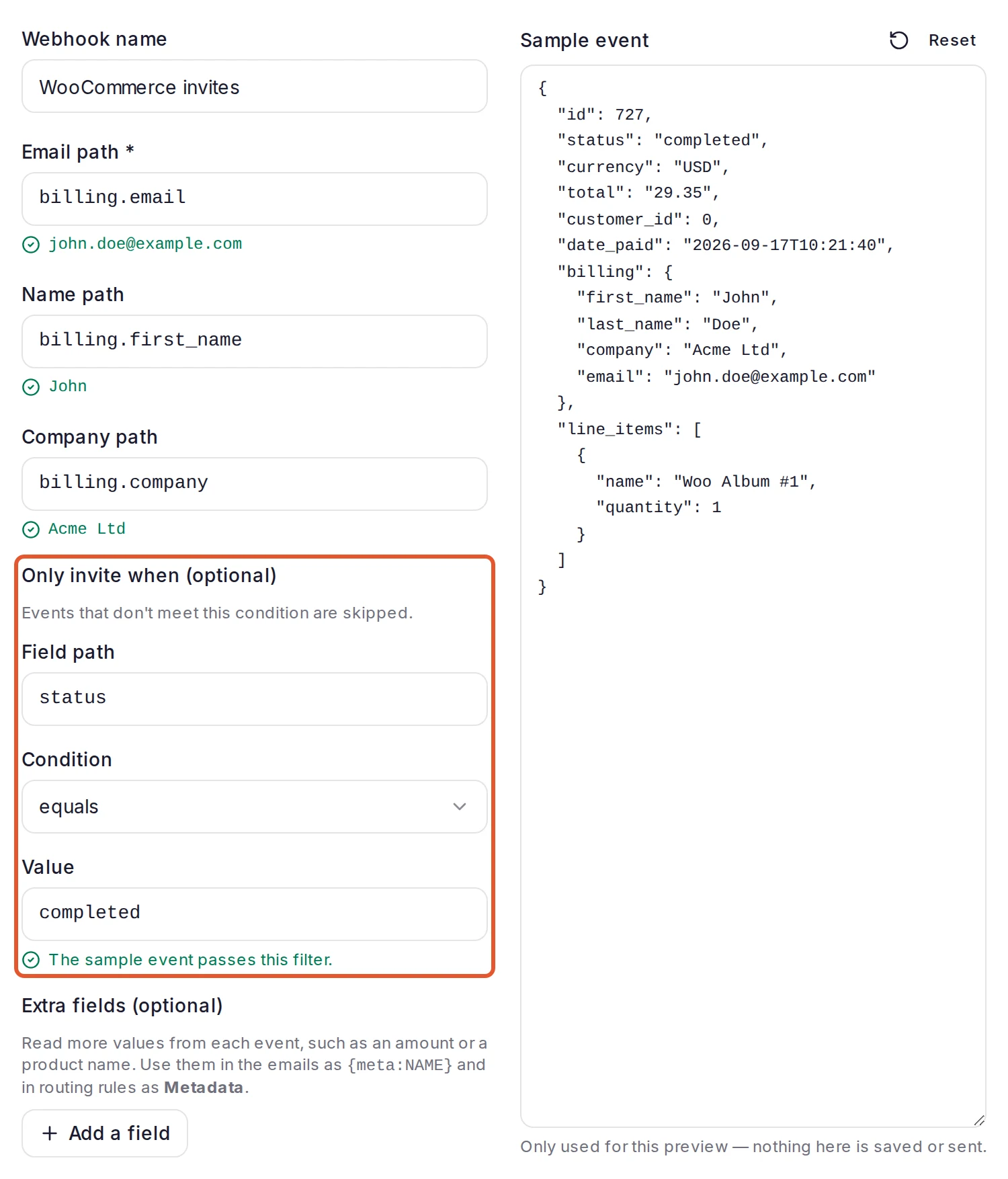
The next step comes filled in for WooCommerce's Order updated event:
| Setting | Filled in | Reads |
|---|---|---|
| Email path | billing.email | The email on the order's billing details |
| Name path | billing.first_name | The billing first name |
| Company path | billing.company | The billing company |
| Only invite when (optional) | status equals completed | The order's status |
The Value is compared exactly, so keep it in lowercase, as WooCommerce sends it. Change the Webhook name if you like, then click Continue.
Choose the form and timing
Pick the Form and Email sequence, set Wait before the first email, and leave Re-invite cooldown (days) above 0 (see When an invite goes out). Click Create webhook, then click Copy next to Your webhook URL. Keep this page open.
Add the webhook in WooCommerce
In WordPress, go to WooCommerce > Settings > Advanced > Webhooks and click Add webhook. In the Webhook data form:
- Name: anything you'll recognize.
- Status: Active.
- Topic: Order updated.
- Delivery URL: paste the webhook URL.
- Secret: type a secret of your own, using letters and numbers only. Don't leave it empty: WooCommerce then signs events with a secret you didn't choose.
- API Version: leave WP REST API Integration v3. The paths above match that version's order data.
Click Save webhook. WooCommerce's own steps are in its webhooks documentation.
Paste the same secret in ReTestimonial
Back in ReTestimonial, paste the exact secret into WooCommerce webhook secret (recommended) and click Save. The page then shows Signature verification is on — unsigned events are rejected. A saved secret can't be viewed again, only replaced from the webhook's Setup tab.
What the save check does
The first time you save the webhook as Active, WooCommerce sends a short check to the Delivery URL. ReTestimonial answers it so WooCommerce accepts the URL. It carries no order: it isn't listed under Activity, invites no one, and the page keeps showing Listening for the first event….
The check isn't signed, so it passes even when the two secrets differ. A wrong secret shows only on the first real order event.
If WooCommerce shows Error: Delivery URL returned response code: 401 or 404 instead, the URL wasn't pasted in full, or the webhook no longer exists in ReTestimonial. Copy the URL again from the webhook's Setup tab.
When an invite goes out
- Order updated fires each time an order changes, not only when it's completed. Events for orders that aren't completed yet, such as a new order that's still processing, are Skipped with "Didn't match your “only invite when” filter". That's expected.
- An order becomes completed when you mark it Completed, usually after shipping. Orders in which every product is virtual and downloadable don't need that step (WooCommerce order statuses).
- To ask as soon as payment is received instead, open the webhook's Settings, change the Value to
processingand click Save changes. - WooCommerce sends events in the background through WP-Cron, so they can arrive a few minutes after the order changes. The first email then waits for your Wait before the first email.
- A completed order that's edited again sends another event, still with the status
completed. The Re-invite cooldown (days) skips it: "Customer was already invited within the cooldown window". At 0, the same customer can be invited again, so keep the cooldown on for WooCommerce.
Test the connection
WooCommerce has no test button beyond the save check. To see a real invite go through, place a test order with an email address you own and mark it Completed. It's a real invite: the email goes to that address, it uses one invite, and the cooldown then applies to that address.
To check the paths without sending anything, use the webhook's Test tab, which starts with a WooCommerce sample order. See Test a Smart Invites webhook. WooCommerce > Status > Logs, with the webhooks-delivery source, shows what WooCommerce sent and what ReTestimonial answered.
If events fail
| What you see | Why | Fix |
|---|---|---|
| Failed: "The signature didn't match…" | The secrets differ, or WooCommerce's Secret was left empty. | Type a new Secret in WooCommerce and click Save webhook. On the Setup tab, click Replace secret and paste the same one. |
| WooCommerce shows the webhook's Status as Disabled | WooCommerce disables a webhook after more than five failed deliveries in a row, often because of a secret mismatch. | Fix the cause, set Status back to Active and click Save webhook. |
| Failed: "No email was found at the mapped path…" | The event has no email at billing.email. | Open the event under Activity to see where the email is, and fix Email path in Settings. If you changed API Version in WooCommerce, set it back to WP REST API Integration v3. |
| Every event Skipped by the filter | No order has been completed yet, or the Value doesn't match exactly. | Complete an order, or set the Value to completed. |
If you stop using it
Pause keeps the URL working: events that arrive are acknowledged and discarded, so WooCommerce doesn't count them as failures. If you delete the webhook in ReTestimonial, also delete it in WooCommerce: in WooCommerce > Settings > Advanced > Webhooks, hover over its name and click Delete permanently. Otherwise its deliveries fail until WooCommerce disables it.
Related
Was this page helpful?
Send invites automatically from Shopify
Ask each Shopify customer for a testimonial once their order is paid or fulfilled, with a Smart Invites webhook your store signs.
Send invites automatically from Gumroad
Connect Gumroad's Ping to a Smart Invites webhook so buyers are invited to leave a testimonial after a sale, and test it safely.