Send invites automatically from Stripe
Ask every customer who pays through Stripe Checkout or a Payment Link for a testimonial, with a Smart Invites webhook.
Connect Stripe to a Smart Invites webhook, and each customer who completes a purchase through Stripe Checkout or a Payment Link gets your testimonial request by email. Smart Invites are on Premium and Business.
This guide covers only what's specific to Stripe. For the form, the emails and the timing, see Send invites automatically with a webhook. For the webhook's activity log, see Smart Invites webhook not inviting customers.
ReTestimonial listens for Stripe's checkout.session.completed event. Stripe sends it for Checkout and Payment Links only, so if your customers pay you another way, nobody is invited.
Create a Stripe webhook in ReTestimonial
In your project, open Invites under Collect, go to the Webhooks tab, click New webhook and choose Stripe.
The next step comes filled in for Stripe's event. Leave these as they are:
- Email path:
data.object.customer_details.email - Name path:
data.object.customer_details.name - Company path:
data.object.customer_details.business_name - Only invite when (optional): Field path
type, Condition equals, Valuecheckout.session.completed. Any other Stripe event is skipped.
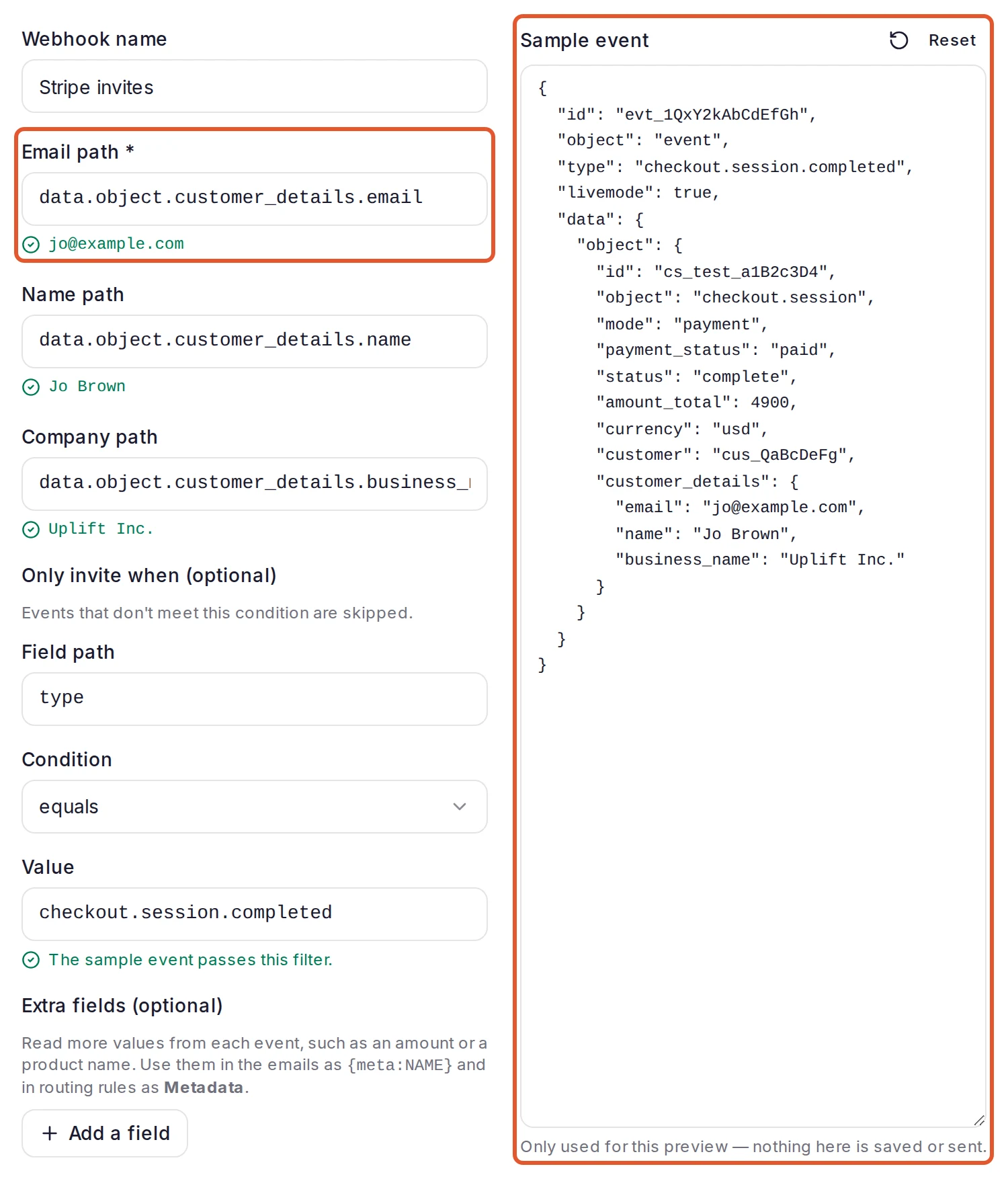
Name and company are optional: when the event has none, the customer is still invited. Click Continue, choose the form, the emails and the timing, then click Create webhook.
Add the endpoint in Stripe
Click Copy next to Your webhook URL. Then, in the Stripe Dashboard:
- Open the Webhooks tab in Workbench and click Create an event destination.
- Select Your account, then select the event
checkout.session.completed. - Click Continue and select Webhook endpoint.
- Click Continue, paste the URL as the Endpoint URL and create the destination.
Stripe's own steps are in its webhooks guide.
Paste the signing secret
On the new endpoint's page in Stripe, click Reveal secret and copy the secret, which starts with whsec_. In ReTestimonial, paste it into Stripe signing secret (recommended) and click Save.
The field then reads Signature verification is on — unsigned events are rejected. From now on, only events signed by Stripe are accepted. The secret can't be viewed again; to change it, click Replace secret on the webhook's Setup tab.
Check the first event
The page shows Listening for the first event… until Stripe sends one. A test-mode purchase (see below) checks the connection without inviting anyone; a live one invites its customer and shows Event received — it works. A skipped or failed event shows its reason under it.
Test mode and live mode
Test mode and live mode are separate in Stripe: each has its own endpoint and its own signing secret, and a ReTestimonial webhook holds one secret. Either test first, then add the same URL in live mode and paste the live secret with Replace secret, or create a second webhook for testing. Events from a mode whose secret isn't saved fail with a signature error.
A test-mode purchase reaches ReTestimonial but is skipped, with the reason "A test event from the platform, so nobody was invited and no invite was used". Nobody is emailed, so it's a safe way to check the connection. Only live-mode purchases invite their customers.
Bank debits and other delayed payments
Some payment methods, such as bank debits, confirm the payment later. Stripe sends checkout.session.completed when the checkout completes, before the money arrives, so these customers are invited even if their payment fails later.
To invite only once a payment has gone through, click Settings on the webhook's page and change Only invite when (optional) to Field path data.object.payment_status, Condition not equals, Value unpaid. In Stripe, select checkout.session.async_payment_succeeded as well, and no other events: that one arrives when a delayed payment succeeds. Click Save changes.
Resends and retries
- Each Stripe event invites once, by its event ID. If Stripe delivers an event again after it invited a customer, or you click Resend on it in Stripe, it counts as Skipped and invites nobody. An event that was skipped or failed, for example because of a wrong Email path or no invites left, is processed again: fix the cause, then click Resend on the event in Stripe. Its line in the Activity tab shows the new result.
- An event rejected for its signature was never handled. Stripe is told it failed and retries it on its own, for up to three days in live mode. Once the right secret is saved, the next retry goes through.
- Skipped events show as delivered in Stripe, and so do events that failed because of what they contain, such as no email found or no invites left: ReTestimonial received them. Read the reason on the webhook's Activity tab.
If you roll the endpoint's secret in Stripe (Roll secret), paste the new one with Replace secret.
If events are skipped or fail
| What you see | Likely cause and fix |
|---|---|
| Failed: The signature didn't match — compare the signing secret on this webhook's Setup tab with the one your platform shows. | The saved secret belongs to another endpoint or to the other mode, or it was rolled. Copy the secret of the endpoint that has this URL, in the same mode, and paste it with Replace secret. |
| Skipped: Didn't match your “only invite when” filter | Stripe sent an event other than checkout.session.completed. Nothing to do, or select only that event in Stripe. |
| Failed: No email was found at the mapped path — check the email path in this webhook's settings. | Set Email path back to data.object.customer_details.email in Settings. |
| Nothing arrives | Check that the destination is in the mode you're buying in, that it listens for checkout.session.completed, and that the webhook isn't paused (events that arrive while it's paused are discarded). Stripe lists each attempt on the endpoint's Event deliveries tab. |
Related
Was this page helpful?
Send invites automatically with a webhook
Connect your store or app with a webhook so each new customer gets a testimonial request by email, and see how many webhooks your plan allows.
Send invites automatically from Shopify
Ask each Shopify customer for a testimonial once their order is paid or fulfilled, with a Smart Invites webhook your store signs.