Import G2 reviews
Connect your G2 product with an API token, import its reviews as testimonials and keep new ones coming with sync and auto-sync.
Bring the reviews your product has on G2 into ReTestimonial. Each review becomes a text testimonial you can approve and show like any other. G2 review import is available on every plan.
The G2 tab offers two ways in:
- G2 Official API: connect your own product with an API token from G2. You can import, sync and auto-sync its reviews. The steps below cover this way.
- Import from Any G2 Product: paste the address of any product page on G2, with no token. It's available on Business; see Import from any G2 product.
Create an API token on G2
Sign in to G2 and create a token on the API Tokens tab in My G2. G2's Integrating with G2 page explains where to find it. Copy the token.
If your G2 account doesn't have access to an API endpoint, G2's API documentation says to ask your G2 account executive about access.
Open the G2 tab
In your project, open Review Platforms under Collect in the sidebar and select the G2 tab.
Connect your product
Under G2 Official API, click Connect Product. In the Connect G2 Product dialog:
- Under Product Name, type your product's name as G2 lists it.
- Paste the token into G2 API Token. If you copied G2's whole header value, starting with
Token token=, that works too. - Click Fetch. ReTestimonial checks the token and shows the product it found, with its G2 address, rating and number of reviews.
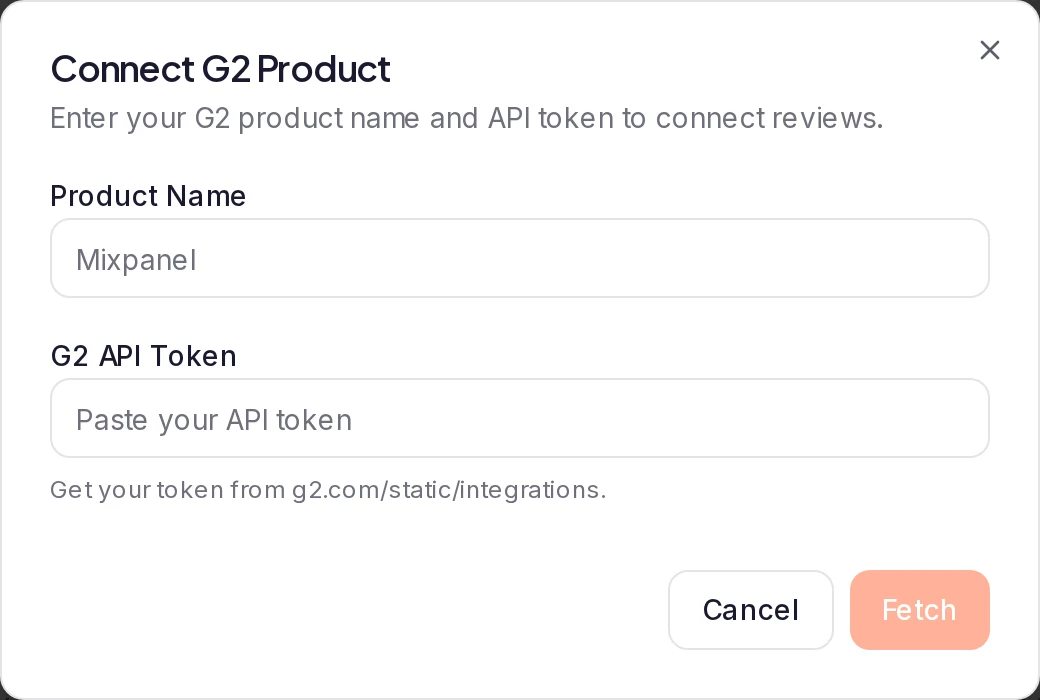
If the preview shows your product, click Connect Product. The product appears as a card on the tab. If it shows another product, or says "No matching G2 product found", change Product Name to the name exactly as G2 shows it and click Fetch again. Connect Product connects the product in the preview. "Invalid G2 API token" means the token was rejected: check that you copied all of it and that your G2 account has API access.
Import reviews
On the product's card, click Import. In the Import G2 Reviews dialog, use the Reviews to Import slider to choose how many reviews to bring in. Tick Auto-approve all imported reviews if you want to skip the Pending step.
To leave out lower-rated reviews, set a Minimum Star Rating. This filter is available on Pro, Premium and Business.
Click the button at the bottom of the dialog; its label shows how many reviews you chose. When the import finishes, a message says how many reviews were new, how many you already had, and how many were left out because your plan's text testimonial limit was reached.
Where imported reviews go
Imported reviews arrive in Pending, where you approve the ones you want to show. If you ticked Auto-approve all imported reviews, they go straight to Approved. You can also find them under All Imports in the sidebar.
Each review comes in as a text testimonial with the review text, the star rating, the reviewer's name and job title, and the review date.
Which reviews are imported
- A review with no general text but with pros or cons comes in with those as its text, written as Pros: and Cons: lines. A review with none of them is skipped.
- A review that comes without a star rating is imported without one, with its stars hidden. With a Minimum Star Rating above one star, reviews below it are skipped, and so are reviews without a star rating.
- A review is never imported twice, even after you delete its testimonial or disconnect and reconnect the product.
- Imported reviews count toward your plan's text testimonial limit. When the limit is reached, the import stops and says so. When only some reviews fit, ReTestimonial imports as many as fit.
Sync and auto-sync
Click Sync on a product's card to bring in reviews you haven't imported yet. When your plan limits syncs, the button shows how many of this month's syncs you've used for that product. Sync imports reviews at every star rating; the Minimum Star Rating filter applies only to Import.
To import new reviews on a schedule, open the menu on the product's card and choose Settings. In G2 Sync Settings, turn on Auto-sync reviews, pick an Auto-sync frequency (Monthly, or Weekly on Business) and click Save Settings. Auto-sync is available on Pro, Premium and Business. For what each setting does, see Keep imported reviews up to date with auto-sync.
In the same dialog:
- Auto-approve synced reviews sends reviews from Sync and auto-sync straight to Approved instead of Pending.
- Notify on new reviews switches the two notifications below on or off.
- In-app notifications adds a notification when an import, a sync or auto-sync brings in new reviews. It's off until you turn it on.
- Email notifications emails the workspace owner when an import, a sync or auto-sync brings in new reviews.
If an automatic sync fails after its retries, the people who manage the project get a G2 reviews couldn't be imported notification. In notification settings, this kind of notification is called Review sync needs attention.
Replace the token or disconnect
The menu on a product's card has View on G2, Settings and Disconnect. Disconnect removes the connection and keeps the reviews you imported; confirm with Disconnect in the dialog.
ReTestimonial stores your token encrypted, and there's no field to change it. To use a new token, for example after you revoke the old one on G2, disconnect the product and connect it again with the new token. If G2 rejects the stored token during an import or a sync, the error says so and tells you to reconnect. Reviews you already imported aren't imported again, and reconnecting doesn't reset the product's syncs for the month.
Import from any G2 product
On Business, the Import from Any G2 Product card on the G2 tab imports reviews from any product on G2 without a token, such as a client's product if you're an agency. On other plans the card shows Upgrade to Unlock.
- On G2, open the product's page and copy its address. It looks like
https://www.g2.com/products/product-name. - In ReTestimonial, click Import from a G2 link and paste the address into G2 Product URL.
- Tick Auto-approve all imported reviews if you want to skip Pending, then click Import Reviews.
Each import brings in a small batch of the product's reviews, fewer than an import through the API can; the dialog says how many to expect. Each review comes in with its title, text and star rating, the reviewer's name, job title and company, any images, and a link to the original review. A review that has no text but does have a title, pros or cons comes in with those as its text, written as the title followed by Pros: and Cons: lines. A review with none of them, or one that G2 lists without an ID or a link, is skipped. These imports have no star filter, sync or auto-sync.
The products you've imported from are listed under Previously Imported, each with how many reviews you've imported from it and the average star rating of the reviews the last import read (not the product's rating on G2). Import More opens the same dialog with the product's address filled in; reviews you already have are skipped. The Monthly usage bar and the line under it show how many reviews and products your workspace has used this month.
Plan limits
These limits apply to products connected with an API token, in each project. When you've connected as many products as your plan allows, Connect Product is unavailable.
| Free | Pro | Premium | Business | |
|---|---|---|---|---|
| Connected products | 1 | 3 | 10 | unlimited |
| Reviews per import | 25 | 50 | 100 | 250 |
| Syncs per product per month | 1 | 2 | 4 | unlimited |
With Import from Any G2 Product, your workspace can import up to 5,000 reviews a month, from up to 50 products. A product counts toward that the first time you import from it in a project, so importing more reviews of a product you already have never uses up a product. When the month has fewer reviews left than one import brings in, the import adds what's left.
Only teammates with import access can connect products, run imports and change sync settings. Everyone else sees this page read-only.
Next steps
Was this page helpful?
Connect a Google Business location
Connect your business's Google listing to a project by searching for its name or pasting a Google Maps link, so you can import its reviews.
Import Capterra reviews
Connect your product's Capterra page to import its reviews in bulk, then keep new ones coming with Sync and auto-sync.