Keep imported reviews up to date with auto-sync
Turn on auto-sync for a connected review listing, choose how often it runs, and decide whether synced reviews are approved and whether you're notified.
Auto-sync brings a connected listing's new reviews into your project on a schedule, so you don't have to click Sync yourself. You turn it on for each listing in its Settings, where you also choose whether synced reviews are approved as they arrive and how you're told about them.
You need a connected listing (for Google, see Connect a Google Business location) and import access to the project: the workspace owner has it, and so does a teammate whose role in the project is Admin. Which plans include auto-sync depends on the platform: see Which plans include auto-sync.
Open the listing's settings
In your project, open Review Platforms under Collect in the sidebar and choose the platform's tab. On the connected listing's card, click the three dots, then Settings.
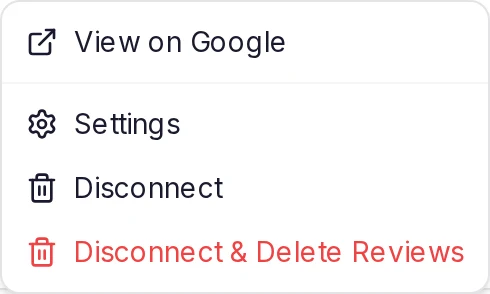
If the menu has no Settings, you don't have import access, and the page shows a Read-only access note. See Roles.
Turn on auto-sync and choose how often
The dialog is named after the platform, such as Google Sync Settings, and what you set in it applies to this listing only. Turn on Auto-sync reviews, then choose an Auto-sync frequency. You can't change the frequency until the switch is on.
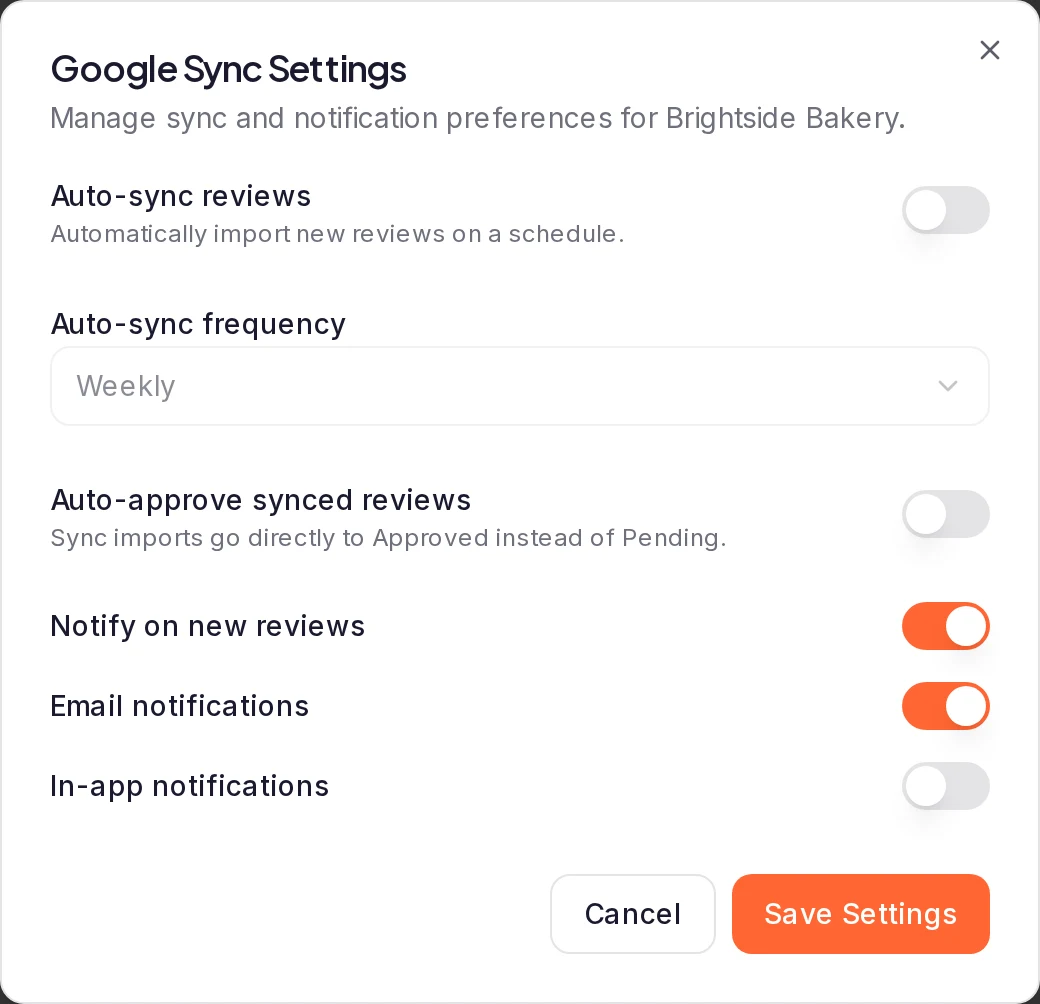
If Auto-sync reviews is off and greyed out, your plan doesn't include auto-sync for this platform.
Choose approval and notifications, then save
Turn on Auto-approve synced reviews if synced reviews should skip Pending, and set Notify on new reviews and the two switches under it. What each setting does explains them. Then click Save Settings.
The listing's card now shows an Auto-sync weekly or Auto-sync monthly badge.
What each setting does
Every platform's dialog has these six settings. Until you change them, auto-sync and auto-approve are off, and you're told about new reviews by email only.
- Auto-sync reviews imports the listing's new reviews on a schedule.
- Auto-sync frequency is how often it runs: Monthly, or Weekly where your plan offers it. See Which plans include auto-sync.
- Auto-approve synced reviews sends reviews from Sync and auto-sync straight to Approved instead of Pending. It doesn't decide for Import, whose dialog has an auto-approve box of its own.
- Notify on new reviews switches the two notifications below on or off together. While it's off, they can't be changed.
- Email notifications emails the workspace owner when an import, a sync or auto-sync brings in new reviews.
- In-app notifications adds a notification in ReTestimonial for everyone who can open the project, when an import, a sync or auto-sync brings in new reviews. Each person chooses which notifications they get: see Notifications.
Booking.com's dialog also has Property name: see Rename a property.
Which plans include auto-sync
| Platform | Auto-sync |
|---|---|
| Pro, Premium and Business | |
| G2, with your API token | Pro, Premium and Business |
| Capterra | Business |
| Product Hunt | Business |
| App Store | Business |
| Booking.com | Business |
| Trustpilot | Business |
| Yelp | Business |
The frequency is Monthly, or Weekly, which only Google (on Business) and G2 (on Business) offer. That's the fastest schedule you may choose, so where Weekly is offered you can still pick Monthly.
Reviews you bring in with Import from Any G2 Product aren't connected to anything, so they have no settings, sync or auto-sync.
When auto-sync runs, and what it brings in
Saving the settings doesn't run a sync. When the first automatic one comes depends on the platform:
- Google and G2: a full interval after you switch auto-sync on, whatever the card's Last synced says. Weekly is a week and Monthly is a calendar month.
- The other six platforms: once 30 days have passed since the listing was last synced, which the card shows as Last synced. If it was last synced longer ago than that, the first automatic sync follows soon after you switch auto-sync on, usually within a day.
After that, auto-sync runs each time that interval has passed since the listing's last sync. A Sync you run yourself counts too, and moves the next automatic one back.
Each run imports the reviews you don't have yet, at every star rating: the filters in the import dialogs apply only to Import (see Can I leave out negative reviews?). Synced reviews count toward your plan's limits like imported ones, and once a platform's reviews for the month are used up, auto-sync brings in nothing more until the next month: see Limits. Auto-sync doesn't use up the Sync button's monthly allowance.
If an automatic sync fails after its retries, the workspace owner and the project's Admins get a notification. In notification settings, this kind of notification is called Review sync needs attention.
Check for new reviews now with Sync
Sync on a listing's card checks for new reviews now instead of waiting for the schedule, whether auto-sync is on or off. What it brings in follows the same settings: Auto-approve synced reviews decides where the reviews go, and the notification switches decide who's told.
When your plan limits how often you can use it in a month, the button shows how many syncs you've used: see Limits. On Trustpilot and Yelp, a sync is queued like an import. Yelp's queue is processed once a day, so its reviews can take until the next day to arrive.
If your plan changes
A listing keeps its auto-sync setting when your plan changes, but auto-sync runs only as your current plan allows, and the badge on the listing's card says what runs:
- On a plan that offers Monthly only, a listing set to Weekly syncs monthly, and its badge reads Auto-sync monthly.
- On a plan without auto-sync for that platform, nothing is synced automatically, and the card has no auto-sync badge. When the plan doesn't include the platform at all, Import and Sync are off too: see Which plans include each platform.
- In a read-only project, auto-sync doesn't run either: see Project is read-only.
You can still open Settings on such a listing and save it: change its notifications or Auto-approve synced reviews, or turn Auto-sync reviews off. On a plan without auto-sync for that platform, once you turn the switch off you can't turn it back on until your plan includes auto-sync again.
When your plan includes it again, auto-sync carries on with the setting you saved.
What happens next
Synced reviews arrive in Pending, or in Approved when Auto-approve synced reviews is on, and you can find them under All Imports in the sidebar. A review can appear on your site once it's approved. A widget's own auto-sync is a separate setting that decides which approved testimonials the widget shows: see Fill a widget automatically with auto-sync.
Was this page helpful?
Import Booking.com reviews
Connect your Booking.com property, import its guest reviews as testimonials and bring in new reviews automatically with auto-sync.
Review import questions
Short answers about importing reviews, from platforms, plans and limits to auto-sync, low ratings, duplicates, edits, source badges and disconnecting.