Connect a Google Business location
Connect your business's Google listing to a project by searching for its name or pasting a Google Maps link, so you can import its reviews.
To connect your business's Google listing, open Review Platforms in your project, click Connect Location on the Google Reviews tab, find the business by its name or with a Google Maps link, then click Connect Location under its preview. Connecting imports nothing by itself: it adds the location to your project, ready for you to import its reviews. You don't sign in to Google.
Connecting a location is available on every plan, and you need to own the workspace or be an Admin on the project. Everyone else sees Read-only access on the page, and no Connect Location button: see Roles.
Open Review Platforms
In your project, open Review Platforms under Collect in the sidebar. The Google Reviews tab opens first.
Find your business
Click Connect Location. In the Connect Google Location dialog, find your business in one of two ways:
- Type your business name under Business name and pick it from the suggestions, which appear after three characters. Each suggestion shows the business's address, so you can tell one branch from another. The dialog fills in Google Maps URL for you.
- Or paste a link to your Google Business Profile or Google Maps listing into Google Maps URL and click Fetch. See Which Google links work.
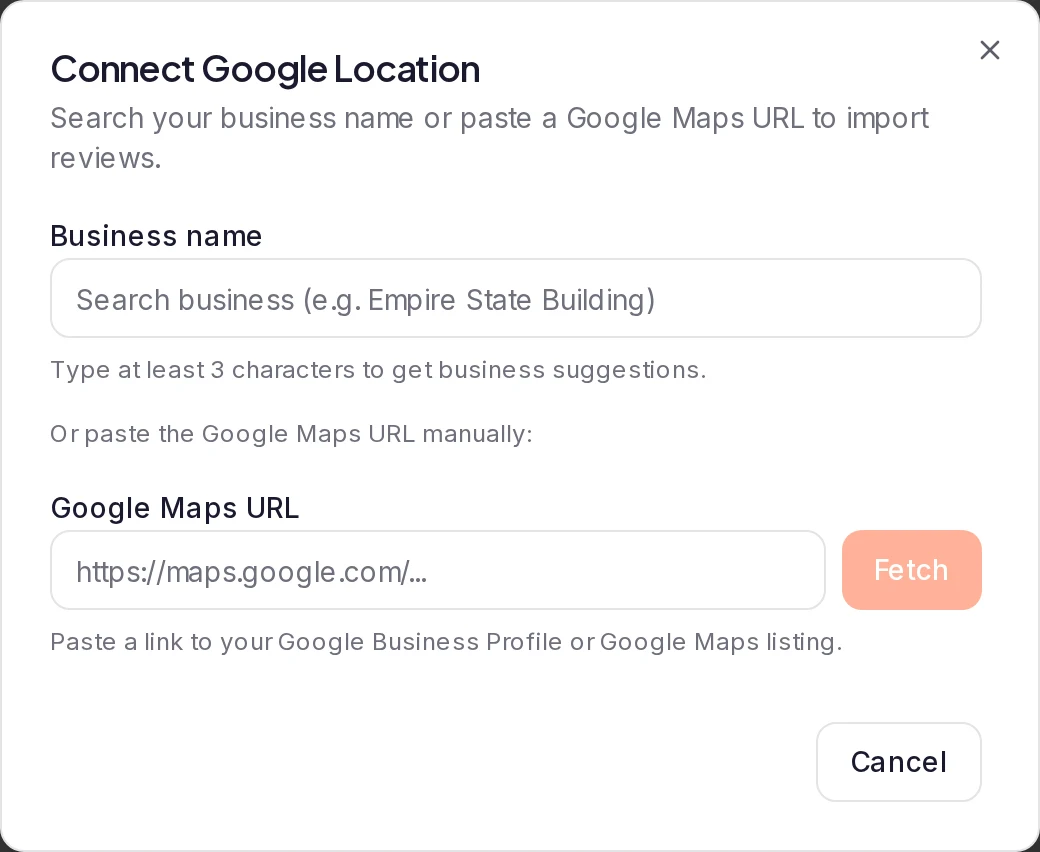
A preview of the business then loads under the fields, which can take a little while. If a message appears instead, see Messages you might see.
Connect it
The preview shows the business's name, address, star rating and number of Google reviews, with up to two Sample Reviews. Check the preview shows the right business, then click Connect Location. The location appears as a card on the tab.
Which Google links work
The Business name search needs no link: the suggestion you pick names the exact listing. When you'd rather paste a link, use one of these:
- The link in your browser's address bar. Open your business's listing in Google Maps and copy the address from the address bar. It's long, starts with
https://www.google.com/maps/place/and holds the listing's own code after!1s. - The link from Share. In Google Maps, open your business's listing, click Share and copy the link. It looks like
https://maps.app.goo.gl/…. Older links that look likehttps://goo.gl/maps/…are read the same way. - A link that holds the listing's place ID, a code that starts with
ChI, such ashttps://www.google.com/maps/place/?q=place_id:ChIJ…. - A link that holds the listing's CID, a long number, such as
https://maps.google.com/?cid=1234567890.
A Google link in another shape may work too: ReTestimonial tries to look the business up on Google Maps and previews the first one it finds, so check the preview before you connect. When it finds none, you see one of the first two messages under Messages you might see.
How many locations you can connect
Each project has its own locations, and your plan sets how many it can connect: 1 on Free, 3 on Pro, 10 on Premium and unlimited on Business. The Locations badge at the top of the page shows how many you've used.
Once you've used them all, Connect Location is turned off. To connect another business, disconnect a location you no longer need, or upgrade: see Disconnect a location and Plans and pricing.
Messages you might see
Messages about the name search show under Business name. The others show in a box under Google Maps URL.
| Message | What it means and what to do |
|---|---|
| Could not extract place information. Please ensure you're using a valid Google Maps URL for a business. | No business was found from the link you pasted. Paste one of the links that work, or search under Business name instead. Could not resolve place information. Please provide a valid Google Maps URL or pick a business from suggestions., shown when you click Connect Location, means the same. |
| Failed to fetch location preview | The business's details couldn't be loaded this time. Try again. If a pasted link keeps failing, search under Business name instead. |
| This Google location is already connected to this project. | The business already has a card on the Google Reviews tab, and a project connects each location once. Close the dialog and use that card. If you looked up your business in the free widget builder before you signed up, your account connected it for you: see Import Google reviews. |
| A message that starts You've reached the limit of and ends Upgrade to connect more locations. | Your project has as many locations as your plan allows. Connect Location is normally turned off by then; you see the message when the limit was reached after you opened the page, for example by a teammate. See How many locations you can connect. |
| Daily autocomplete limit reached for this account. or Daily autocomplete limit reached for this project. | The name search has run out for now. Each pause as you type looks up suggestions once; one person can do that 250 times in a day, and a project 5,000 times. Paste your listing's link into Google Maps URL instead. |
| Too many autocomplete requests. Please slow down., Too many place lookups. Please slow down. or Too many preview requests. Please wait a moment before trying again. | Your project made a lot of lookups in a short time. Wait a minute, then try again. |
| A message that starts This project is read-only or This workspace is read-only | Nothing can be connected until the workspace owner reactivates the project or fixes the payment. See Project is read-only. |
| Any other message, such as Failed to connect location | Something went wrong on the way. Try again in a few minutes. If it keeps happening, contact us with the business's name, the link you pasted and the message, word for word. |
What happens next
No reviews are imported yet. On the location's card, click Import and choose how many reviews to bring in: see Import Google reviews. Auto-sync is off for a new location. To turn it on, see Keep imported reviews up to date with auto-sync.
Was this page helpful?