Review platform imports
How importing from review sites works, from connecting a listing and syncing new reviews to plan limits and where the imported reviews go.
Your customers may already have reviewed you on Google, G2, Capterra, Trustpilot, Yelp, Product Hunt, App Store and Booking.com. The Review Platforms page brings those reviews into your project as testimonials, which you approve and show like any others. Open it from Collect in your project's sidebar.
The Review Platforms page
The page has a tab for each platform, and the Google Reviews tab opens first. The badges at the top show how many connections you've used on each platform, out of what your plan allows.
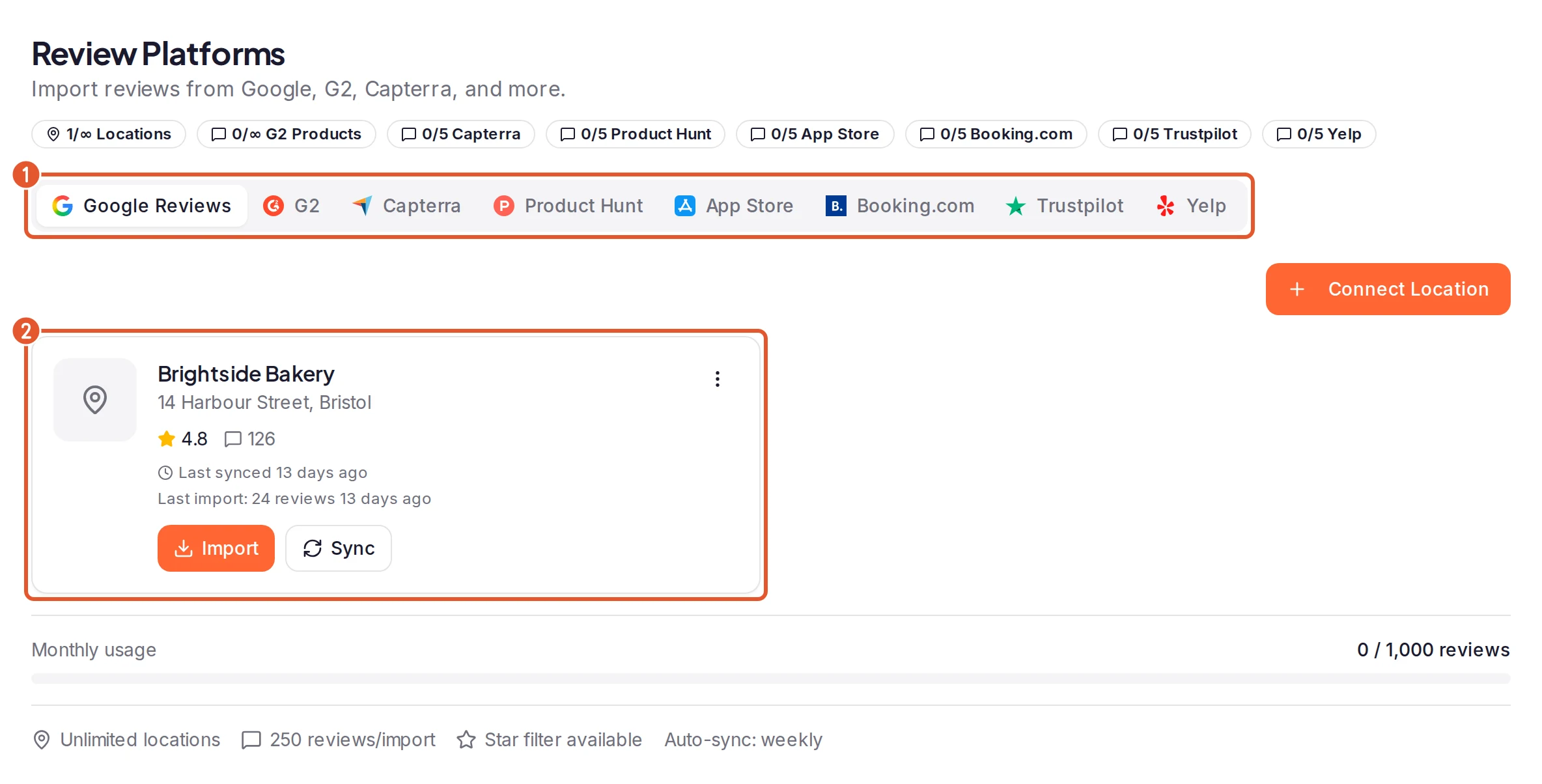
- The platform tabs: one for each platform, with Google Reviews open.
- A connected listing: its card has Import, Sync and a menu (the three dots) with Settings and Disconnect.
Only teammates with import access can connect platforms, run imports and change sync settings. Everyone else sees the page with a Read-only access note. See Invite team members.
How reviews come in
A tab can offer one or more of these ways in.
Connect and sync. You connect your listing once: a Google location, a G2 product, an app in one country's App Store, a Booking.com property, and so on. For G2 you connect with your G2 API token. The listing appears as a card with:
- Import, which brings in reviews now. You choose how many, and you can tick a box to approve them straight away.
- Sync, which checks for new reviews right away.
- Settings, in the card's menu, where you turn on auto-sync for the listing.
Auto-sync imports a listing's new reviews on a schedule, so you don't have to click Sync yourself. It's off until you turn it on, and the same dialog decides whether synced reviews are approved as they arrive and whether you're notified about them. For the steps, the plans that include it and how often it can run, see Keep imported reviews up to date with auto-sync.
Import without connecting. On the G2 tab, Import from Any G2 Product imports the reviews of any product on G2 from its link, with no API token. Nothing is connected, so there's nothing to sync.
Which plans include each platform
| Platform | Connect and import |
|---|---|
| every plan | |
| G2, with your API token | every plan |
| G2, any product | Business |
| Capterra | Business |
| Product Hunt | Business |
| App Store | Business |
| Booking.com | Business |
| Trustpilot | Business |
| Yelp | Business |
Auto-sync has its own plans on each platform: see Which plans include auto-sync.
When your plan doesn't include a platform's connections, its tab shows Upgrade to Unlock. If you connected listings on an earlier plan, they stay on the tab instead: you can open their settings or disconnect them, but Import and Sync are off until your plan includes the platform again. For what a plan change does to auto-sync, see If your plan changes. See also Plans and pricing.
Limits
Each project can connect this many listings per platform:
| Free | Pro | Premium | Business | |
|---|---|---|---|---|
| Google locations | 1 | 3 | 10 | unlimited |
| G2 products | 1 | 3 | 10 | unlimited |
| Capterra products | 0 | 0 | 0 | 5 |
| Product Hunt products | 0 | 0 | 0 | 5 |
| App Store apps | 0 | 0 | 0 | 5 |
| Booking.com properties | 0 | 0 | 0 | 5 |
| Trustpilot businesses | 0 | 0 | 0 | 5 |
| Yelp businesses | 0 | 0 | 0 | 5 |
An import can bring in only so many reviews at once, and most tabs have a Monthly usage bar for the reviews imported this month. Once you've used all your connections, the tab's connect button is turned off. Each platform's guide lists its limits. Plan limits has Google's and G2's side by side.
Sync counts toward a monthly allowance too. When your plan limits it, the button shows how many syncs you've used, such as (1/2), and it turns off when none are left. On G2 each product has its own allowance; on the other platforms, all of a project's connections share one. Disconnecting and reconnecting a listing doesn't reset it.
What happens to imported reviews
- They wait for you in Pending. Imported reviews arrive in Pending unless you ticked the import dialog's auto-approve box. Reviews from Sync and auto-sync follow the listing's own Auto-approve synced reviews setting: see What each setting does.
- No review is imported twice. ReTestimonial remembers every review it has imported into a project. Running Import or Sync again brings in only reviews you don't have yet, and a review doesn't come back after you disconnect and reconnect its listing, or after you delete it. To take a review off your site and keep it, archive it instead: see Review and export imported content.
- Some reviews are skipped. What's skipped depends on the platform. Google, for example, skips reviews with a star rating but no text or photos, Capterra, G2, Trustpilot and Yelp skip reviews with nothing written in them, and some import dialogs let you leave out lower ratings. The platform guides have the details.
- They're labeled. In your inbox, an imported review shows the platform's logo and name, and a second badge names the location, product or business it came from.
- Webhooks hear what you do with them. When you approve, edit, archive or delete an imported review, a project webhook sends that event like any other testimonial's, to each endpoint that has the event ticked. The review's arrival, and its approval when it arrives already approved, are sent only to an endpoint with Include bulk imports and review sync events ticked. See Webhooks.
- You can find them by source. All Imports, in the sidebar, lists everything you've imported, platform by platform (see Imported content). In the inbox, the Source filter shows one platform or specific listings on it (see Filter and search your inbox). A widget's auto-sync can pick them by Sources, under Review Platforms (see Fill a widget with auto-sync).
Disconnecting a listing
Choose Disconnect in a card's menu to remove the connection. The reviews you already imported stay in your project. On Google you can instead choose Disconnect & Delete Reviews, which also deletes every review imported from that location; see Import Google reviews.
If reviews are missing after an import, see Imported reviews are missing. If a listing's link is refused, see Import link not accepted.
In this section
Was this page helpful?
Move your testimonials from Senja or Testimonial.to
Bring your testimonials over from Senja or Testimonial.to as a CSV file, and copy their photos and videos before you close your old account.
Import Google reviews
Connect your business's Google listing, import its reviews as testimonials and keep new ones coming in with auto-sync.