Google reviews for Wix
Add your Google reviews to your Wix site
Search your business below and watch your real reviews fill the widget. Match it to your site, then paste one snippet into an Embed HTML element. You only need an account when you want the code.
The preview opens on an example business. Search yours to see your own reviews — they are imported into your account when you sign up; the example ones never are.
How it works
Step 1
Find your business
Type your business name. Your newest Google reviews appear in the widget within seconds.
Step 2
Match your site
Pick a layout, switch between light and dark, and set your brand colour so the reviews sit well on your Wix site.
Step 3
Paste it into Wix
Create a free account. Your reviews are imported for you, and you get one snippet for an Embed HTML element.
Add the widget to Wix
It takes one Embed HTML element. The size you give it in the editor is the size visitors see.
Copy your widget's code
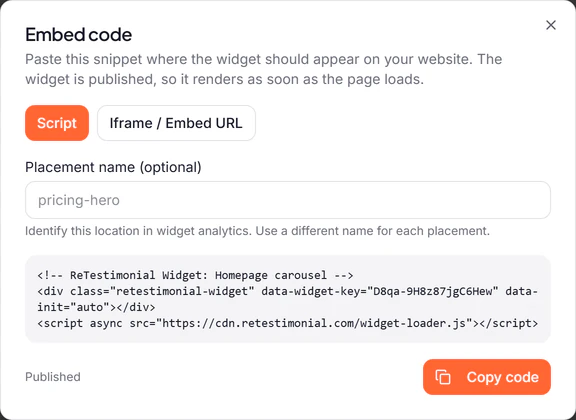
When you sign up, your widget opens with its code ready. Click Publish and copy code. You can copy it again later from Get code in the widget builder.
Add an Embed HTML element
In the Wix Editor, open the page. Click Add Elements, then Embed Code, then Popular Embeds, and choose Embed HTML. Move the element to where the reviews belong.
Paste the code
Click the element, then Enter Code. Paste your code under Add your code here, all of it, and click Apply.
Size the element to fit
Resize the element until the whole widget shows. A widget bigger than its element is cut off or scrolls, and pop-ups it opens stay inside the element too.
Publish and check it
Click Publish, open your live site and check the widget. Check it on a phone as well, and resize the element in Wix's mobile editor if it's cut off there.
Good to know on Wix
On Wix Studio
Click Add Elements, then Embed & Social, and choose Embed Code. Click Enter Code, paste the code and click Apply, then size the element and publish as above.
Change the design in ReTestimonial
Once the widget is published, changes you make in ReTestimonial reach your site with the same code. If the widget grows taller, make the element taller too.
Keep Script selected
If the code window offers Script and Iframe / Embed URL, keep Script, the default. Some styles only work with it.
Something not showing? Read the full Wix guide, with what to check when the widget stays empty.
Questions
- Why is the widget cut off on my Wix site?
- Wix shows the code inside a box whose size you set in the editor, and the widget can't resize that box. Make the Embed HTML element bigger until the whole widget shows, on the computer view and in Wix's mobile editor.
- Is the Google reviews widget free?
- Yes. The free plan imports up to 25 Google reviews at a time from 1 location, and shows them with a small ReTestimonial badge. Paid plans import more and remove the badge.
- Do I have to connect my Google account?
- No. You search for your business by name and the widget shows its public reviews. There is nothing to authorise and no Google login.
- Will the widget clash with my Wix design?
- Your site's CSS rules can't reach inside the widget, and its styles never touch your page. You choose its layout, theme and colour in ReTestimonial to suit your site.
- Can I choose which reviews appear?
- Yes. After you sign up, every imported review sits in your inbox. You decide which ones the widget shows and in what order.
- Do new reviews show up on their own?
- On the free plan you bring in new reviews with one click. From Pro, reviews sync automatically every month for up to 3 locations.
Prefer another look? Browse every widget style.
After you sign up: How Google review import and sync work.
Not on Wix? The same widget works on any website: Google reviews widget.
Wix is a trademark of its owner. ReTestimonial is not affiliated with or endorsed by Wix.