Save the praise you find online, right from the page.
Open the ReTestimonial side panel on a page of reviews and tick the ones you want. It reads the words, the name, the stars, the date and the photo for you, and sends each one to your inbox to approve.
Free on every plan, for Google Chrome. Saving needs a ReTestimonial account.
Lists the reviews and posts on
 X
 LinkedIn
 G2
 Trustpilot
 Capterra
 Yelp
 Google Maps
and saves from any other page you point it at
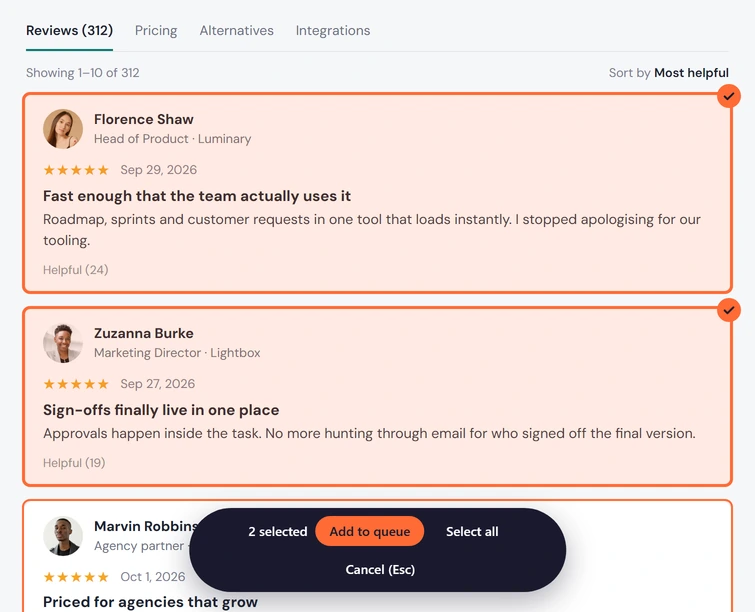
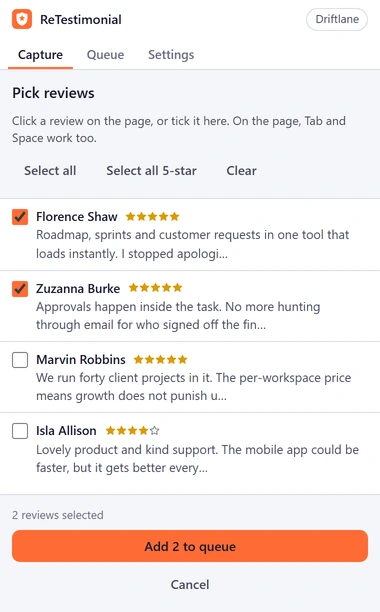
Capture, check, save. Then approve.
No copying and pasting, no hunting for the reviewer's photo, no retyping dates. Every field is read from the page, and nothing is saved until you have looked at it.
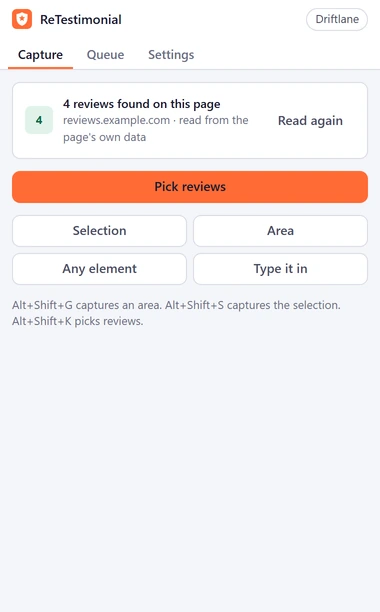
Open the panel on the page
Click the ReTestimonial button in Chrome's toolbar. On X, LinkedIn, G2, Trustpilot, Capterra and Yelp, the panel lists the reviews and posts on the page as soon as it opens.
Check what it read
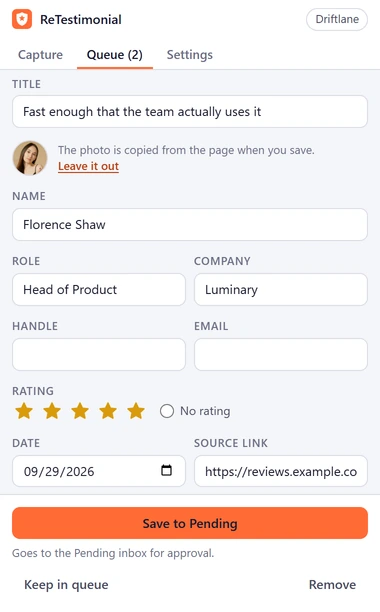
Tick the ones you want, in the panel or on the page itself, and open any of them. Its form already holds the words, name, role, company, stars, date, photo and link.
Save them in one go
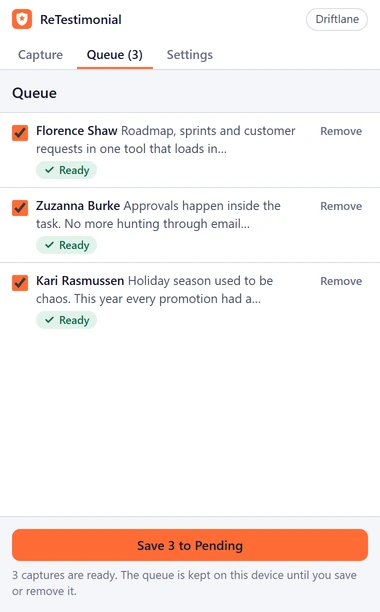
Captures wait in a queue in your browser until you save them, one at a time or all together, to the project you choose.
Approve it, then show it anywhere
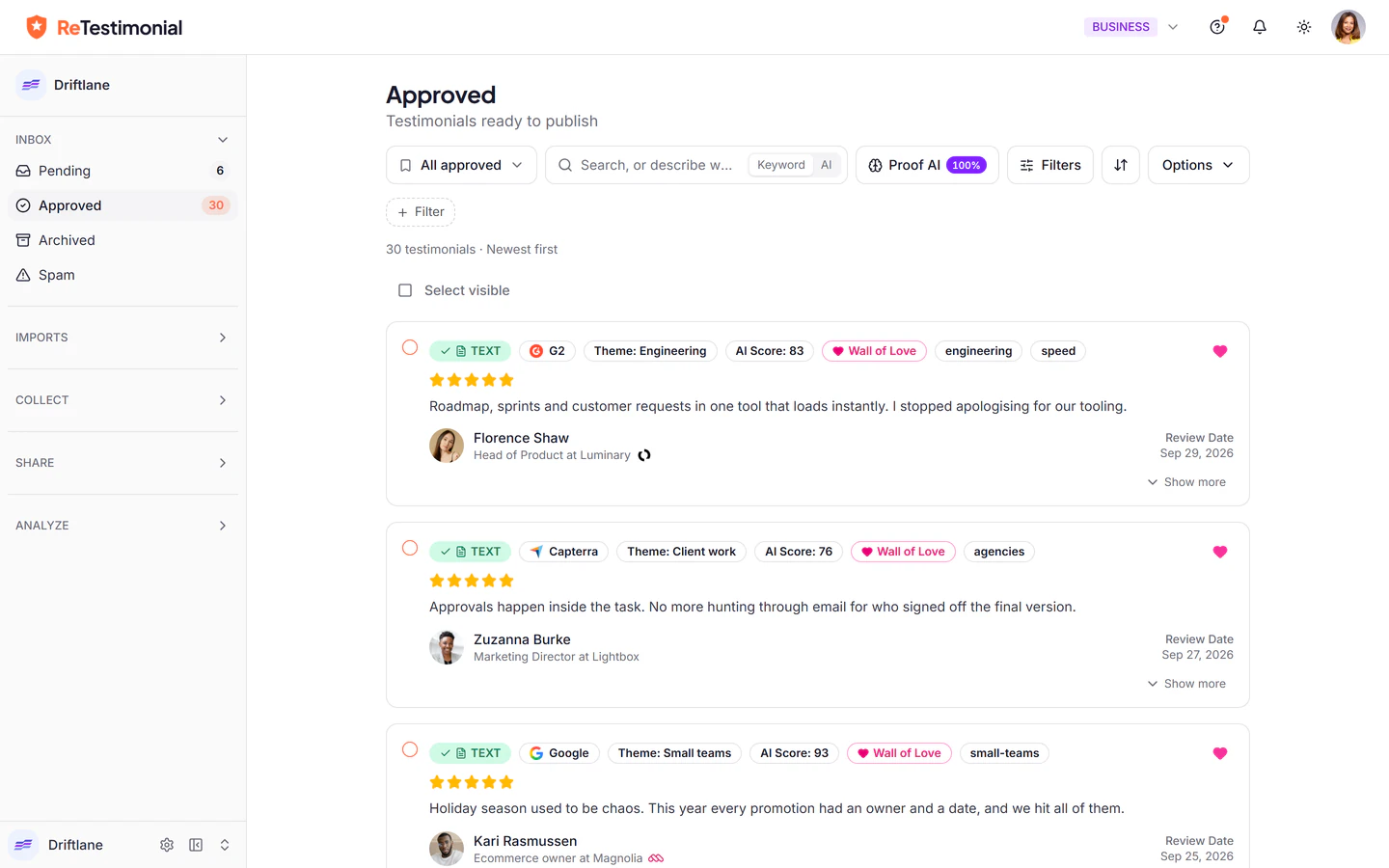
Every capture lands in your project's Pending inbox, beside the testimonials from your forms and imports. Approve it, and it can appear on your widgets, your Wall of Love, share pages, images and videos.
Praise on any other page? Point at it.
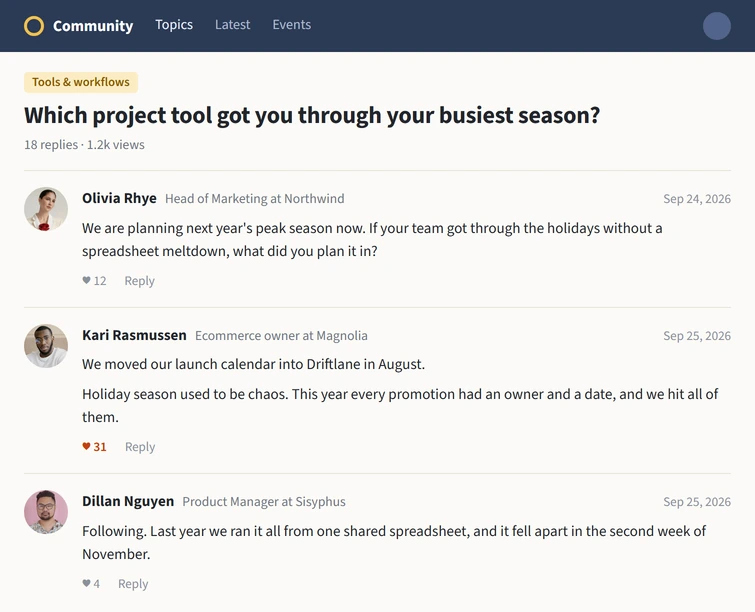
Kind words turn up in forum threads, community posts, newsletters and help desks. On any page, choose the way that suits it, and let AI fill in who said it.
- Any element
- Click the part of the page that holds the praise: a reply, a card, a quote in an article.
- Selection
- Select the words, then right-click and choose Add selection to ReTestimonial.
- Area
- Draw a box around it. The picture is kept with the testimonial, and AI can read the words out of it.
- Type it in
- For praise that came by phone, in a meeting or in person. Same form, same inbox.
Right-click on any page
- Add selection to ReTestimonial
- Pick reviews on this page
- Capture an area for ReTestimonial
Suggested shortcuts
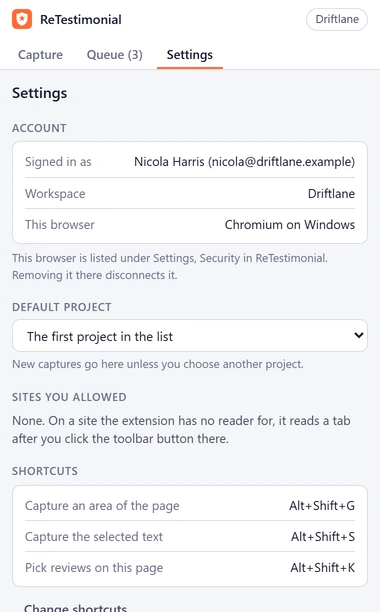
- AltShiftKPick reviews on this page
- AltShiftSCapture the selected text
- AltShiftGCapture an area of the page
Google Maps, too
Open a place's reviews and click the ReTestimonial button: the panel lists them like those on the other sites it reads.
AI fills in the details. The words stay theirs.
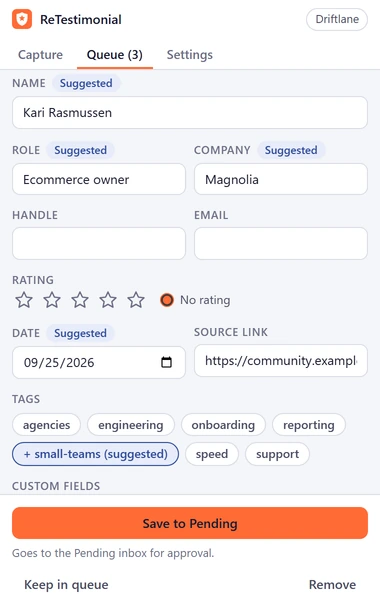
On a page the extension has no reader for, Read with AI looks at the part of the page your capture came from and fills in the name, role, company, rating and date it finds there.
- It never rewrites a quote
- The quote is the words you picked, exactly as the customer wrote them. AI can point at a customer's words; it is never allowed to change them.
- You see what it filled in
- Every field it fills is marked Suggested, so you know what to check before you save.
- It reads pictures too
- Capture an area, and AI reads the words, the name and the stars out of the screenshot.
AI readings a day, per workspace
- 10Free
- 50Pro
- 150Premium
- 400Business
A new allowance each day at midnight UTC, and at most 60 readings an hour for one person. Captures read by the sites' own readers use none.
Everything that makes a testimonial worth showing.
A quote with no name, face or date convinces nobody. The extension brings the rest with it, and tells you when something is missing instead of guessing.
- The whole text
- Where a site cuts a long review short behind More, the review is opened before it is read. If it can't be, the capture says the text is cut off.
- Who said it
- Name, role, company and handle, with their photo, copied to your project when you save.
- Stars and a real date
- The rating as the page shows it. A date the page writes in a way that could mean two days is left for you to fill in.
- The review's pictures
- Up to 10 pictures from the review or post, shown before you save, so you can leave any of them out.
- Proof of where it came from
- The link to the review or post, and, if you switch on Attach a screenshot of the original, a picture of it as it was posted.
- Your tags and fields
- Tag it and fill in your project's custom fields in the same form. A review the project already has is never saved twice.
It reads a page only while you are using it.
An extension that can read web pages should earn that. This one reads the page in front of you only while its side panel is open and you are signed in, and keeps no history of where you have been.
- Only the sites you let it read
- X, LinkedIn, G2, Trustpilot, Capterra and Yelp, sites you choose to always allow, and a tab where you click its button, a shortcut or a right-click item. You can remove an allowed site in its Settings.
- Nothing leaves until you save
- What it reads stays in your browser until you save a capture or ask for an AI reading.
- It never sees your password
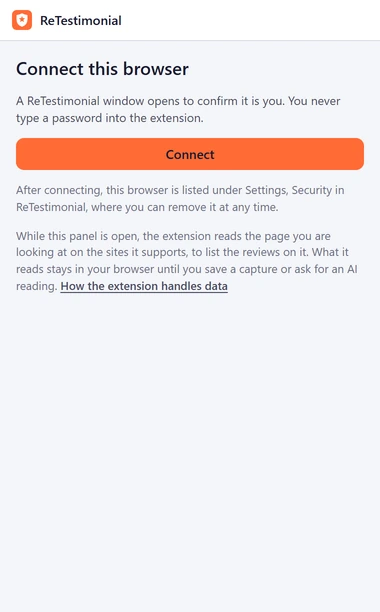
- You confirm the connection in a ReTestimonial window. Each connected browser is listed under Settings, Security, Connected browsers, where you can remove it at once.
A disconnected browser's record is deleted after 30 days. Read what the extension reads and sends
Free on every plan.
Install it on any plan. Plans differ in how many AI readings your workspace gets a day, and the Free plan keeps up to 10 testimonials in the account.
| Feature | Free$0 | Pro$29/mo | Premium$49/mo | Business$79/mo |
|---|---|---|---|---|
| The extension, with every way to capture | ||||
| AI readings a day, per workspace | 10 | 50 | 150 | 400 |
| Testimonials in the account | 10 | Unlimited | Unlimited | Unlimited |
Monthly prices. Paid plans are priced per active project. Compare every plan
Questions
Which browser does it work in?
Google Chrome. Install it from the Chrome Web Store, then pin it to the toolbar so the ReTestimonial button is always in reach.
Do I need a ReTestimonial account?
Yes. The extension saves into your projects, so it connects to your account: the panel's Connect button opens a ReTestimonial window where you confirm, and the extension never sees your password. A free account is enough.
Which sites does it read by itself?
X, LinkedIn, G2, Trustpilot, Capterra and Yelp: open the panel on one of their pages and it lists the reviews and posts it finds. Google Maps works the same once you click the ReTestimonial button on that tab. On any other page, pick the part that holds the praise, select its words, draw a box around it, or type it in.
Does it read every page I visit?
No. It reads the page in front of you only while its side panel is open and you are signed in, and only on sites the browser lets it read. What it reads stays in your browser until you save a capture or ask for an AI reading. It keeps no history of the pages you visit.
Does AI rewrite the review?
Never. Read with AI fills in the details around the words: the name, role, company, rating and date. The quote stays exactly as the customer wrote it, and every field it fills is marked Suggested, so you know what to check before you save.
What if I capture a review I already have?
Nothing is saved twice. When a review is already in the project, the queue says so instead of adding a copy.
Can my team use it?
Yes. Each person installs it and connects their own account. The panel lists the projects they can add testimonials to, and everything they save waits in that project's inbox for approval.
Is it free?
It is free on every plan. Plans differ in how many AI readings a day a workspace gets, from 10 on Free, and the Free plan keeps up to 10 testimonials in the account.
The next kind word you find, keep it.
Add the extension to Chrome, connect your free account, and save the next review you come across.
Chrome is a trademark of Google LLC. X, LinkedIn, G2, Trustpilot, Capterra, Yelp and Google Maps are trademarks of their owners. ReTestimonial is not affiliated with or endorsed by them.